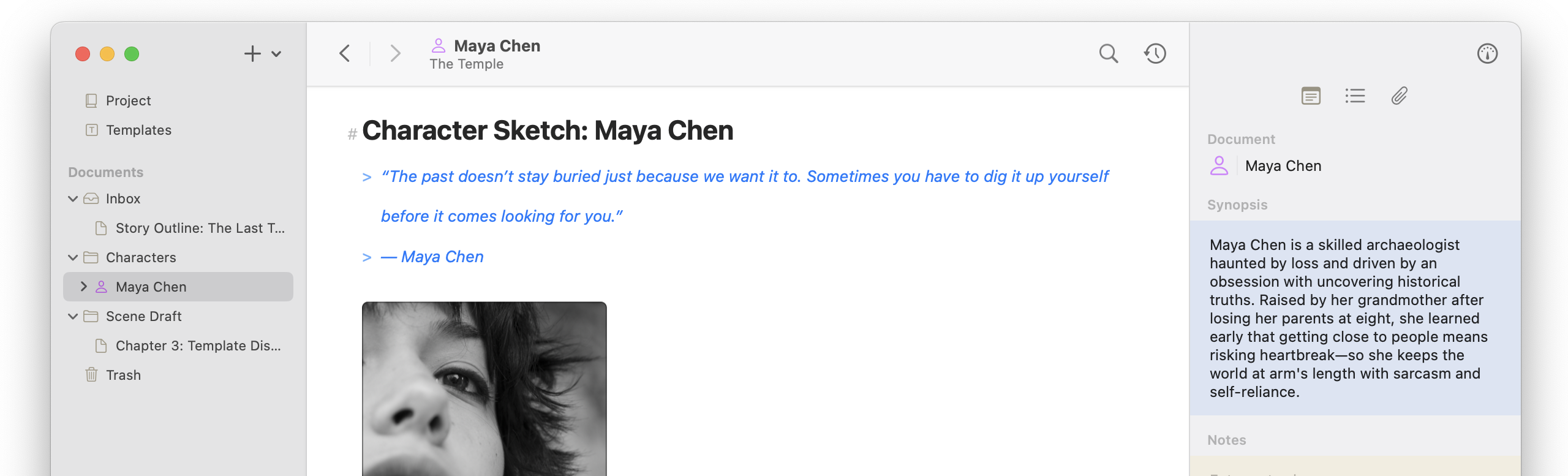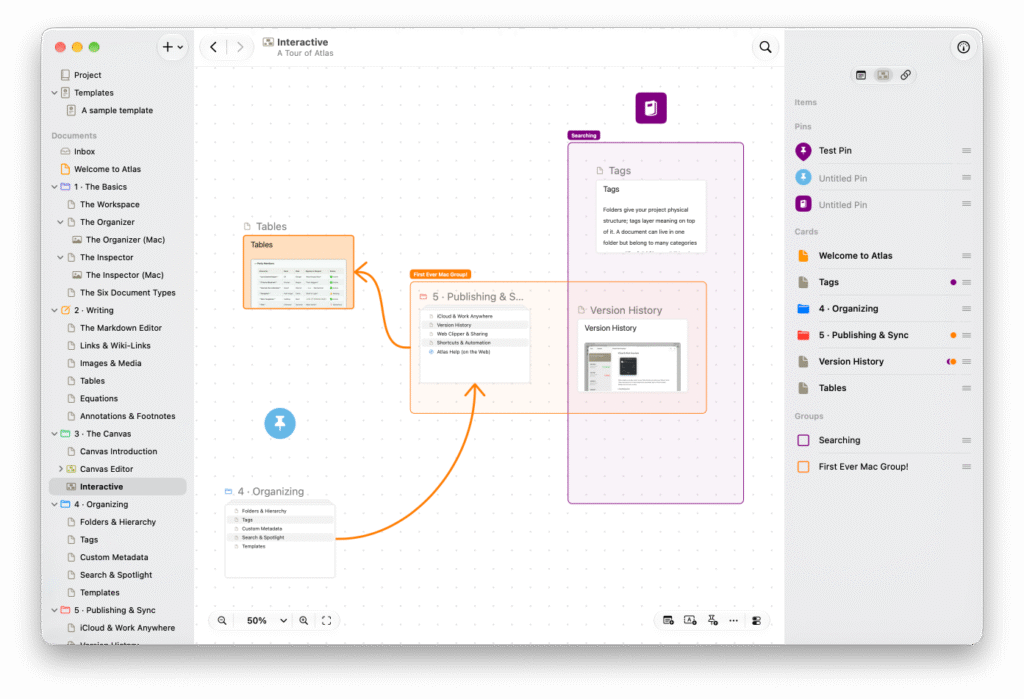
This is a big release for Atlas! The Canvas has been completely reconstructed using the native UIKit and AppKit, dropping just about all of the remaining legacy SwiftUI components. With this, a whole slew of new features have been brought in, among them: Alignment, Distribution, Groups, Multi-Select, a new selection menu, better interactions, improved keyboard support, better zoom and resizing of elements during… there’s so much packed in here.
Look & performance
-
Rebuilt the canvas’s card layer on iOS and Mac for much smoother scrolling, zooming, and dragging, including on large canvases
-
Redesigned most elements and adopted Liquid Glass better
-
Updated card colors, borders, and shadows:
-
Card colors are less intense, and dark-mode defaults are updated
-
Card borders pick up the theme color, and default borders are thicker and keep their width when zooming
-
Text blocks with transparent backgrounds now have a subtle shadow
-
Transparent images hide their borders
-
-
Added a canvas accent color that themes the selection frame, resize handles, and selection box (Canvas Options > Accent Color, with Reset)
-
Redrew many icons so they read better
-
Synopsis cards now use an italic title
-
Custom colors that would be hard to see in light or dark mode are adjusted automatically.
Canvas Groups
-
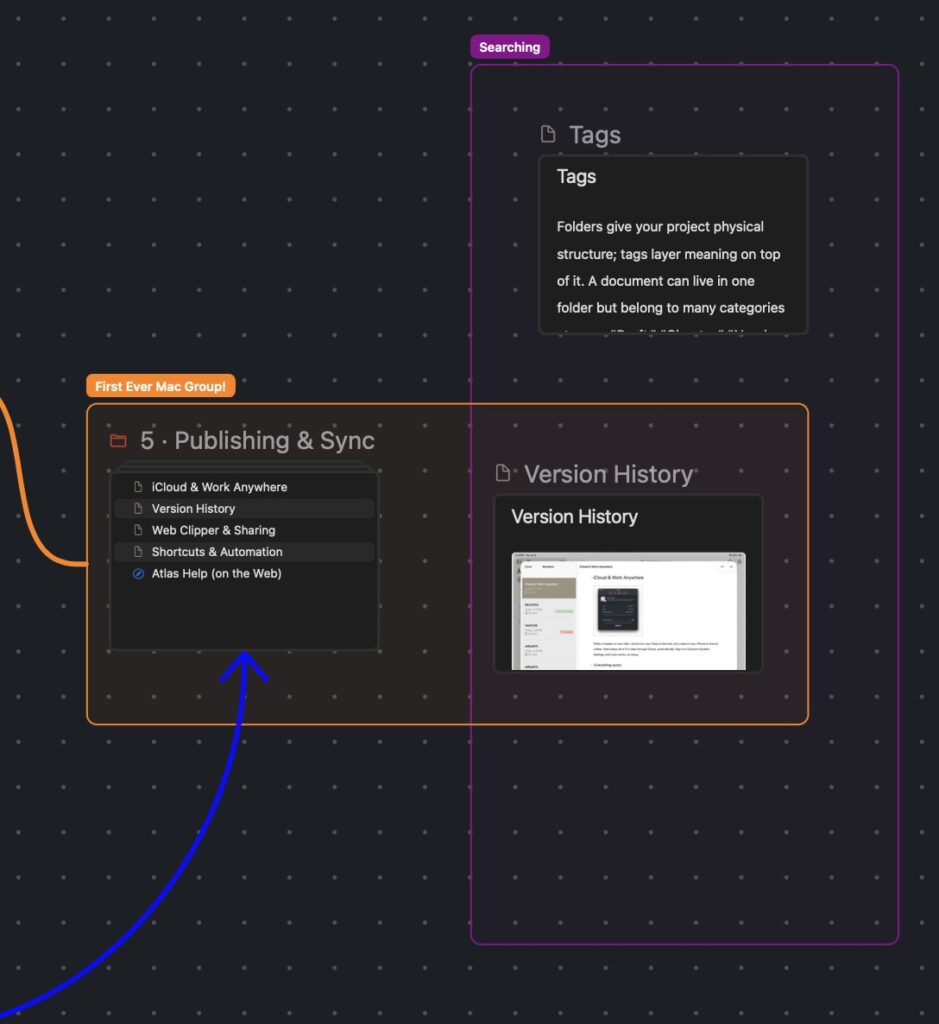
Added groups: labeled frames that gather related items. Create one from the selection bar after selecting a group of items, the background menu, Editor > Canvas > Add to Canvas > Create Group, or with ⌃⌘G
-
Cards, text blocks, and pins that overlap a group belong to it, and groups can nest inside each other
-
Dragging a group moves everything inside it, and locking a group locks its contents
-
Group actions: Rename, Change Color, Select Contents, Resize to Fit Contents, Align Contents, and Delete Group (the items stay on the canvas)
-
Connections can attach to groups
-
Groups appear in canvas previews, in the Inspector, in search (a new Group item type and an In Group token), in Spotlight, and in Shortcuts
-
Groups are preserved when you import or export JSON Canvas files, and node stacking order now follows the JSON Canvas specification
-
Group membership is recalculated automatically after a sync conflict is resolved
Canvas Folder Updates
-
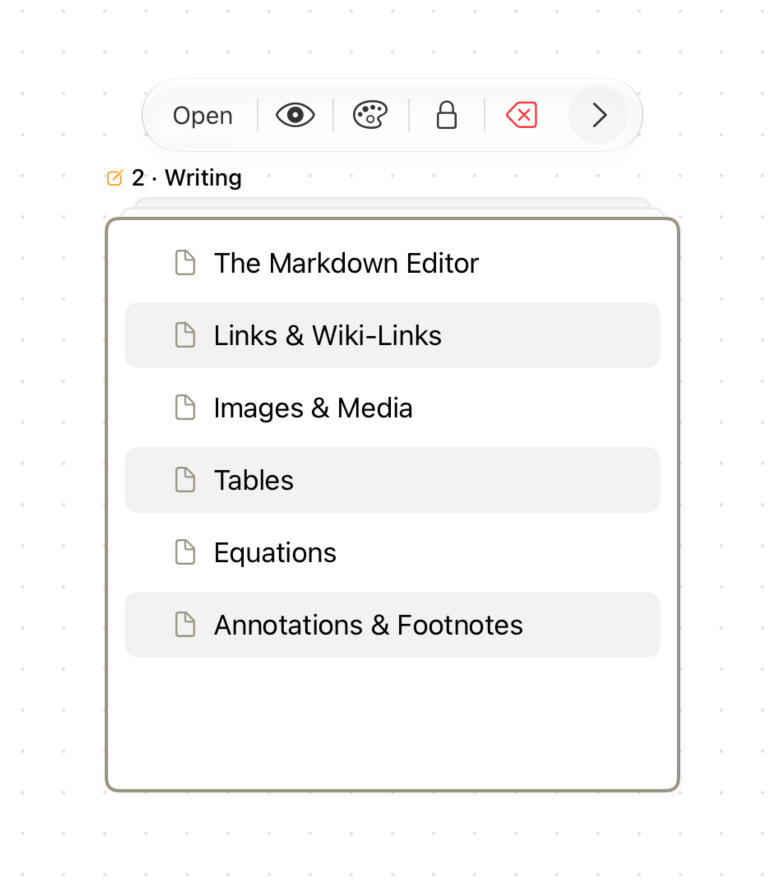
Folders have a new stacked card on the canvas that shows their contents as a live outline. Expand and collapse rows, double-click a row to open that document, or drag a row onto the canvas to create a card for it
-
With a row selected, the arrow keys move through the list while the folder is open. Return opens the row, and Escape clears the selection
-
Folder cards work on iPad and iPhone, with rows sized for touch
-
Folder cards can show Contents or Synopsis from the Display as menu
Align, Arrange, Distribute & Nudge
-
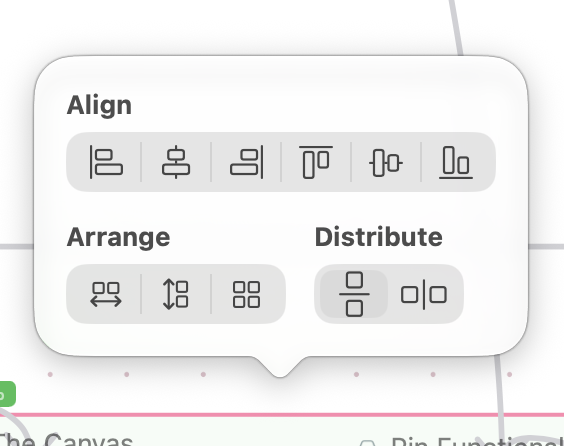
Added Align, Arrange, and Distribute, with a live preview (hover on Mac, press and hold on iOS). Find them in the multi-selection bar or Editor > Canvas > Align, with ⌃⌥⌘ keyboard chords
-
Alignment works on groups, using the group’s frame as its bounds (Align Contents)
-
Nudge selected items with the arrow keys, more holding Shift (grid steps when Snap to Grid is on).
Snapping
-
Snap to Grid is a global setting, on by default (Canvas Options and Editor > Canvas > Grid). It applies to moving, resizing, nudging, and placing. Holding ⌘ inverts it for a single drag or resize
-
Items added from Share, Clip, and Shortcuts land beside the newest card, on the grid when snapping is on
Navigation & zoom
-
New Fit to Selection (⌘2) in the zoom control and View menu. Fit Contents now has a shortcut too (⌘1), and the menu adds Center to Canvas
-
The zoom percentage is editable: click or tap it to type a value (10-300%), and ↑/↓ change it in 5% steps
-
⌘-scroll zooms on Mac, and on iPad with a hardware keyboard
-
Added Overview mode (zoomed out to about 30% or less): document and folder cards show an icon and title so the whole canvas stays readable
-
Pins keep a readable size when zoomed out, and connections stay a consistent thickness.
-
Scrolling and panning:
-
Selection drag and trackpad scrolling now scroll selected text cards
-
Dragging a card to the edge of the view auto-scrolls the canvas
-
On iPad and iPhone, the sidebar and Inspector swipe gestures no longer trigger when interacting with the canvas.
-
-
Navigating to an item from the Inspector, search, or a link centers it accurately in the view
Selection, editing & interactions
-
Multi-select by dragging a selection, by ⌘ or Shift-clicking, or two-finger tap on iOS.
-
Redesigned the selection menu as a floating bar with the same design on every platform. For multiple items it offers Change Color, Lock, Group, Align, and Remove
-
On Mac, the Delete key removes the selected items
-
Holding ⌥ while resizing resizes from the center
-
Holding ⌥ while a document card’s menu is open turns Remove Card into Remove Card and Document (iOS needs a hardware keyboard)
-
Resize handles fade out when they’re not needed
-
Items you add to the canvas are auto-selected
-
Escape cancels drags, resizes, selection boxes, and connection creation
-
Text cards:
-
Edit inline on the card with full editor support (document variables, annotations, footnotes, and autocomplete on Mac)
-
Convert to Text Document is available on text blocks
-
Text cards scroll when selected but not being edited
-
-
Media cards have Quick Look in the selection bar
Connections & pins
-
Connections are easier to grab and reattach, and curves and arrowheads are cleaner
-
Connection labels render at the same size as pin labels
-
Connection colors now sync properly between Mac and iOS
-
Pins update live on the canvas as you edit them, with a new color menu and a larger selection area
-
Pins can show their connection chevrons on demand with Add Connections menu button
Adding content
-
Rebuilt the add bar in the bottom-right corner on Mac and iOS: Add Existing Document, Add Text Block, Add Pin, and Add Media (Photos, Files, Webpage). Click to add at the center of the view, or drag a button onto the canvas to place the item at a spot
-
Tapping the background on iOS or right-clicking on Mac opens an add canvas item menu at that location
-
The canvas’s add document search window automatically closes when you drag documents out of it
-
New cards are placed more sensibly when added externally
-
Double-clicking a nested canvas opens it
Previews & export
-
Canvas previews and thumbnails use one rebuilt pipeline and match the canvas more accurately, including nested canvases and groups
-
Nested canvases update size as they change in the parent canvas
-
Export is now a PNG of the Full Canvas or the Current View. Export as Bundle (a
.canvasfile with its media) is still available-
Note: PDF export of canvases has been removed
-
-
The canvas Inspector has a new Items view with Pins, Cards, and Groups, group-color dots on items, and Mac dividers
Shortcuts & keyboard
-
Move to Trash is now ⌘Delete (was ⌘⇧Delete). It deletes text instead while a text field has focus
-
Canvas shortcuts: ⌃⌘G (Create Group), ⌘1 and ⌘2 (fit), arrow keys (nudge), ⌃⌥⌘ chords (align)
-
Shortcuts: Add to Canvas can add a group, and canvas items expose Group Members and In Groups
Inspector
-
Fixed placeholders not being grayed out in the Inspector (Mac)
-
Web documents on Mac: the controls float over the page and the address is editable
-
Fixed colors being adjusted for clarity when they didn’t actually conflict with light or dark backgrounds
-
Fixed tags in the Outline View appearing stacked instead of side by side (macOS)
-
Reduced memory use and improved performance in Folders (iOS and Mac)
-
Fixed List text options not being editable
Something for newbies: A Preview Mode compliments the trial!
-
Added a free preview mode which allows a free project with up to 25 documents!