Tags and Search
Folders give your project physical structure, but tags let you layer meaning on top of it. A document can live in one folder but belong to multiple categories — "Draft," "Chapter," "Needs Review" — all at the same time. Combined with Atlas's search, tags make it easy to slice through a large project and find exactly what you need.
Creating Tags
Tags are managed per project. Each tag has three properties you can customize:
- Name — A descriptive label (e.g., "Draft," "Character," "Primary Source")
- Color — A custom color that appears alongside the tag throughout the app
- Icon — Chosen from a built-in catalog of over 400 icons across 15 categories, searchable by name and keyword
To create a tag in the Inspector:
- On iOS: Open the Inspector's Overview panel, go to the Tags section, and tap the + button to open the Select Tags picker. Use the Search tags field to filter your project's tags; if nothing matches what you've typed, a Create new Tag row appears — tap it to make a tag with that name and set its color and icon. A tag you create this way is applied to the document automatically, so there's no need to find and tick it afterward.
- On macOS: Open the Inspector's Overview panel and tap the + button. Type a tag's name directly in the search bar to either select an existing tag or create a new one.
Tags can be created, edited, and deleted in Project Settings. On iOS, the Manage Tags editor there has the same Search tags field for finding a tag quickly in a large project.
Tip
Tag colors and icons travel with your project when you export it as an Atlas Project file, so your tag styling comes back intact when the project is imported on another device or shared with someone else.
Hierarchical Tags
Tags support parent-child relationships with unlimited nesting, which is useful when you need categories at different levels of specificity. For example, you might create a "Status" parent tag with "Draft," "Revised," and "Final" as children — or a "Characters" tag with "Protagonist," "Antagonist," and "Supporting" nested beneath it. Searching for a parent tag will also include any children tags as well.
Hierarchical tags let you filter broadly (by parent) or precisely (by a specific child), depending on what you're looking for.
Assigning Tags to Documents
Assign tags from the Inspector > Overview > Tags section while viewing any document. A document can have as many tags as you need — they're not mutually exclusive.
Tags also carry over from templates: when you create a new document from a template, any tags on that template are automatically assigned to the new document. This is handy for ensuring that, say, every new character profile starts with a "Character" tag without you having to remember.
Where Tags Show Up
Once assigned, tags appear in several places:
- The Inspector — alongside the document's other metadata
- The Folder Outline View — toggle tag visibility to see tags beneath each document title, giving you a quick sense of what's what as you scan a folder
- Search results — tags are searchable and can be used as query token filters (see below)
Searching Your Project
The Search Field
The search field sits at the top of the Organizer sidebar. Start typing and results appear instantly — Atlas searches across document titles, body content, synopses, and notes all at once, along with the text on your canvases. A matching pin, card, or label appears as a result, and choosing it jumps straight to that item on its canvas.
When the search field is empty, Atlas shows your most recently edited documents for quick access.
Query Tokens
For more targeted searches, add query tokens to narrow results beyond plain text:
| Token | What it does |
|---|---|
| Text scope | Limit the search to all content or titles only |
| Has synopsis | Show only documents that have a synopsis filled in |
| Has notes | Show only documents that have notes |
| By tag | Filter to documents with one or more specific tags |
| By metadata field | Filter to documents that have a value set for a specific project field |
Tokens of different types combine with AND logic — so filtering by a tag and "has synopsis" returns only documents that match both. Multiple tokens of the same type combine with OR logic — filtering by two tags returns documents with either tag.
Tip
Query tokens and text search work together. You can type a search term and add a tag filter to find, say, every document tagged "Character" that mentions "the forest."
Searching with Metadata
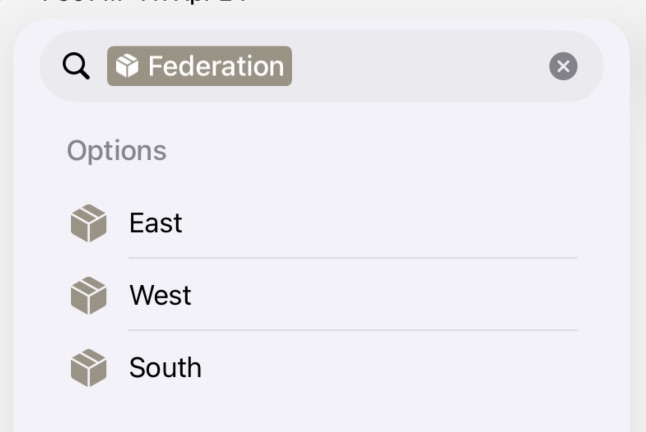
Tapping a Metadata property allows you to select a specific value.
Project metadata fields appear alongside tags in the search token picker. Start typing a field's name and it surfaces as an attribute in the dropdown. Adding a metadata token filters results to documents that have any value set for that field.
For Selection fields, the token stays drillable — tap or click it to choose a specific option and narrow results further (for example, filtering to just documents where "Status" is "Draft").
Metadata values are also folded into Spotlight keywords, so plain text search finds documents by their field values without an explicit token. Typing a value like "Draft" or a character's name will surface any document with a matching metadata value.
For a full overview of how metadata fields are defined and assigned, see Metadata.
Spotlight Integration
Atlas indexes your documents for system-wide Spotlight search, so you can find your writing without even opening the app. Indexed content includes document titles, body text, synopses, notes, tags, and metadata field values. Individual canvas items — pins, cards, and labels — are indexed too, and opening one from Spotlight deep-links straight to it on its canvas. Results display the document's icon and project name for context.
Use Cmd+Space on Mac or pull down on the Home Screen on iPad/iPhone to search for Atlas documents from anywhere on your device.
See Also
- The Inspector — Assigning tags and viewing document metadata
- Using Folders — Combining folders and tags for organization
- The Organizer — Where search lives
- Metadata — Defining fields and setting values on documents