Collaboration
Fox has collaboration built in: share any project with other Fox users, assign issues to collaborators, and track who made every change. Shared projects sync through the same iCloud infrastructure as your own data — they just have more than one person working in them.
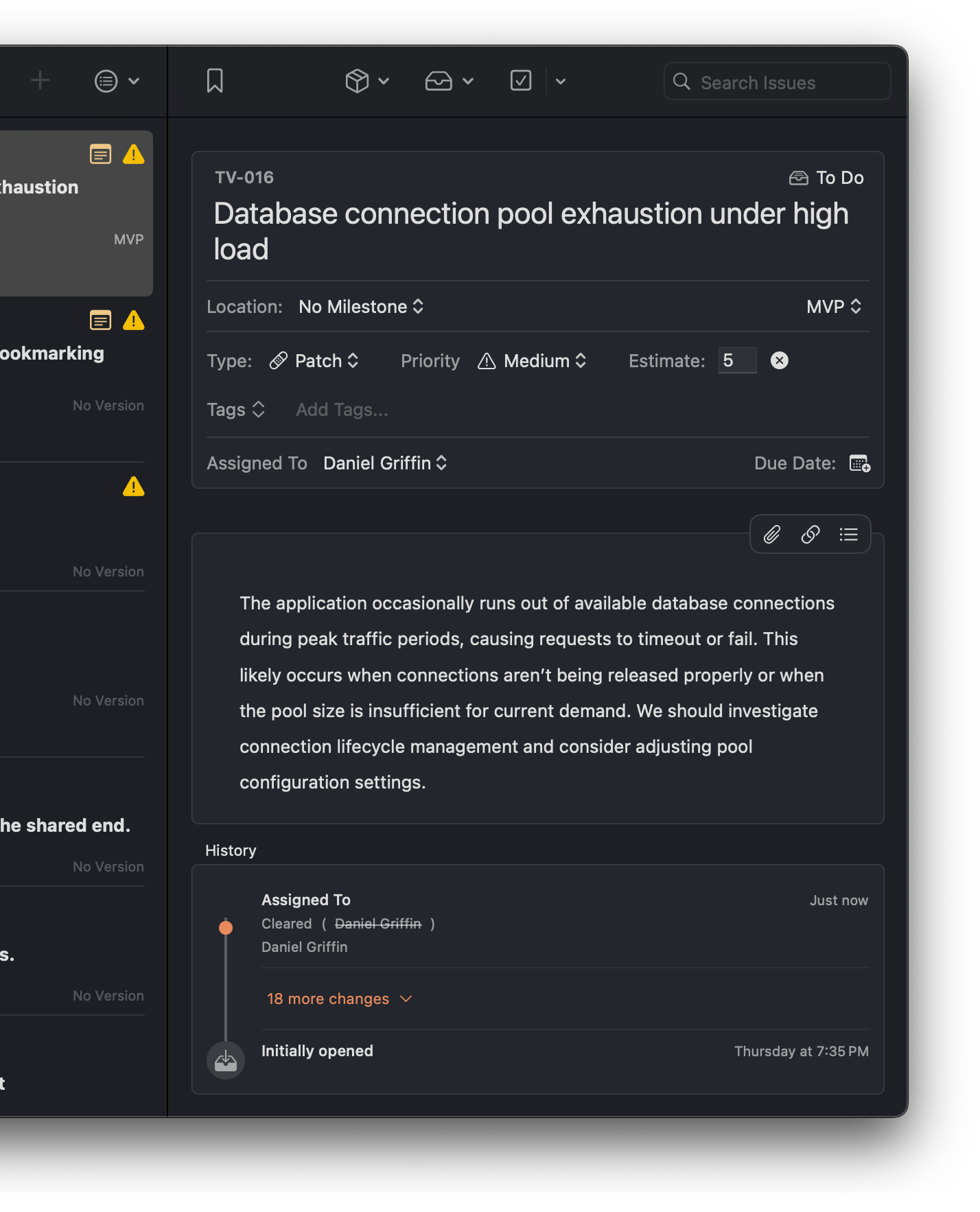
Fox with Collaboration Features enabled
What Collaboration Adds
Once you share a project, you get:
- Shared access via Messages, Mail, or a link
- Per-issue assignment to anyone on the project
- The "Assigned To Me" Navigator group for filtering to your own work
- Per-change attribution in every issue's history
Collaboration is additive — if you're not sharing anything, Fox works exactly the same as before.
Sharing a Project
To share a project with collaborators, open the Manage Collaboration settings:
- macOS — Project → Manage Collaboration
- iOS — Navigator settings menu → Manage Collaboration
From here you can invite people via Messages, Mail, or by copying a link to share directly. Shared projects appear alongside personal projects and sync automatically via iCloud.
Permissions
Sharing splits responsibilities between the project owner (whoever originally created the project) and collaborators (everyone invited).
Collaborators can:
- View all project content
- Create, edit, and close issues
- Manage versions and milestones
- Use the board and all organizational features
Only the project owner can:
- Delete the project
- Change project settings (name, icon, prefix)
- Manage collaboration access
Joining a Shared Project
When someone shares a project with you, you'll receive an invite link. Tap or click the link to add the project to your Fox workspace — it'll appear alongside your personal projects and sync automatically.
Issue Assignments
Every issue has an Assigned To field. In a shared project, each issue can be assigned to one collaborator, or left unassigned.
Use assignments to distribute work, track who's handling what, and filter views to see only your own tasks. To assign an issue, open it and select a collaborator from the Assigned To field.
Assigned To Me
The Assigned To Me Navigator group surfaces all issues assigned to the current user in the current project. This gives you quick access to your own queue without digging through the full issue list.
Add it to the Navigator:
- iOS — Tap Edit in the Navigator sidebar.
- macOS — View → Add Issue Group → Assigned To Me.
History Attribution
In a shared project, issue history tracks not just what changed, but who made the change. Each entry in an issue's history shows the collaborator responsible, alongside timestamps and change descriptions. This turns history from a personal changelog into a team record of how work evolved.
Personal history notes are attributed the same way — when a collaborator adds a note to an issue's timeline, it's labeled "Note added by [name]" so the team can see who left which context. See Issue Properties → History Notes.
See Also
- iCloud Sync — The infrastructure collaboration is built on
- Issue Properties → Assignment — How the Assigned To field works
- Issue Properties → History — Per-change attribution in shared projects
- Projects — Owner vs. collaborator distinctions at the project level