Resolving Issues
Finishing an issue in Fox is more than just checking it off. When you close an issue, you can record how it was resolved — fixed, duplicated, deferred, won't fix — and attach resolution notes that explain the decision. That context is worth gold when you're reviewing a project months later or doing a retrospective.
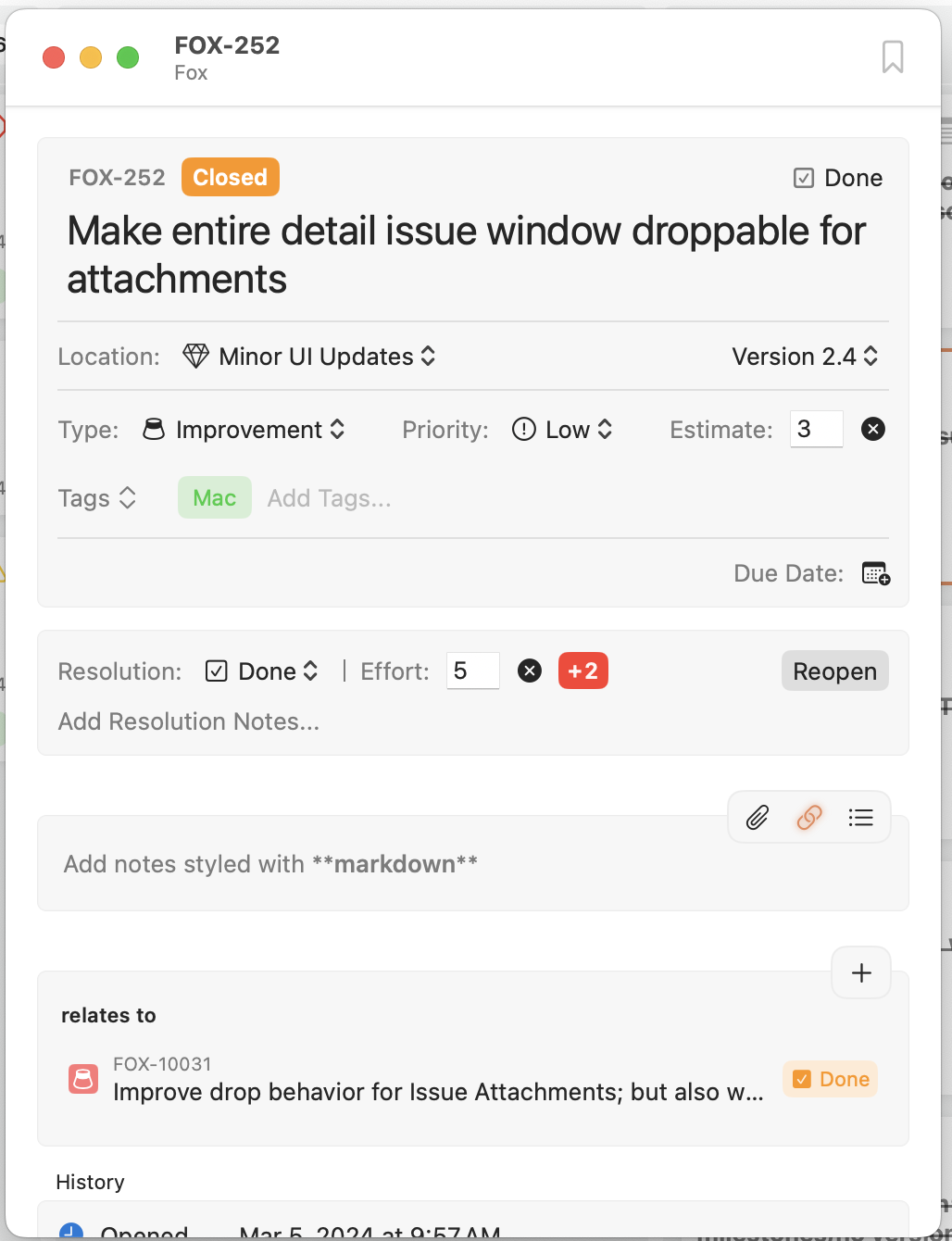
A closed issue on macOS
Closing an Issue
There are two paths to closing an issue:
- Move it to a Done column on the board — Depending on your settings, this either closes the issue silently, closes it with a resolution prompt, or just changes the status without closing. See the Done Status Behavior section below.
- Close it directly from the Issue Detail — Use the close action in the detail view to close the issue explicitly, with or without a resolution.
When an issue is closed, it disappears from the default open-issues view but remains visible in the "Closed" Navigator group and in any "All Issues" scope.
Resolutions
A resolution describes how an issue was closed. Resolutions are project-specific — each project has its own list of resolution types you can customize. Common ones include:
- Fixed — The work was completed as intended.
- Won't Fix — The issue was closed intentionally without being addressed.
- Duplicate — Another issue already covers this work.
- Cannot Reproduce — The issue couldn't be reliably triggered.
Resolutions aren't required. You can close an issue without one, but attaching a resolution gives you a searchable, filterable record of why each issue was closed — and it's the kind of metadata that pays off when you're looking back at what a project actually shipped.
See Customizing Project Attributes for how to define your own resolution types.
Resolution Notes
Alongside the resolution, you can write resolution notes in the same markdown editor used for issue notes. Use resolution notes to capture:
- The commit or change that fixed the issue
- Why something was marked "won't fix"
- Which issue a duplicate was merged into
- Any context someone reading later would want
Actual Effort
Actual effort records the time you actually spent. Comparing actual against estimated over time improves your future planning and makes it obvious when scope has grown.
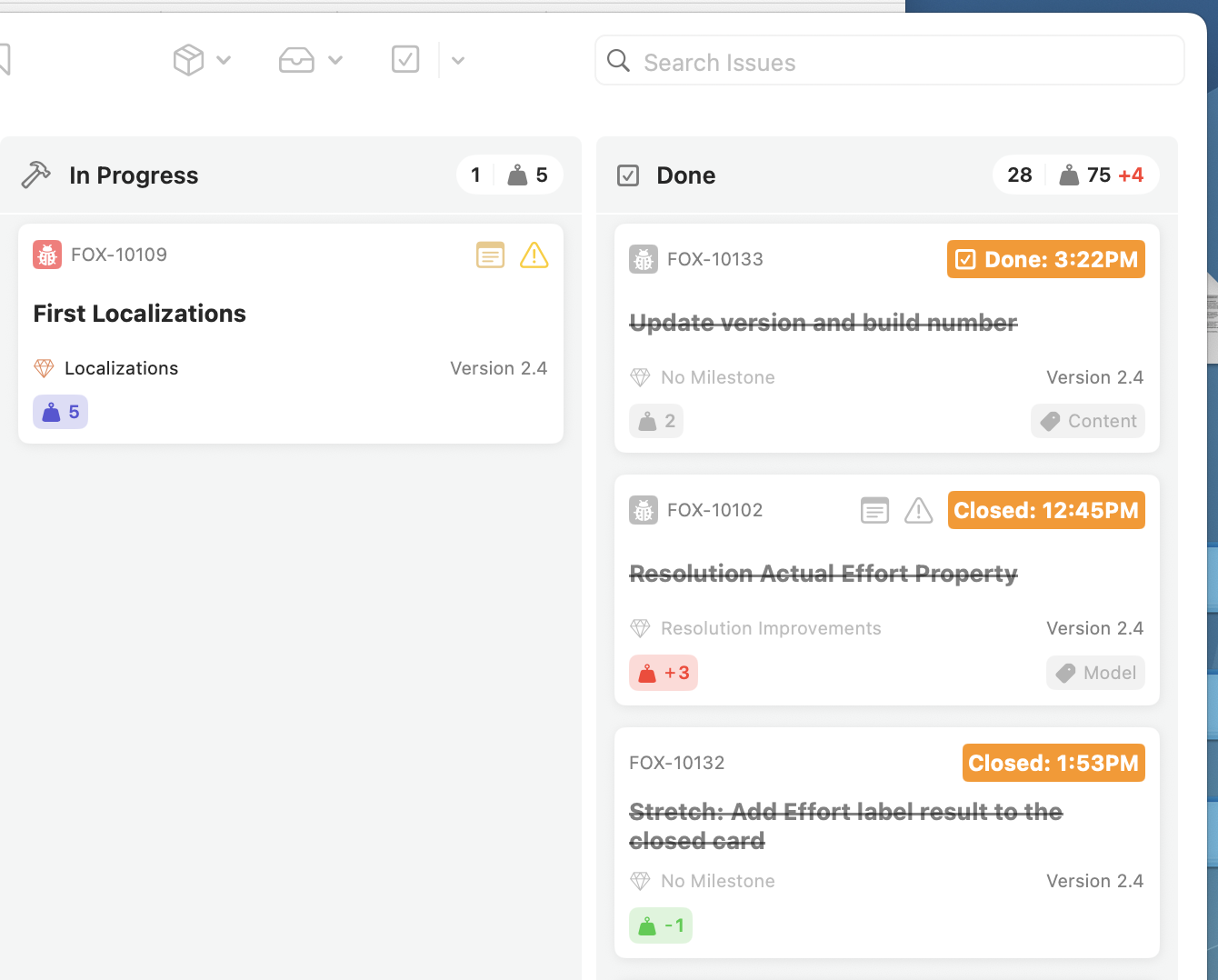
Total Effort in the done status on the Board
Done Status Behavior
What happens when you move an issue into a status from the Done category is configurable in Settings. Three options:
- Do nothing — The status changes; the issue stays open. Use this if you want "Done" columns to be a visual marker without tying closure to them.
- Close only — The issue is automatically closed without a resolution. Fast and low-friction for projects that don't track resolutions.
- Prompt resolution — A resolution picker appears so you can capture how the issue was resolved. Best for projects where you want a clean record of outcomes.
There's also a related setting, Close on resolution, which determines whether selecting a resolution from the Issue Detail automatically closes the issue as well.
Reopening an Issue
Closing an issue isn't permanent. Reopen from the Issue Detail to bring an issue back into the active workflow — reopening is tracked in the issue's history alongside the original close.
When you reopen, the previous resolution stays on the issue as historical context. If you close it again later with a different resolution, the new one overwrites the old on the issue itself, but both are still visible in the history.
See Also
- The Board — The Done category and how board moves trigger closure
- Customizing Project Attributes — Defining your resolution types
- Issue Properties → History — How close/reopen events are tracked
- Issues — The rest of the issue lifecycle