Writing Notes
Every issue and every resolution has a notes field, and every notes field is a full-featured markdown editor. Notes are the place for context — the description of a bug, the design thinking behind a feature, the steps you tried before giving up on an approach. The editor supports rich live-rendering formatting, links to other issues, and inline images.
The markdown editor is powered by NiftyMarkdown, the same engine that powers Contagious Development's writing app, Atlas.
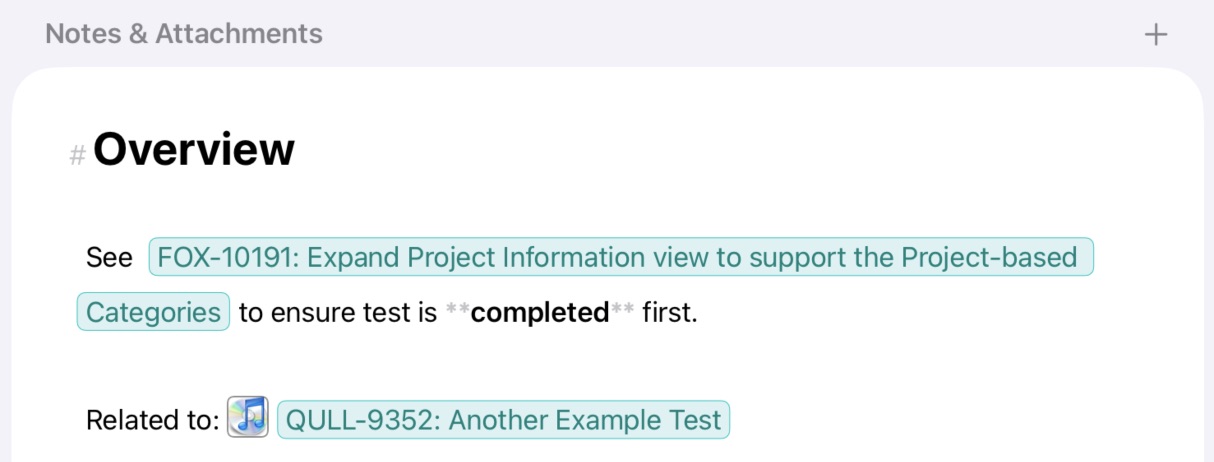
Fox Markdown Example
Inline Formatting
These styles apply to spans of text within a paragraph.
| Style | Syntax | Shortcut |
|---|---|---|
| Bold | **text** |
⌘B |
| Italic | _text_ |
⌘I |
~~text~~ |
⌘U | |
| Highlight | ::text:: |
⌘⇧E |
Inline code |
`code` |
— |
Block Elements
These elements structure longer notes.
- Headings —
#through######for H1 to H6. Use ⌥⇧1 through ⌥⇧6 for H1–H6 on both platforms. H3–H6 are also accessible via Markup → Heading on Mac. - Blockquotes —
>at the start of a line for callouts and citations. - Code blocks — Triple backticks with an optional language identifier for multi-line technical content.
- Horizontal rules —
___on its own line for visual section breaks.
Lists
- Ordered lists —
1. - Unordered lists —
-,*, or+ - Indent / de-indent — ⌘] / ⌘[ to nest list items
Links
Fox has two ways to link from inside notes — one for general URLs, one optimized for referencing other issues.
The Link Editor
Press ⌘K or write [caption] to open the Link Editor, which provides a text field, a destination field, and autocomplete suggestions for issues in the current project. Links can point to web URLs or directly to another issue via the fox:// scheme.
Tapping a rendered link reopens the Link Editor with options to edit the text and destination, open the link, or remove it.
Wiki-Links
Type [[ anywhere in the editor to trigger a floating autocomplete popup showing recent issues. Search-as-you-type narrows the results. Navigate with arrow keys and press Enter (or tap) to select. The completed link displays the issue's title and navigates to that issue when tapped.
Wiki-links are the fastest way to reference another issue while you're writing — no need to leave the keyboard.
Images
The Image Editor
Press ⌘⇧K (iPad) or write ![Caption Text] to open the Image Editor, which supports multiple image sources:
- Web URL — Paste a URL and Fox renders it inline.
- Existing issue attachment — Pick from a grid of the issue's current attachments.
- File picker — Choose a file from disk or iCloud Drive.
- Photo library — Pick from Photos.
Selecting an issue attachment embeds it using a fox://attachment/ URL. The image renders inline and syncs across devices.
Tapping a rendered image reopens the Image Editor with a preview, alt text editing, and options to change the source or remove the image.
Customization
- Line height — The notes editor's line height is configurable in Settings via a multiplier (default 1.25). Bump it up for airier text, down for denser notes.
See Also
- Issues — What notes attach to
- Subtasks & Links — The typed Links section alongside inline wiki-links
- Resolving Issues — Resolution notes use the same editor
- Keyboard Shortcuts — The full markup shortcut reference