List View
The List view is the workhorse mode in Fox — a single column of issues you can scan, sort, filter, and reorder. It's the default for new Versions and Milestones and the only mode available for Issue Groups (All Issues, Bookmarks, By Priority, Due, and so on).
List always shows the detail column alongside it, so selecting an issue immediately populates the right-hand panel without any extra toggling.
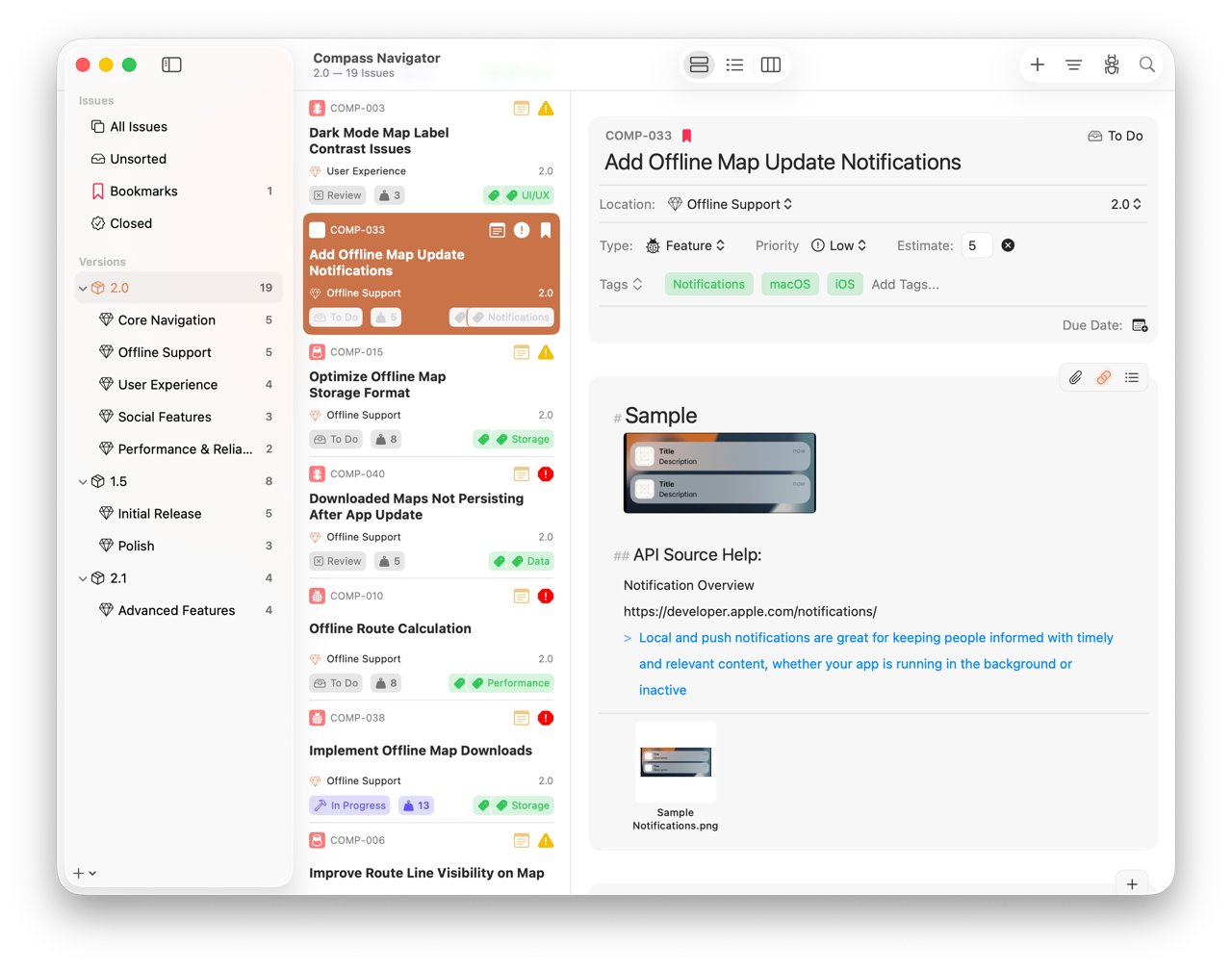
The Workspace Window, showing the Navigator (Left), Issue Browser (Center), and an Open Issue (Right)
What List Is Good For
Reach for List when you want to:
- Move quickly through many issues with the keyboard
- Sort by a property (priority, due date, status, estimate, and others) to triage
- Maintain a manual order — drag issues into the sequence you want to tackle them
- Keep the detail column anchored so you can see the full issue alongside the browser
Sorting
Sort options live in the Filter menu in the toolbar. List supports:
- Title
- Status
- Type
- Priority
- Milestone
- Version
- Date Opened
- Date Closed
- Estimate
- Resolution
- Date Added
- Manual
Toggle Ascending or Descending for any sort. Manual turns off automatic sorting so you can drag issues into a custom order — each group, version, and milestone keeps its own manual sequence, so reordering one location doesn't disturb another.
Filtering
The same Filter menu carries a Show option that scopes the visible issues:
- Open — Only issues that haven't been closed
- Closed — Only resolved issues
- All — Everything in the current location
Filter and Sort settings are remembered per location, so the way you set up a milestone for triage stays that way the next time you open it.
Selecting and Opening Issues
- Single tap / click — Selects the issue and populates the detail column.
- Double tap / click — Opens the issue in a floating window on macOS, or pushes the detail view on iPhone and compact iPad layouts.
- Multi-select — Use shift- or command-click on Mac, or enter Edit mode on iOS to select multiple issues for bulk actions.
- Context menu — Right-click on Mac, or long-press on iOS, for per-issue actions (Bookmark, Type, Priority, Status, Move, Copy…, Delete, and more).
Selected issues respond to the Issue menu and to keyboard shortcuts, so a lot of routine work — closing, tagging, moving between milestones — can be done without leaving the list.
Manual Reorder
When the sort is set to Manual, drag any issue up or down to rearrange. The order is scoped to the current location, so you can prioritize the work inside one milestone without affecting another.
Manual order survives switching to another sort and back — Fox holds onto it in the background.
See Also
- Viewing Issues — How List relates to Outline and Board
- The Workspace — The toolbar, the detail column, and how they behave
- Outline View — The spreadsheet-style alternative when you want every column visible
- The Board — When you want a kanban view of the same location
- Keyboard Shortcuts — Fast navigation through lists