CSV Import & Export
Fox can move issues in and out of a project as plain CSV. Import a batch when you're migrating from another tool, pulling in a spreadsheet from a stakeholder, or seeding a new project. Export when you need to share work outside Fox, hand a milestone over to a stakeholder, archive a snapshot, or feed issues into another tool.
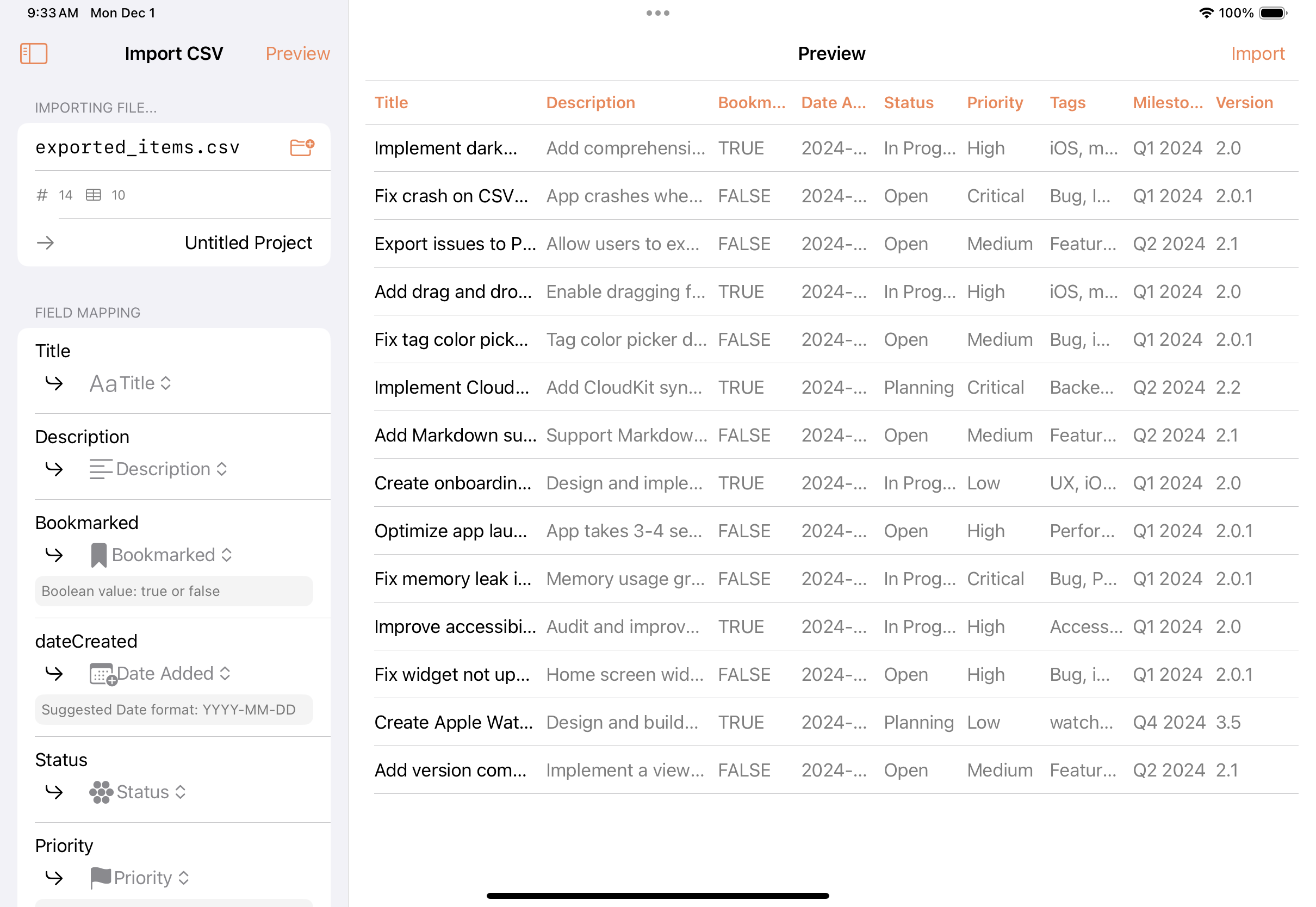
CSV Import on iPadOS
Importing CSV
What You Need
A CSV file with at least one column: title. That's the only required field. Every other column is optional — Fox will fill in the rest with defaults or leave them empty.
Common columns Fox recognizes automatically:
titletype(matched against the project's issue types)priority(matched by name)status(matched against the project's statuses)tags(comma- or semicolon-separated)notes/descriptiondue_dateestimateresolution
Column names don't need to match exactly — Fox does its best to recognize variants — but if a column isn't picked up automatically, you can map it manually in the preview step.
Starting an Import
- Mac — File → Import, then pick your CSV file
- iOS / iPadOS — Project dashboard menu, then Import
Fox opens the import preview with your CSV parsed and columns mapped.
The Preview Step
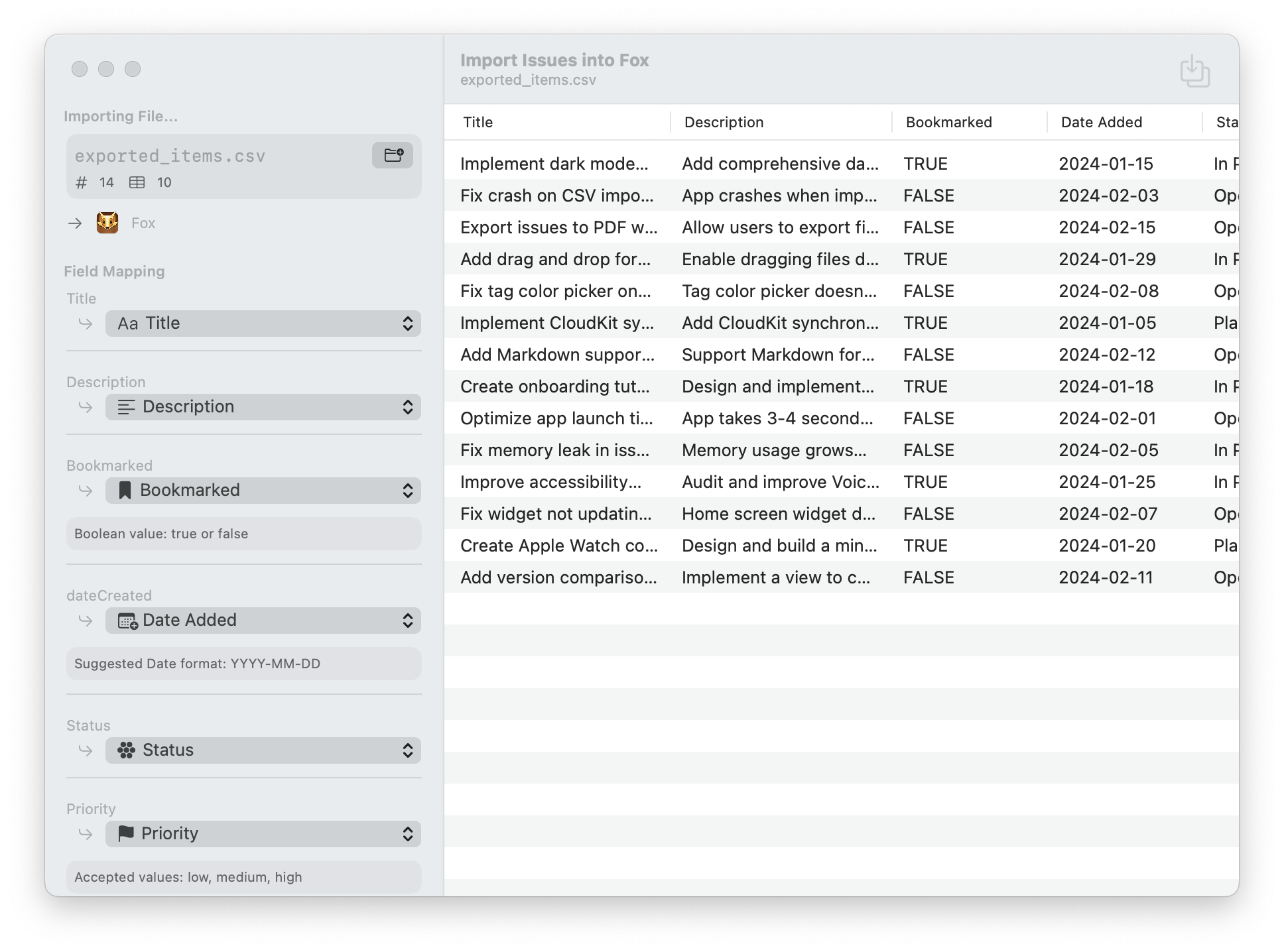
CSV Import on macOS
Before anything is imported, you get a chance to:
- Check column mapping — See which CSV column maps to which Fox field. Change any that aren't right.
- Spot-check rows — Preview the first several rows as they'd appear after import.
- Fix problems — Blank titles, unknown types, mismatched priorities. Fox surfaces what's wrong so you can fix it in the CSV and try again.
Only commit the import after the preview looks right. There's no "undo all" for an import, so getting the preview clean saves time.
Project-Specific Attributes
Priorities, types, statuses, and resolutions are matched against the target project's attributes by name. If your CSV has priority: Urgent but the project only has High / Medium / Low, Urgent won't map — either add the priority to the project first, or update the CSV.
Tags are more forgiving: any tag that doesn't already exist in the project can be created on import.
Tips
- Start with a small test file — Import 5–10 rows first to verify your mapping works before running the full file.
- Use UTF-8 — Save your CSV as UTF-8 to avoid encoding issues with accented characters, emoji, or non-Latin scripts.
- Quote fields with commas — Standard CSV quoting rules apply. If your title contains a comma, wrap it in double quotes.
- Match your project's attributes first — If you're migrating from another tool with different statuses or priorities, configure the new project's attributes before importing so the mapping works on the first try.
Exporting CSV
Fox can export issues to CSV at three different scopes, available on macOS and iOS / iPadOS.
What Gets Exported
The export captures each issue's reference number, title, status, type, priority, version, milestone, due date, estimate, actual effort, resolution, assignment, tags, opened and closed dates, and notes. The output is plain UTF-8 CSV, ready to open in Numbers, Excel, Google Sheets, or feed into another tool.
Starting an Export
- Whole project — Use the Project menu:
- macOS — Project → Export to CSV (in the menu bar)
- iOS — Open the Project menu from the sidebar and tap Export to CSV
- A specific Version or Milestone — Right-click (Mac) or long-press (iOS) the version or milestone in the Navigator and choose Export to CSV from the context menu. Only the issues belonging to that scope are included.
Fox writes a CSV file and offers it via the standard system share / save sheet — pick a destination on disk, attach it to a message, or hand it off to another app.
Round-Tripping
The exported CSV uses column names that the Import step recognizes automatically, so an export from one project can be imported into another with very little massaging. If you export and re-import data this way, configure the target project's statuses, types, priorities, and resolutions to match the source first.
Alternatives
For situations where CSV isn't the right tool:
- One-off issues — Just create them in Fox directly
- Programmatic creation from other apps — Use Shortcuts
- AI-assisted import — Ask an MCP-connected AI to create issues one at a time with the MCP Server
See Also
- Setting Up a Project — Configure attributes before importing
- Customizing Project Attributes — The targets CSV columns are mapped to
- Shortcuts Automation — Dynamic issue creation from other apps
- Issues — What you're creating in bulk