Issues
Issues are the core work unit in Fox. Every task, bug, feature request, idea, and TODO you want to track lives as an issue inside a project. At minimum, an issue needs a title — everything else is optional and additive. Start with a one-line title for a quick capture, or fill in properties, notes, subtasks, and links when the work deserves more structure.
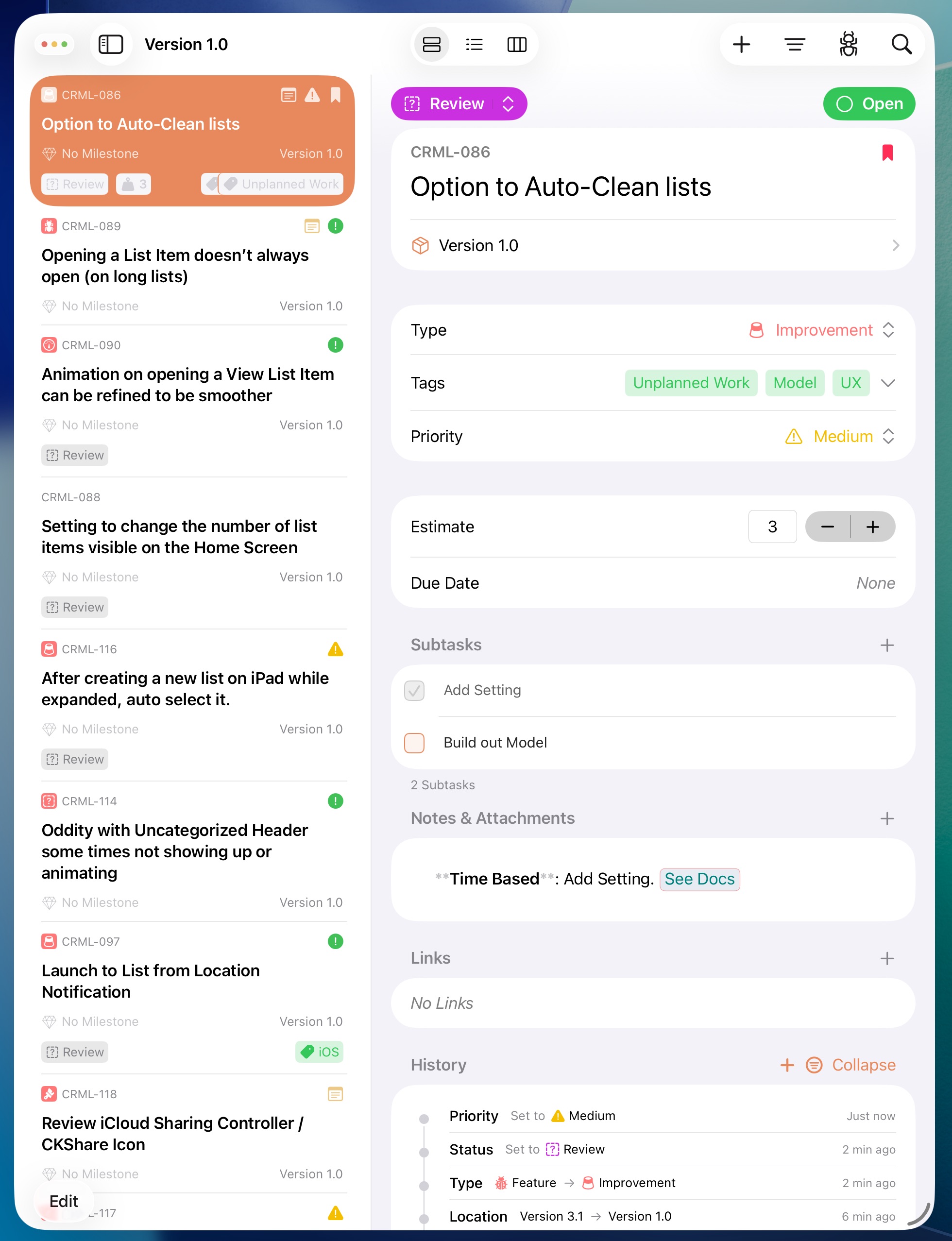
An example of an Issue in Fox on iOS
The Anatomy of an Issue
Every issue has three things baked in from the moment it's created:
- Title — The only required field. A short description of what the issue is about.
- Reference number — Auto-assigned per project, using the project prefix plus an incrementing number (e.g.,
FOX-001,FOX-042). References are stable and unique within a project.
Beyond these, everything else on an issue is optional. The rest of the properties — notes, type, status, priority, tags, dates, estimates, subtasks, links, attachments, assignment, resolution, history — are covered on their own pages:
- Writing Notes — Format rich markdown notes with headings, lists, code blocks, links (including wiki-links), and inline images
- Issue Properties — Type, status, priority, tags, due dates, estimates, and actual effort
- Subtasks & Links — Breaking issues down and connecting them to each other
- Resolving Issues — Closing issues with a resolution, and reopening them
Creating Issues
The Add button in the toolbar creates an issue scoped to whatever you're currently viewing:
- From the project view — Adds to the project with no version or milestone assigned (lands in Unsorted).
- Inside a version or milestone — Adds directly to that version or milestone, regardless of which view mode (List, Outline, or Board) is active.
- From an Issue Group — Adds to whatever group is currently selected, when adding from that context makes sense.
You can also create issues without opening Fox at all:
- Shortcuts — The Shortcuts app has a
Create Issueaction supporting title, status, priority, type, tags, subtasks, due date, estimate, notes, and attachments. See the Shortcuts guide. - CSV import — Import many issues at once from a spreadsheet. Only the title column is required. See the CSV Import & Export guide.
- MCP — On Mac, the built-in MCP server lets AI tools like Claude create and update issues programmatically. See the MCP Server guide.
Editing Issues
Tap or click an issue in the Issue Browser to open it in the Issue Detail view, where you can edit every property. On iPad, issues opened from outside the workspace (Spotlight, deep link, another app) get their own independent floating window so you can keep multiple issues visible at once.
Every change you make is tracked in the issue's history — see Issue Properties → History for what's recorded and how edit coalescing works.
Bookmarks
Bookmarks flag issues you want to return to quickly. Bookmarked issues can be surfaced as their own Navigator group for one-click access. Use bookmarks for anything you're actively tracking — a blocker you're waiting on, a decision you need to revisit, or a change you want to sanity-check before closing.
Deep Linking
Every issue is addressable via the fox:// URL scheme using its reference number:
fox://issue/FOX-042
Opening a fox:// link switches to Fox and navigates directly to the issue.
The Copy… Submenu
Issue context menus across every view (List, Outline, Board, and the detail panel) include a unified Copy… submenu:
- Copy Link to Issue — Copies the
fox://issue/PROJECT-XXXdeep link. Paste it into notes, Slack, email, or anywhere a URL goes. - Copy Reference Number — Copies just the
PROJECT-XXXreference, for use in commit messages, PR descriptions, or anywhere you want the bare ID.
On macOS, the reference number chip in the issue detail also offers these copy actions directly. Edit → Copy Path to Issue (⌘⌥C) is still the keyboard shortcut for copying the link of the currently open issue.
See the URL Scheme guide for more on fox:// URLs.
See Also
- Issue Properties — Type, status, priority, tags, dates, estimates
- Writing Notes — The markdown editor and inline attachments
- Subtasks & Links — Breaking down and connecting issues
- Resolving Issues — Closing with a resolution
- The Board — Moving issues through your workflow visually