Customizing Project Attributes
Every project comes with sensible defaults for statuses, issue types, priorities, resolutions, tags, and link types — but Fox is built on the idea that different projects need different workflows. A client engagement might need different statuses than a personal side project; a design project might need different link types than a bug tracker. All of these attributes are project-specific and fully customizable.
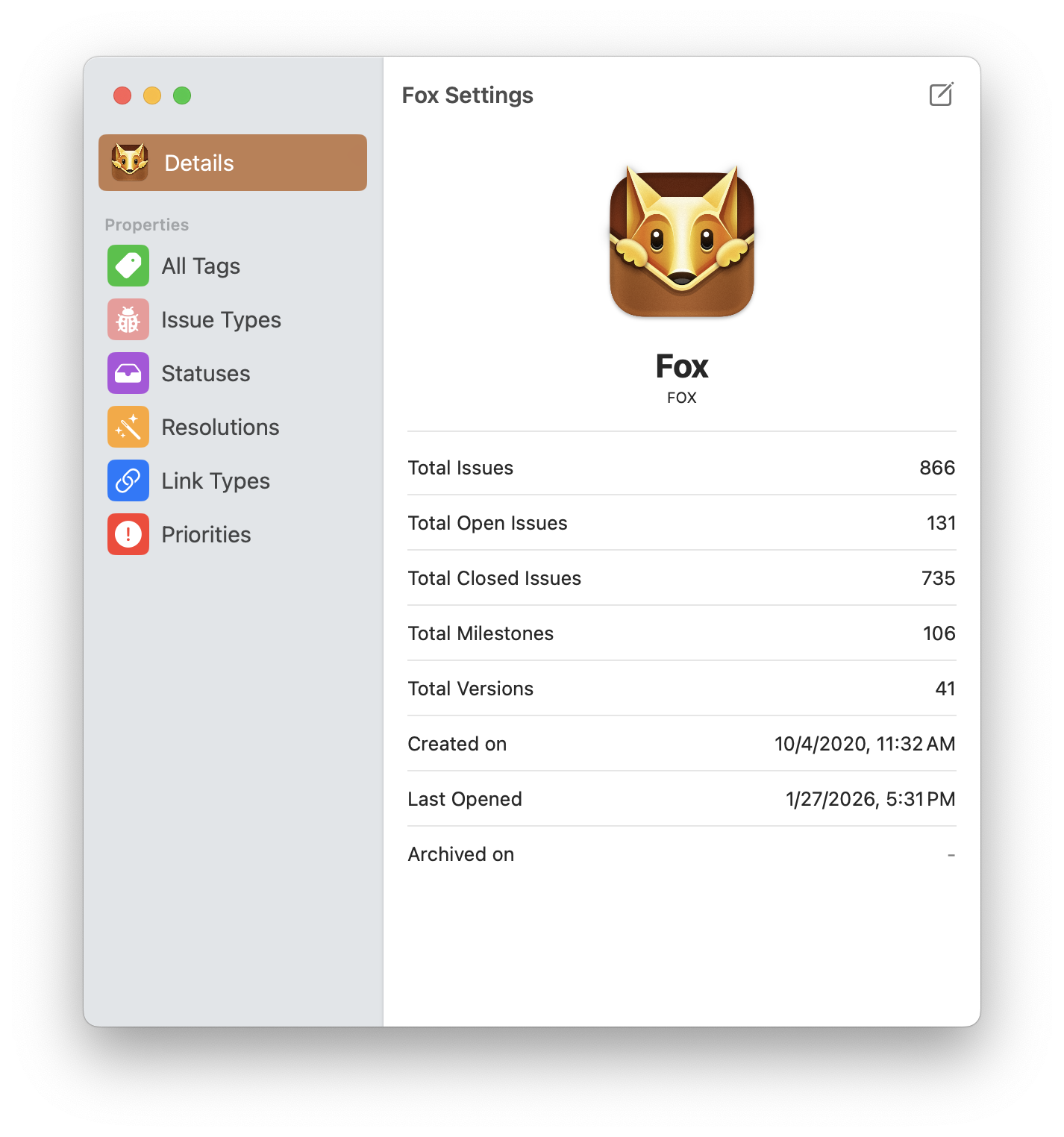
The Project Settings screen on macOS
Accessing Project Settings
- iOS — Tap the settings option at the bottom right of the Navigator, then select Project Settings.
- Mac — Project → Project Settings, or press ⌘⇧P.
Project Settings is where every attribute on this page is managed.
Statuses
Statuses track where an issue is in your workflow. Every status becomes a column on the board, and the order you arrange statuses in Project Settings determines the left-to-right column order.
For each status you can configure:
- Title — The status name displayed on the board and in pickers.
- Icon — A visual marker shown alongside the name.
- Category — Either To Do, In Progress, or Done. The category drives Done Status Behavior — moving an issue to a Done-category column can trigger automatic closure or a resolution prompt.
Set up a flow that matches reality
If your actual workflow has a "Review" step, add a Review status. If you distinguish "Ready" from "In Progress," create both. Don't over-engineer — but don't force work through a flow that doesn't match how it really moves.
You can also set the Default Status — the status new issues are created with if you don't specify one.
Issue Types
Issue types categorize what kind of work an issue represents. Defaults include Bug, Feature, and Improvement, but common additions are Chore, Spike, Documentation, and Refactor.
For each type you can configure:
- Title
- Icon
Types help you filter and search: show me just the bugs in this milestone, or just the features shipped in v1.0.
Priorities
Priorities indicate urgency or importance. Each priority can have its own color, making high-priority items easy to spot on the board and in lists.
For each priority you can configure:
- Title
- Color
- Icon
Defaults like High / Medium / Low cover most cases, but rename, expand, or simplify to match how you actually think about urgency. Some teams want just Urgent / Normal; others want four or five levels.
Resolutions
Resolutions describe how a closed issue was resolved. When you close an issue (or move one to a Done-category status with the prompt option enabled), the resolution captures why the issue is done. Common ones include Fixed, Won't Fix, Duplicate, and Cannot Reproduce.
For each resolution you can configure:
- Title
Well-chosen resolutions are searchable metadata about why work was closed — gold for retrospectives and audits.
Tags
Tags are the one attribute that doesn't use "one per issue" — an issue can have as many tags as you like. Project Settings lets you:
- Create new tags
- Rename existing ones
- Delete tags you no longer use
- Designate Quick Tags — a convenience feature for tags you want surfaced first in pickers
See the Tags page for guidance on what makes a good tag.
Link Types
Link types define the relationships you can create between issues. Each link type has three parts:
- Title — The name of the relationship (e.g., "Blocks").
- Outward label — How the source issue relates to the target (e.g., "blocks").
- Inward label — How the target relates back (e.g., "blocked by").
A "Blocks" link type uses blocks / blocked by. A "Discovery" link type might use discovered / discovered by. Create whatever link types match how you think about relationships — see Subtasks & Links for more examples.
See Also
- Issue Properties — How these attributes attach to issues
- The Board — How statuses become columns
- Resolving Issues — Where resolutions come into play
- Subtasks & Links — Using typed links between issues
- Setting Up a Project — A full walkthrough for configuring a new project