Projects
Projects are the top-level containers in Fox. Each one is a self-contained workspace with its own issues, versions, milestones, and customized attributes — the statuses, types, priorities, tags, and link types you use to organize work. Projects can represent apps, frameworks, or even more abstract things like research projects.
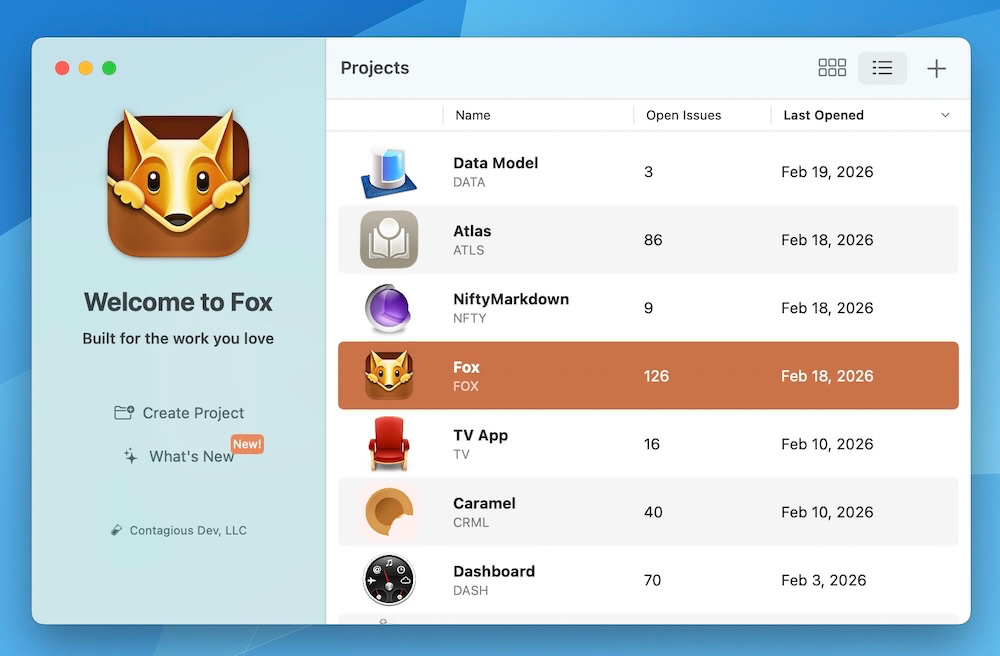
Fox Project Picker on macOS
What Makes a Project
Every project has a handful of identifying properties:
- Title — The display name, shown everywhere the project appears.
- Prefix — A 1–4 character alphanumeric code (e.g.,
FOX) used to build issue reference numbers likeFOX-001andFOX-042. Pick something short, unique, and memorable. - Display image — Optional. A visual for quick recognition in the project picker.
Projects are isolated from each other. Changing the statuses in one project doesn't affect another, and every project gets its own independent set of:
- Statuses (which become board columns)
- Issue types (Bug, Feature, Refactor…)
- Priorities
- Resolutions
- Tags
- Link types
See Customizing Project Attributes for how to configure each of these.
Creating a Project
- Open the project picker.
- Tap or click the + button.
- Give your project a title and prefix.
- Optionally add a display image.
- Start adding issues.
You can change any of these later in project settings.
Want a guided walkthrough?
For a step-by-step tour of configuring a brand-new project — picking a prefix, mapping out statuses, setting up types, priorities, and resolutions — see Setting Up a Project.
The Project Picker
The picker is where you browse and switch between projects. It offers two layouts:
- Grid view — Large tiles with display images and titles. Good for visual scanning when you have a few projects.
- Table view — Compact rows with more metadata visible at once. Good when you have many projects.
Sort projects by last opened, name, or date created. Archived projects are hidden by default; toggle them back into view when you need to browse or unarchive one.
Project Workspaces
When you open a project, it opens in its own workspace window. The workspace is where the actual work happens — see The Workspace for a tour.
Tip
Although Fox supports only a single Workspace window, issues can be opened independently on both macOS and iPadOS.
Project Lifecycle
Projects have two states:
- Active — The default. The project appears in the picker and can be opened for work.
- Archived — The project is hidden from the main list but fully preserved. Archiving is for projects you've finished or paused indefinitely.
Archived projects live in Archives alongside archived versions and milestones. Unarchiving returns a project to active status with everything intact.
Deep Linking
Every issue in a project is addressable via the fox:// URL scheme using its reference number — for example, fox://issue/FOX-042 opens that specific issue. Share links to issues, wire them into Shortcuts, or link to them from other apps. See the URL Scheme guide for details.
See Also
- The Workspace — What you see after opening a project
- Issues — Creating and editing the work inside your project
- Customizing Project Attributes — Tailor statuses, types, priorities, and more per project
- Archives — Managing finished projects, versions, and milestones
- Setting Up a Project — A walkthrough for configuring a brand-new project