Tags
Tags are flexible labels you can attach to issues. Unlike types, statuses, or priorities — where every issue has exactly one — an issue can have any number of tags, which makes tags the right tool for anything that cuts across your other organization.
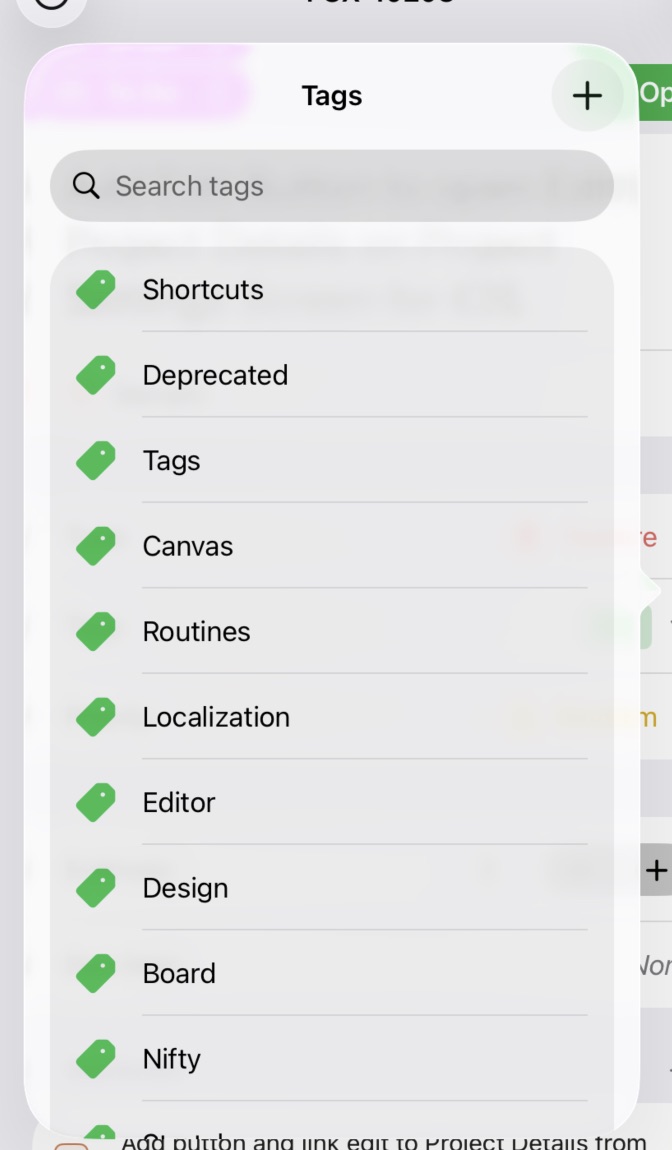
The Fox Tags Menu on iOS
What Tags Are For
Tags are project-specific and entirely freeform. Create whatever tags make sense for the work at hand:
- Technical areas —
Backend,UI,Infra,Database - Workflow states —
Needs Design,Ready for QA,Blocked - Effort hints —
Quick Win,Deep Work,Good First Issue - Cross-cutting concerns —
Tech Debt,Security,Accessibility - Anything else —
Research,Dogfood,Post-Launch
Because tags are just labels — no categories, no hierarchy — they're the fastest thing in Fox to create, rename, or delete. Use them for anything you'd reach for a highlighter for.
Creating & Editing Tags
Tags are managed per project in Project Settings (see Customizing Project Attributes). From there you can:
- Create new tags
- Rename existing ones
- Delete tags you no longer use
You can also create a tag on the fly when assigning one to an issue — Fox will offer to create the tag if it doesn't already exist.
Sorting Tags
The order tags appear in pickers and lists is configurable in Settings:
- By usage frequency — Most-used tags surface first. Best if you have a handful of tags you reach for constantly.
- Alphabetically — Stable, predictable ordering. Best if you have many tags and you'd rather scan than guess.
Using Tags for Filtering
Once you're tagging issues, tags become a powerful filter dimension in the Issue Browser. Combine a tag filter with a status or priority filter to zoom in on, say, every Blocked issue that's also High Priority — the kind of cross-cut that types and statuses alone can't capture.
See Also
- Customizing Project Attributes — Managing the full set of tags in a project
- Issue Properties — How tags sit alongside type, status, and priority
- Search & Spotlight — Finding issues by tag across projects