Subtasks & Links
Some issues are self-contained. Others need to be broken down into smaller pieces, or connected to related work elsewhere in the project. Fox offers two tools for exactly this: subtasks for dividing an issue's own work into trackable steps, and links for describing the relationships between issues.
Subtasks
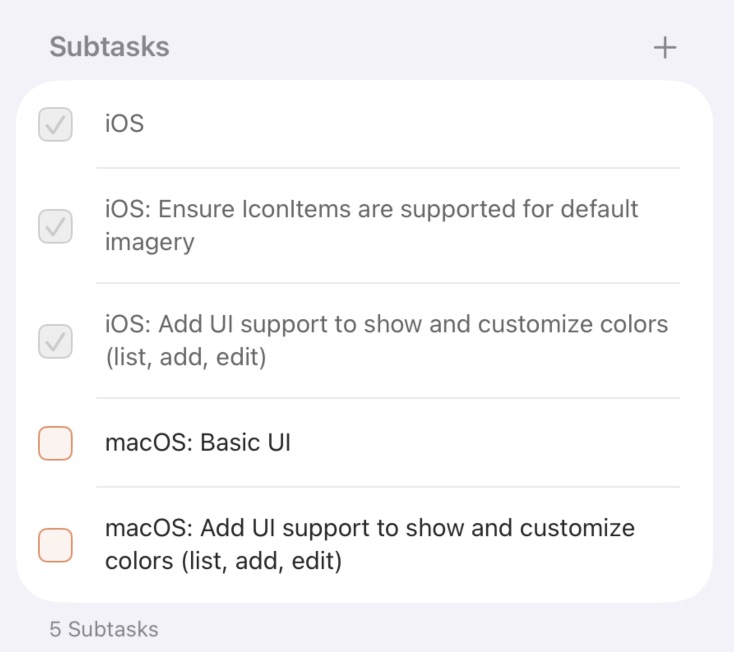
Issue Subtasks on iOS
Subtasks break a larger issue into smaller, trackable pieces. Each subtask is a single line of text with a checkbox, and the issue shows overall progress at a glance — "3 of 7 complete."
Use subtasks when:
- The issue has multiple clear steps you want to check off individually
- You want to track progress without splitting the work into separate issues
- You need a checklist that stays attached to the parent issue
Subtasks are lightweight by design. They don't have their own notes, properties, or history — they're just checkable line items. If a piece of work needs its own properties, make it a real issue and connect it with a link instead.
Subtasks can be added, edited, checked, unchecked, reordered, and deleted directly in the Issue Detail view. The Shortcuts app and the MCP server both expose subtask management for automated workflows.
Issue Links
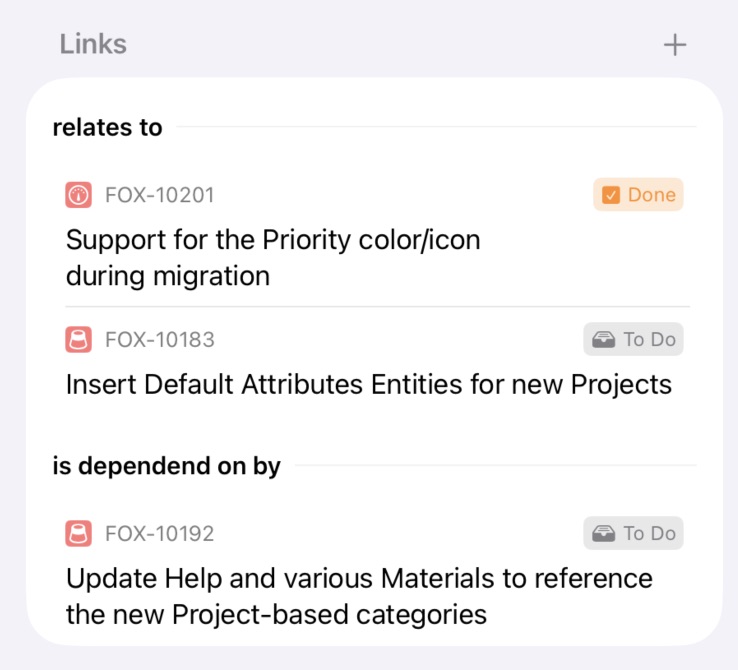
Issue Links on iOS
Issue links connect related issues. Unlike subtasks — which live inside a single issue — links describe a relationship between two separate issues, and they appear on both sides automatically.
Typed Relationships
Every link has a type that describes the relationship. Each link type has a title and two directional labels: an outward label (how the source issue relates to the target) and an inward label (how the target relates back to the source).
For example, a "Blocks" link type uses:
- Outward label:
blocks - Inward label:
blocked by
So if FOX-10 blocks FOX-11, then from FOX-10's perspective it "blocks" FOX-11, and from FOX-11's perspective it's "blocked by" FOX-10. The link appears on both issues with the appropriate label.
Default Link Types
Every project starts with three link types:
- Blocks / blocked by
- Duplicates / duplicated by
- Relates to / relates to
These cover the most common cases. For anything else, create custom link types per project — see Customizing Project Attributes.
Custom Link Types
You can create project-specific link types with whatever labels and icons fit how you think about work. A design project might have "inspired by" / "inspired." A research project might have "cites" / "cited by." A product backlog might have "discovered" / "discovered by."
Cross-Project Linking
Links aren't limited to issues in the same project. You can link an issue in one project to an issue in another — useful for tracking dependencies between projects, or for connecting a bug report to a feature request in a different product. Opening a linked issue from another project navigates to that project's workspace automatically.
Linking Inside Notes
Subtasks and the typed Links section are one way to connect issues, but you can also drop links inline in your markdown notes. Fox has two built-in ways to do that:
- Standard markdown links —
[FOX-42](fox://issue/FOX-42)renders as a clickable link. - Wiki-links — Type
[[in the notes editor to trigger a floating autocomplete showing recent issues. Pick one and Fox inserts a link that displays the issue's title.
Wiki-links are the faster option when you're writing and want to reference another issue without leaving the keyboard. See Writing Notes for the full editor.
See Also
- Issues — What links and subtasks attach to
- Writing Notes — Wiki-links and inline references in markdown
- Customizing Project Attributes — Creating custom link types
- Issue Properties — The other classification and planning properties