The Board
The Board is a kanban view of any Version or Milestone — issues laid out as cards in columns organized by status. Drag a card between columns to update its status, and the board reflects progress in real time.
In Fox 4.0, the Board is one of three view modes (alongside List and Outline) available on every location in the Navigator. Selecting a Version or Milestone and switching to Board scopes the board to just those issues — there's no separate global Board destination.
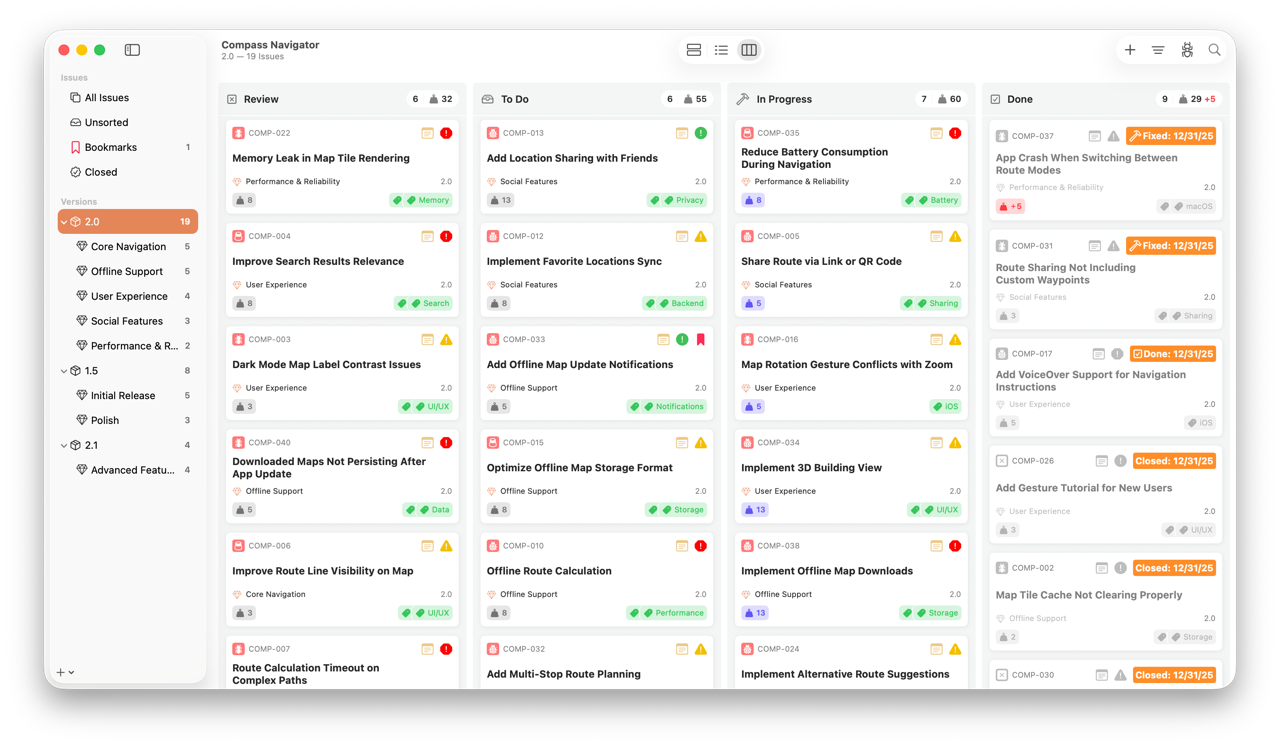
The Kanban Board on macOS
Kanban Layout
Each status in your project becomes a column on the board. See Customizing Project Attributes for editing statuses. The order of statuses in Project Settings determines the column order, so you can set up a left-to-right flow that matches how work actually moves through your process — for example, Backlog → Ready → In Progress → Review → Done.
Issues appear as cards within their status column, showing the reference number, title, and other at-a-glance metadata. Within a column, issues maintain a custom sort order you can rearrange by dragging.
Column headers show the status name along with effort totals (estimate vs. actual) for all the issues in that column — useful for spotting columns that are getting overloaded.
Moving Issues
Drag and drop a card between columns to change the issue's status. The move takes effect immediately and is recorded in the issue's history.
Cards also maintain a custom order within each column, so you can prioritize the work you want to tackle next without having to open every issue.
You can also drag cards out of the board to other destinations in the Navigator — drop on a milestone to move the issue, drop on a tag area to apply tags. The board participates in the same drag-and-drop system as the rest of the workspace.
Sorting and Filtering
Board options live in the Filter menu in the toolbar:
- Sort By — Estimate or Date Added. The Date Added label is context-aware, showing "to Milestone", "to Version", or "to Project" based on which location you're viewing.
- Ascending / Descending — Toggle the direction.
- Show No-Status Column — Toggle the optional column for issues without an assigned status.
- Resort Columns — Apply the current sort across every column at once.
Each location remembers its own Board settings — sorting one milestone's board doesn't disturb another's.
Done Status Behavior
Moving an issue to a column whose status is in the Done category can trigger automatic behavior. The choice is yours, configured in Settings:
- Do nothing — The status changes; the issue stays open.
- Close only — The issue is automatically closed without a resolution.
- Prompt resolution — A resolution picker appears so you can capture how the issue was resolved (Fixed, Won't Fix, Duplicate, etc.).
The "prompt resolution" option pairs especially well with a richly customized set of resolution types — see Resolving Issues and Customizing Project Attributes.
The No Status Column
Issues created without a status assigned won't get lost — the board has an optional No Status column for exactly this case. Toggle it via Show No-Status Column in the Filter menu. Off by default; turn it on if you prefer to see every issue on the board regardless of state.
Selection and the Detail Column
The Board respects the detail column toggle. Use View → Show/Hide Issue Detail Column (⌘⇧D on a hardware keyboard) to switch between modes:
- Detail visible — Single-tap a card to populate the detail column with that issue. Multi-select or no selection clears the detail to a placeholder.
- Detail hidden — Single-tap a card to mark it active on the board only; the detail column stays out of the way.
- Double-tap — Opens the issue in a floating window (macOS) or pushes the detail view on compact iOS, independent of the toggle.
Toggling the detail column on with an issue already selected opens the detail straight to that issue, so you can flip the column in and out without losing your place.
Multi-Select and Context Menus
On both macOS and iOS:
- Single selection — Tap to select a single card.
- Multi-select — Two-finger drag on iOS, or click-and-drag with a trackpad, to select a region of cards. Shift- or command-click works on Mac.
- Context menu — Right-click on Mac, or long-press on iOS, for per-issue actions (Status, Move, Tags, Copy…, Delete, and more).
- Issue menu & keyboard shortcuts — Selected cards respond to actions from the Issue menu and the standard keyboard shortcuts, just like in List or Outline.
See Also
- Viewing Issues — How Board relates to List and Outline
- List View — When a sortable single column fits better than columns by status
- Outline View — When you want every property visible at once
- Issues — What the cards on the board represent
- Issue Properties — Statuses, priorities, and the categories that drive the board
- Customizing Project Attributes — Defining the statuses that become columns
- Resolving Issues — Closing issues with a resolution
- Board Workflows — Practical patterns for using the board