Issue Properties
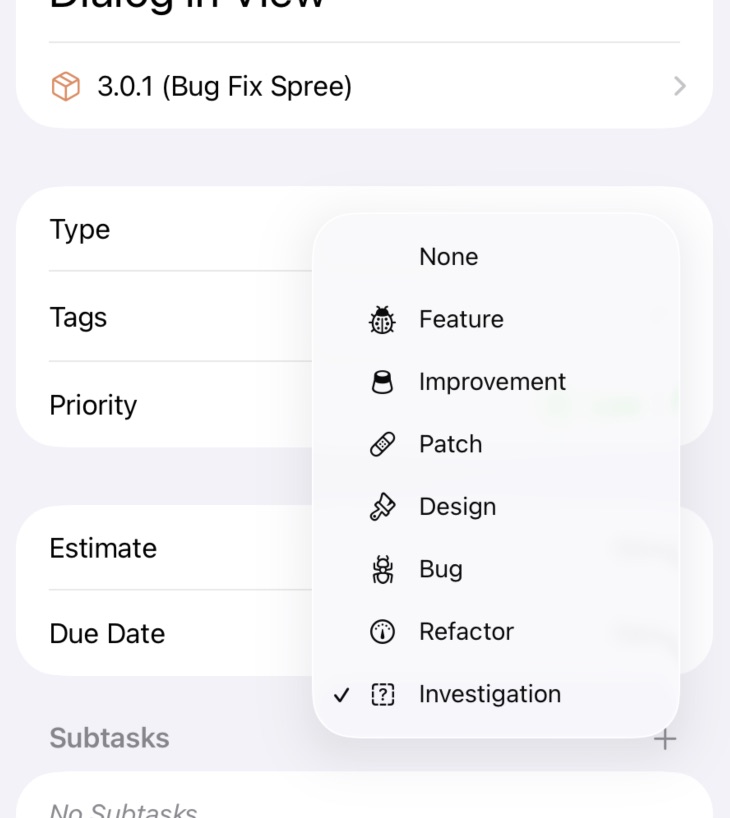
Issue Properties on the iOS app
Beyond the title and notes, an issue carries a set of properties that help you classify, prioritize, and plan the work. Every property is optional — add only what's useful — and most of them are customizable per project, so you can tailor them to match how you actually work.
This page is a tour of what each property means and what it's for. For how to set up the values yourself (statuses, types, priorities, etc.), see Customizing Project Attributes.
Classification
These properties describe what kind of work an issue is and where it sits in your workflow.
Type
The type categorizes what the issue represents — Bug, Feature, Refactor, Chore, Spike, Documentation, or whatever fits your work. An issue has exactly one type.
Types are project-specific and can be customized, each with its own icon. Types make filtering and searching easy: show me just the bugs in this milestone, or just the features shipped in v1.0.
Status
The status tracks where an issue is in your workflow. Every status belongs to one of three categories — To Do, In Progress, or Done — and each status becomes a column on the board. Moving an issue between board columns updates its status automatically.
An issue has exactly one status. If you haven't assigned one, the issue can live in an optional No Status column on the board (toggleable in Settings).
Priority
The priority indicates urgency or importance. Each priority can have its own color, making high-priority items easy to spot on the board or in lists. Common setups include Urgent / High / Medium / Low, but simpler schemes work just as well.
An issue has exactly one priority.
Tags
Tags are flexible labels for anything that cuts across types and statuses. Unlike the properties above, an issue can have any number of tags. Create whatever tags make sense for your project:
- Technical areas:
Backend,UI,Infra - Workflow states:
Needs Review,Blocked - Effort hints:
Quick Win,Deep Work - Anything else:
Tech Debt,Research
Tags are project-specific. See Tags for how they work in detail.
Attachments
Attachments can be attached to issues and, when clicked or tapped, can be viewed in Quicklook. You can rename them for quick reference as well.
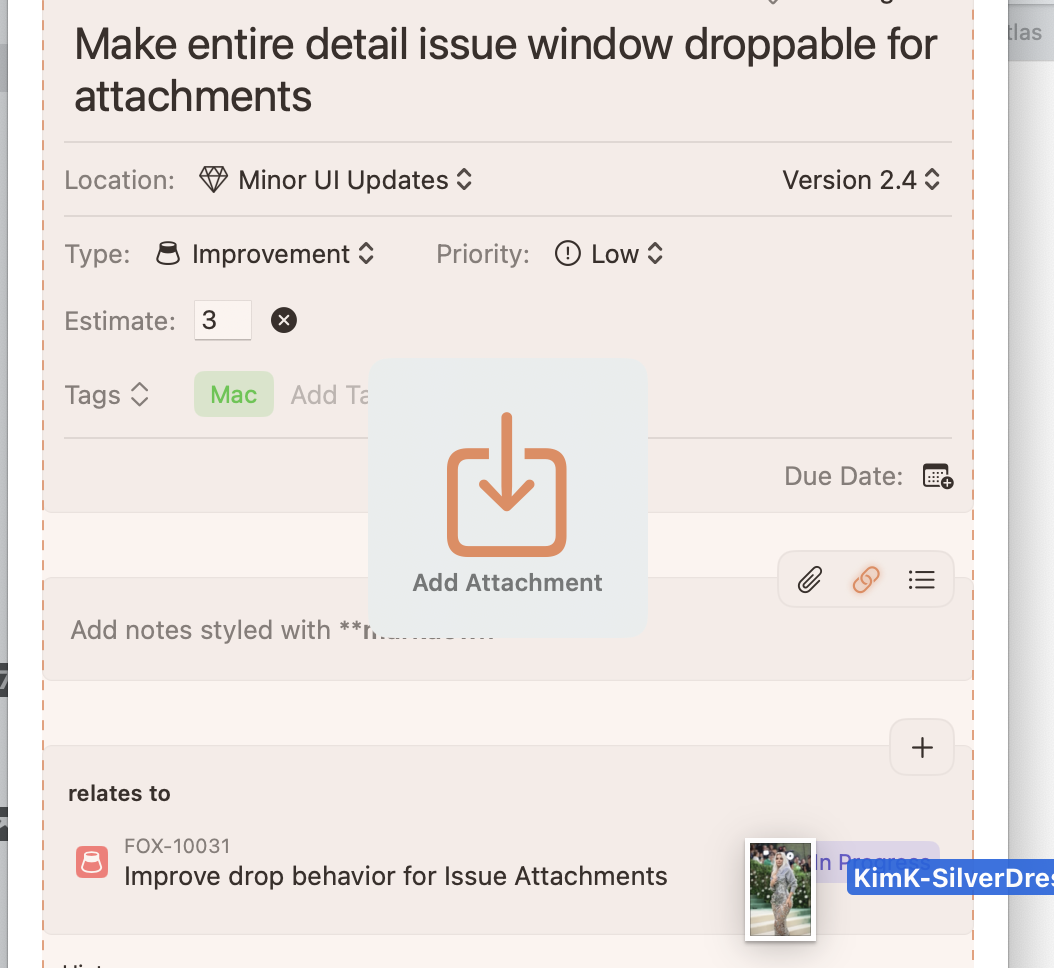
Dragging and dropping an attachment into an Issue on Fox
Planning
These properties help you plan and track how much work an issue represents.
Due Dates
Set a due date for issues with real deadlines. Issues with due dates can be surfaced in the Navigator as their own "Due" group so you don't lose track of them.
Estimates
Estimates record how much effort you expect an issue to take. Use whatever unit makes sense — hours, days, story points. Estimates feed into the board's column headers, giving you a rolled-up effort total per status column.
Actual Effort
Actual effort records the time you actually spent. Comparing actual against estimated over time improves your future planning and makes it obvious when scope has grown.
Assignment
With Fox for Teams enabled and collaborators on a project, the Assigned To field designates who's responsible for an issue. Each issue can be assigned to one person, or left unassigned. Fox for Teams adds an "Assigned To Me" Navigator group for quickly finding your own work. See Collaboration.
Bookmarks
Bookmarks flag issues you want to return to quickly. They're not a property with values — just a toggle — but bookmarked issues can appear as their own Navigator group for one-click access. Use them for blockers, decisions you need to revisit, or issues you're actively tracking.
History
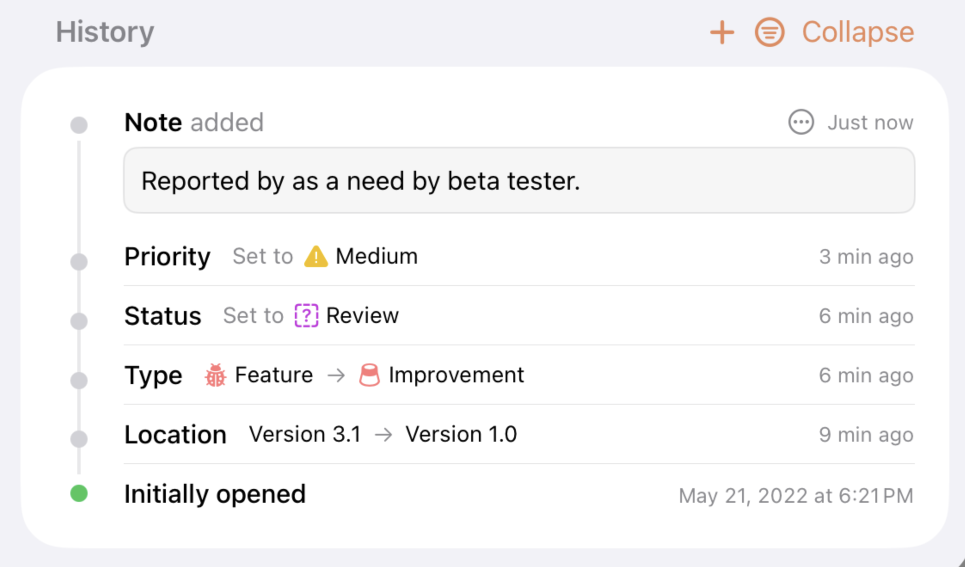
Issue History Tracking and Notes on Fox
Every change to an issue is recorded automatically in its history. Fox tracks changes to:
- Title
- Status
- Priority
- Resolution
- Type
- Location (version or milestone)
- Due date
- Assignment
- Lifecycle events (close and reopen)
Each entry shows what changed and when. With Fox for Teams enabled, it also shows who made the change.
Edit Coalescing
Rapid edits to the same field within 15 seconds are merged into a single history entry. If a value is changed and then reverted back to its original within that window, the history entry is removed entirely. The result is a history that reflects meaningful changes rather than every keystroke.
History Notes
Beyond the auto-recorded change events, you can add your own notes directly to an issue's history timeline. Notes are for the context that doesn't fit anywhere else — why a decision was made, what was tried, what to remember next time you look.
Notes appear with a distinct callout bubble that's visually separated from the auto-recorded change events, so the two never get confused. You can edit or delete a note after posting it.
The timeline has a filter so you can focus on what matters:
- All — Every entry, notes and changes together.
- Changes — Only the auto-recorded events.
- Notes — Only the notes you've authored.
On shared projects with Fox for Teams, notes show attribution — "Note added by [name]" — so collaborators can see who left which note.
See Also
- Customizing Project Attributes — Defining your own statuses, types, priorities, and resolutions
- Tags — Project-specific flexible labels
- The Board — How statuses become columns
- Resolving Issues — The close/resolution workflow
- Collaboration — Assignment and history attribution with Fox for Teams