Outline View
Outline is a dense, spreadsheet-style table of issues and their properties. Where List shows one issue per row with the detail column doing the heavy lifting, Outline puts every property you care about across a single line — so you can scan, compare, and edit dozens of issues without opening any of them.
It's a new view mode in Fox 4.0, available on every Version and Milestone in the Navigator.
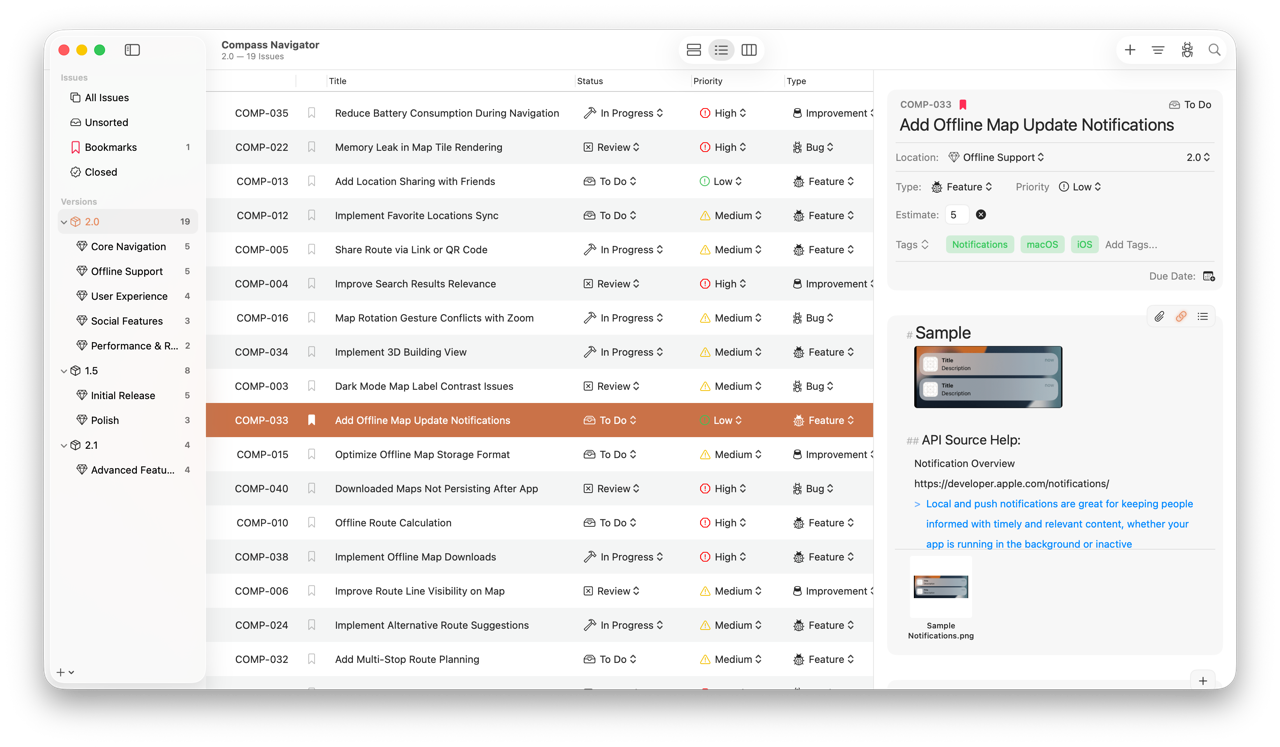
The Outline View on macOS
What Outline Is Good For
Reach for Outline when you want to:
- See many issues at once with the properties that matter to you visible
- Edit a property on several issues quickly without opening each one
- Cross-check estimates, assignees, or statuses across a milestone or version
- Plan in spreadsheet style — set due dates, statuses, and priorities row by row
Available Columns
Every Outline can show any combination of: Reference Number, Title, Status, Type, Priority, Milestone, Version, Assignee, Estimate, Resolution, Bookmarked, Opened, Closed
Customizing Columns
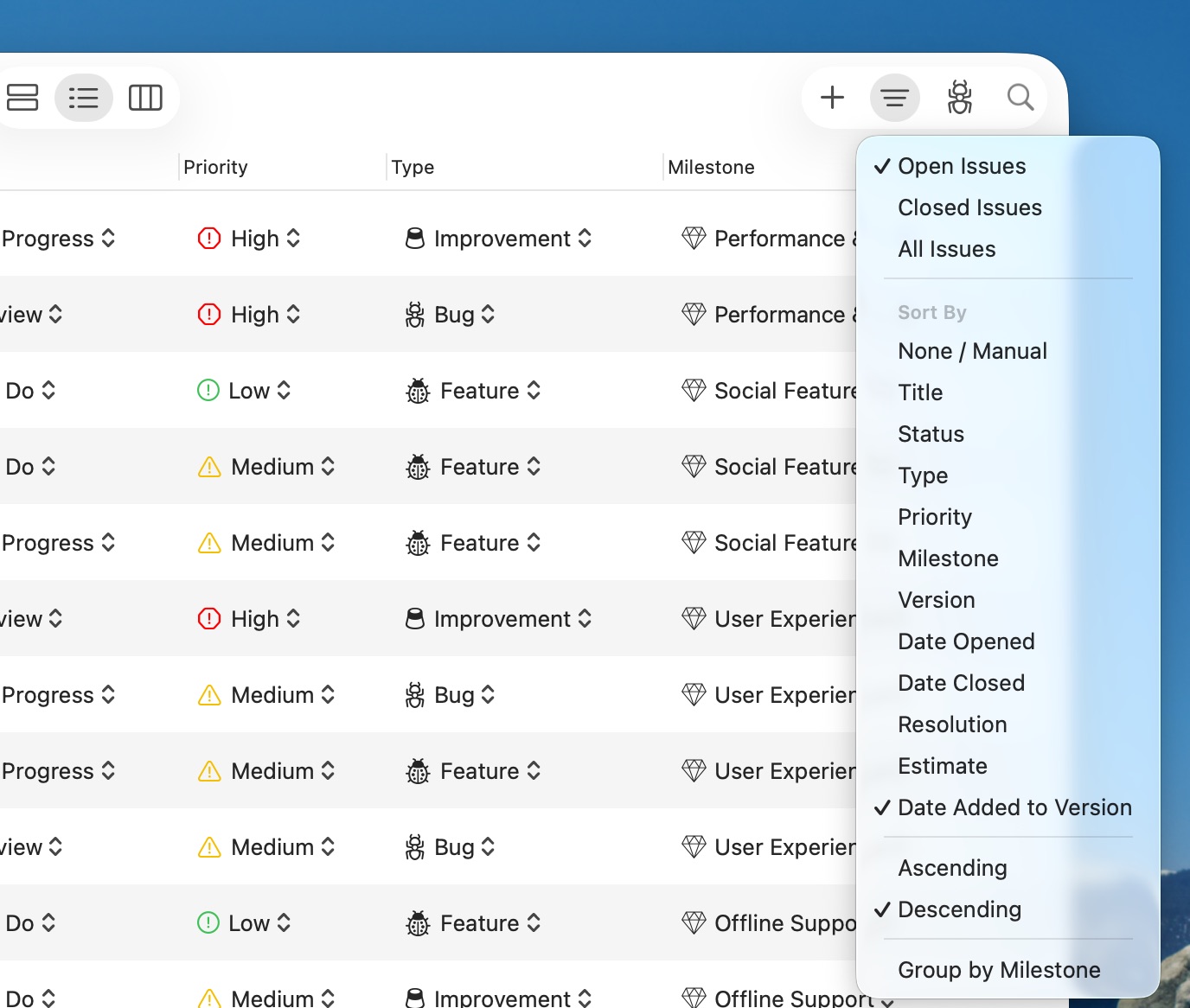
Customizing the Columns in the Outline View on macOS
Open the Customize Columns sheet to toggle which columns are visible. Column widths are resizable — drag the divider between any two column headers — and your layout is remembered per location, so each milestone or version can have its own configuration.
Inline Editing
Many properties can be edited directly in the row, no detail panel required:
- Title — Double tap the title text in the cell and start typing.
- Estimate — Type a value to update it.
- Milestone — Popup picker to reassign.
- Status — Popup picker for any of the project's statuses.
- Assignee — Popup picker (when Fox for Teams is enabled).
- Priority — Popup picker for the project's priority list.
- Type — Popup picker for the project's type list.
- Resolution — Popup picker, only enabled on closed issues.
Selectable fields (status, type, priority, assignee, milestone, resolution) open a popup picker right inside the row. The change saves immediately and is recorded in the issue's history.
Selecting and Opening Issues
- Single tap / click — Selects the row. If the detail column is visible, populates it with the issue.
- Double tap / click — Opens the issue in a floating window (macOS) or pushes the detail view on compact iOS.
- Multi-select — Outline has a dedicated multi-select mode for bulk actions across many rows.
- Context menu — Right-click on Mac, or long-press on iOS, for per-issue actions.
The detail column is optional in Outline. Toggle it via View → Show/Hide Issue Detail Column (⌘⇧D on a hardware keyboard). Each mode remembers its own preference, so you can keep Outline wide and uncluttered while leaving List with its detail column always visible.
Section Headers
When grouping is in play (for example, viewing a Version that contains multiple Milestones), Outline shows section headers between groups of rows so you can tell which milestone a block of issues belongs to. Headers stay sticky as you scroll.
Completed Issues
Closed issues display in a secondary text color throughout the outline, so it's easy to see at a glance which rows are still active without having to scan the Status column.
Drag & Drop
Drag rows out of the outline to other destinations in the Navigator — drop on a milestone to move issues, drop on a tag area to apply tags. Standard drag-and-drop behavior matches the rest of the workspace.
See Also
- Viewing Issues — How Outline relates to List and Board
- The Workspace — The toolbar, the detail column, and selection behavior
- List View — When you'd rather have a single column with the detail anchored
- The Board — Kanban movement instead of a spreadsheet
- Issue Properties — What each editable column represents