iCloud Sync
Fox uses iCloud to keep your data in sync across all your devices — Mac, iPad, and iPhone. Start a project on your Mac, continue it on your iPhone, finish it on your iPad: it's all the same workspace. Sync happens automatically in the background through CloudKit, and everything Fox tracks is included.
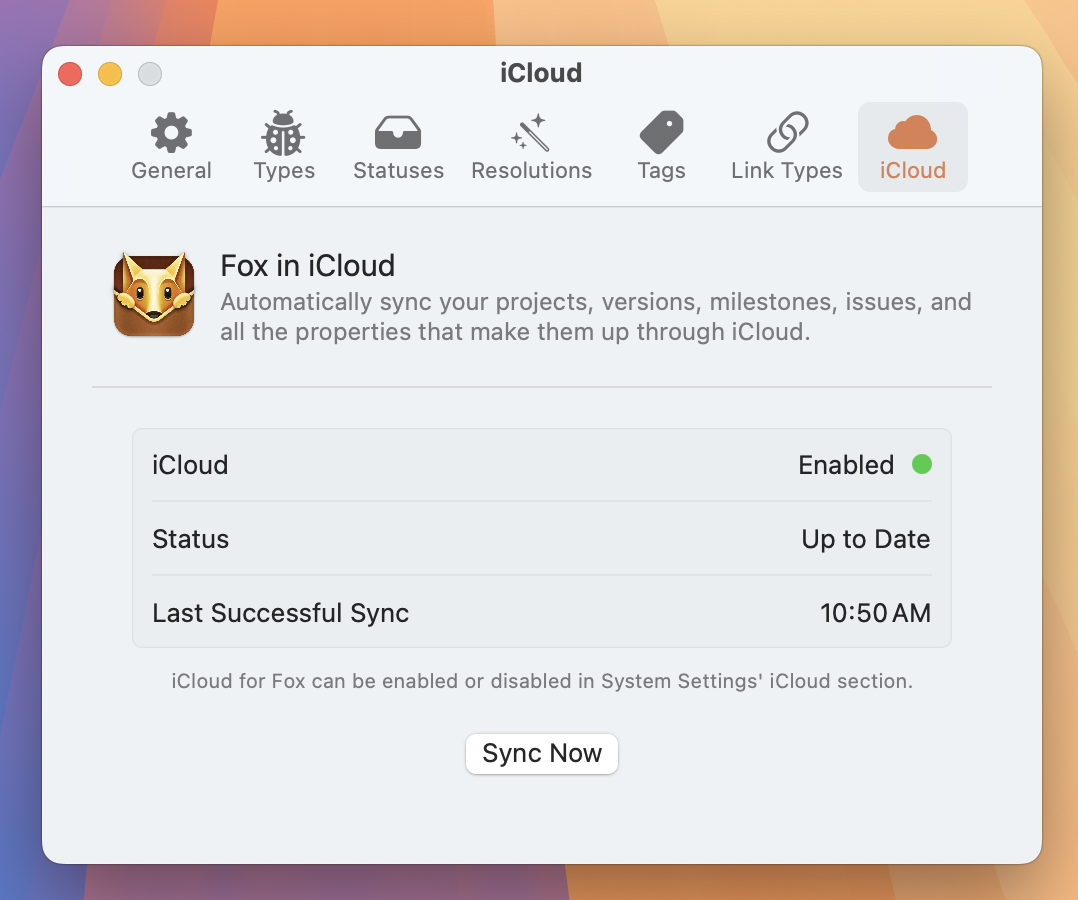
iCloud Sync Settings on macOS
What Syncs
Everything you create in Fox syncs across devices:
- Projects
- Issues (including notes, subtasks, history, and attachments)
- Versions and milestones
- All project attributes — statuses, priorities, types, tags, resolutions, link types
- Issue links
- Custom ordering (board column order, manual issue ordering)
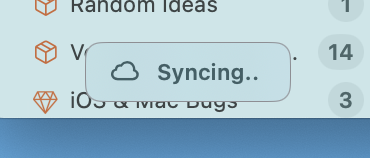
The iCloud Sync Notification on macOS
Synced Settings
When iCloud is enabled, Fox also syncs a selection of your settings so your workspace feels the same on every device:
- General settings
- Issue group configurations
- Navigator layout and customizations
- Sort defaults
If you add a "High Priority" group on your Mac, it'll show up on your iPhone the next time it syncs. If you reorder issues manually on iPad, the order follows you to Mac.
Offline Support
Fox works fully offline. You can create projects, edit issues, move cards on the board, and do anything else without a network connection. Changes queue up locally and sync automatically the next time you're online.
There's no separate "sync now" button you need to press after working offline — reconnecting is enough.
Requirements
iCloud sync requires:
- An iCloud account signed in on the device
- iCloud Drive enabled
- Fox allowed to use iCloud in Settings
If sync ever seems stuck, check that all three are in place. Fox also surfaces sync status and a manual sync trigger in Settings.
See Also
- Projects — What gets synced at the top level
- Collaboration — Shared projects built on top of CloudKit
- The Workspace — Platform differences across synced devices