Exporting Your Work
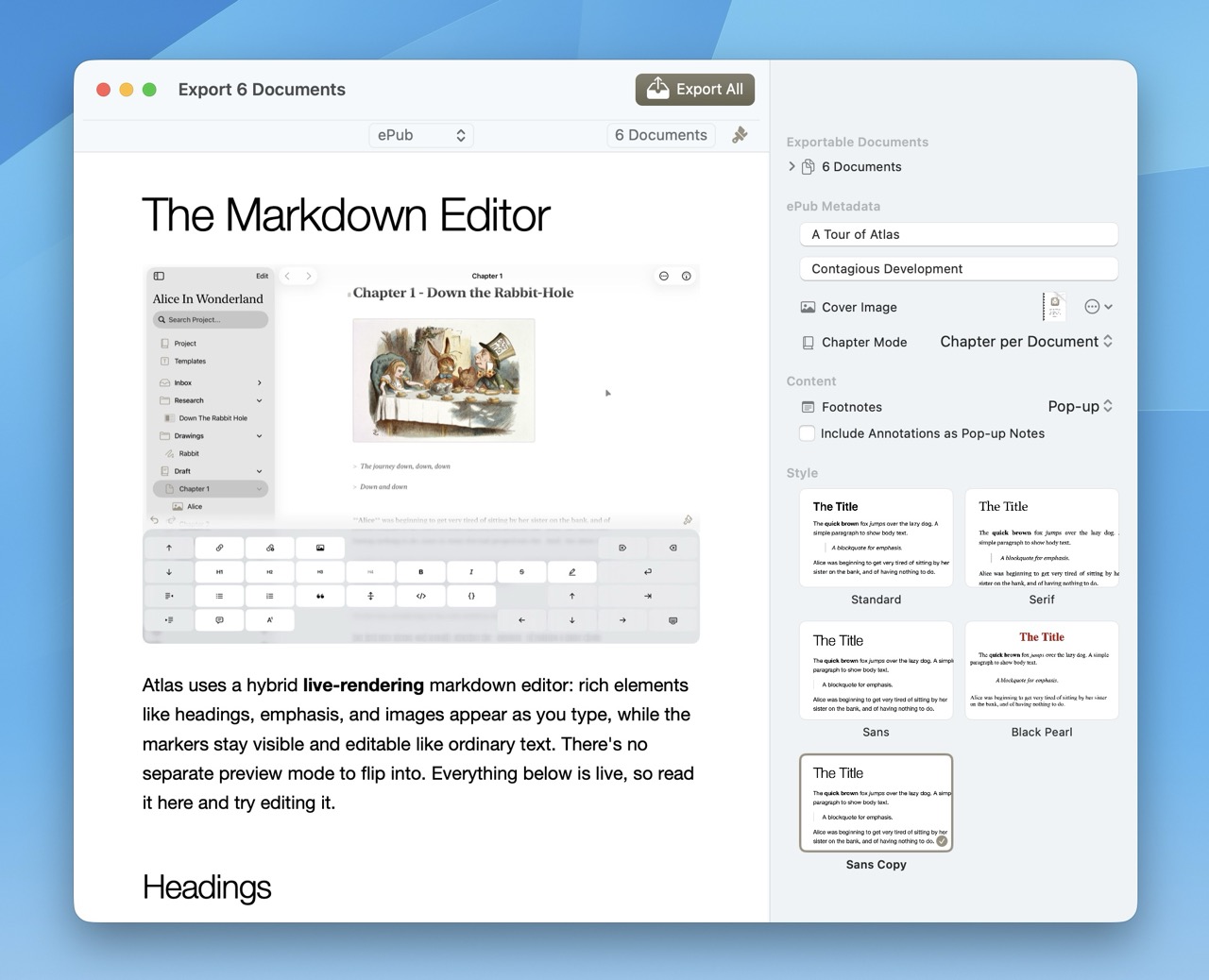
The Export Tool on macOS
Atlas can export your documents in several formats, whether you're sharing a draft, publishing an eBook, or producing a print-ready PDF. Use Cmd+Shift+E or the Editor menu to start an export. Each format includes a live preview so you can fine-tune settings before finalizing.
Info
Document and project exporting are always available, including in Atlas Preview and after your subscription expires. Atlas never holds your data hostage and works in formats that other tools can use. See Atlas Project Files for what a project export contains.
Choosing a Format
When you open the export sheet, you'll need to pick a format.
For rich formats like HTML, ePub, and PDF, selecting a format reveals a thumbnail grid of available styles in the Formatting Settings popover — a mix of the built-in styles that ship with Atlas and any custom styles you've imported or created. Tap or click a card to select it, and the preview on the right updates immediately.
Tip
PDF style cards in the Settings section include an info (i) button that opens a description popover so you can compare options before committing or see special features / instructions to a theme.
See Custom Export Styles for how to import, duplicate, export, and sync your own styles.
Equations in Exports
Documents containing LaTeX equations export with equations are rendered as images in HTML, ePub, and PDF formats. Markdown export preserves the LaTeX source as-is, and plain text export includes the equation syntax. See Math Equations for more.
Export Formats
Markdown
Export as a standard .md file preserving all formatting syntax. Use this when sharing with other markdown-compatible tools or for version-controlled writing workflows.
When exporting a single document as Markdown, an Include Frontmatter toggle is available in the export settings — it defaults on. When enabled, Atlas prepends a YAML block listing tags first, then any metadata field values in project-defined order. This applies only to single-document Markdown exports; bulk and continuous folder exports do not emit frontmatter. See Metadata and Tags for the format details.
Export from Shortcuts
The Export as Markdown action lets you produce the same .md file from the Shortcuts app or Siri—optionally with its frontmatter—so you can automate exporting and, for example, drop the file straight into the system Share sheet. See Shortcuts & Automation.
Plain Text
A rendered .txt file with markdown syntax stripped, leaving clean readable text. Annotations can optionally be included as inline parenthesized text.
HTML
Web page export with three built-in styles and support for custom styles:
- System — Default browser styling, minimal overrides.
- Classic — Traditional document styling with serif headings and comfortable body copy.
- Minimal — Clean, minimal styling suitable for reading and sharing.
You can also create your own HTML Export Styles, and import Ulysses .ulstyle CSS themes, which Atlas supports directly. See Create a Custom HTML Style for a start-to-finish tutorial, or Custom Export Styles for the full workflow.
ePub 3
eBook export with four built-in styles — Standard, Serif, Sans, and Black Pearl — plus any custom ePub Export Styles you've imported. ePub export includes:
- Cover image and author metadata
- Chapter modes — Single Document, Chapter per Document, or Custom Selection (hand-pick which documents start a chapter)
- Footnote placement — pop-up (Apple Books style), end of each section, or end of all documents
- Optional annotations rendered as pop-up notes
- Ulysses
.ulstyleCSS theme import
See Exporting an ePub for a deeper walk-through of ePub-specific options, or Create a Custom ePub Style to build your own.
Full PDF export with four built-in styles:
- Default — Clean sans-serif body with comfortable line spacing. A good general-purpose choice.
- Modern — Airy layout with narrow margins and centered page numbers in the footer. Great for reports and long reads.
- Classic — Serif body with justified text and wide margins. Evokes traditional book typesetting.
- Novel — Trade-paperback (5"×8") layout with two-sided mirrored margins, justified body, automatic chapter page breaks at H1, and running chapter titles in the header of right-hand pages.
Every PDF style (built-in or custom) supports a deep set of options:
| Option | What it controls |
|---|---|
| Page size | 15 presets including US Letter, US Legal, Tabloid, Tabloid Oversize, 5×8″ (trade paperback), A3, A4, A5, B5, JIS B5, ROC 16K, Super B/A3, and envelope sizes (#10, Chou 3, DL). When a style suggests a size, a lock keeps it pinned to that suggestion — Novel locks to 5×8″; unlock or change the size to go custom. |
| Margins | Style Default, Normal, Narrow, or Wide. |
| Two-sided layout | Mirrored recto/verso margins for facing-page output. |
| Heading typography | Per-level (H1–H6) alignment, weight, slant, top/bottom margins, and page-break-before. |
| Body, blockquote, link, and code | Font, size, color, and spacing per element. |
| Headers and footers | Page number, running heading, custom text, or blank — with separate content for the first page and for recto/verso pages when two-sided is on. |
Custom PDF Export Styles can be created, imported, duplicated, and exported. See Custom Export Styles.
Info
Backslash-escaped characters (for example, \* to keep a literal asterisk) are highlighted in the editor and stripped from the final HTML, ePub, and PDF output so readers see the intended character, not the escape.
Block images sized Small, Medium, or Large in the editor keep that sizing on export — Atlas emits a matching size class in HTML and ePub output. Oversized source images are also automatically downsized and compressed on export, across HTML, ePub, PDF, and Markdown, to keep exported file size reasonable.
Removing Struck-Through Text
The Content settings include a Remove Strikethrough Content toggle, on by default, that drops any struck-through (~~like this~~) text — including whole struck lines — from the exported output. It's handy for keeping editing marks like deleted passages out of a shared draft. It applies to every text-based format: plain text, HTML, ePub, PDF, and RTF. Markdown export is the exception — it always preserves the raw ~~…~~ source so nothing is lost when you round-trip a file.
Export Preview
Every export includes a live preview that updates as you change settings, making it easy to experiment before committing. When exporting a folder in continuous mode, the preview can scroll to individual documents so you can verify specific sections.
Exporting Folders
When you export a folder, Atlas includes all its contents and offers additional options to control the output. These options apply across all formats, including the PDF pipeline.
Choosing Which Documents to Include
The export inspector lists the folder's documents under Exportable Documents. Each row has an Include in export toggle, so you can leave individual documents out without moving or deleting them. In ePub Custom Selection chapter mode this control becomes a bookmark button that marks where chapters begin — there, enabling or disabling a document moves to the row's context menu (Enable Export / Disable Export). Excluded documents are dimmed in the list.
Output Mode
- Separate files — One file per document, useful when you need individual files for each piece
- Continuous — All documents combined into a single file, with configurable separators: none, horizontal rule, or page break
Folder Structure (Separate Files)
- Flat — All files exported at the same level
- Hierarchical — Preserves your folder structure in the output
Image Location
- Subfolder — Images placed in an
images/subfolder - Root — Images placed alongside documents at the root level
Each folder remembers its export settings independently, so you can configure once and re-export without reconfiguring. See Using Folders for more on how folders support your workflow.
Internal Links in Exports
Internal atlas:// links reference documents by identifier, which only works inside Atlas. Atlas resolves these for you on every export — there's no setting to turn on or off — so readers never end up with a broken atlas:// reference. How a link is written depends on the format:
- Markdown — Internal links are written as
[[wiki-links]]. A link that simply shows the document title becomes[[Chapter 3: The Storm]]; a link with custom display text becomes[[Chapter 3: The Storm|see the storm]]. Because Atlas reads this same syntax back in, exported Markdown round-trips — re-importing the file relinks the documents by title. See Round-Tripping Through Markdown. - Plain Text, HTML, ePub, and PDF — The reference is replaced with the linked document's title as readable text, so "Chapter 3: The Storm" appears in place of the link.
Links to a specific canvas item, and any external https:// links, are left untouched.
See Also
- Custom Export Styles — Import, duplicate, export, and sync HTML, ePub, and PDF styles
- Create a Custom HTML Style — Build a web-page style from a built-in starting point
- Create a Custom ePub Style — Build an eBook style, with pagination and package details
- Exporting an ePub — Detailed ePub export options
- Annotations and Footnotes — How annotations and footnotes appear in exports
- Using Folders — Folder structure affects folder export output
- iCloud Sync and Conflicts — Export styles sync across your devices
- Metadata and Tags — Metadata field values in Markdown frontmatter