Writing with Markdown
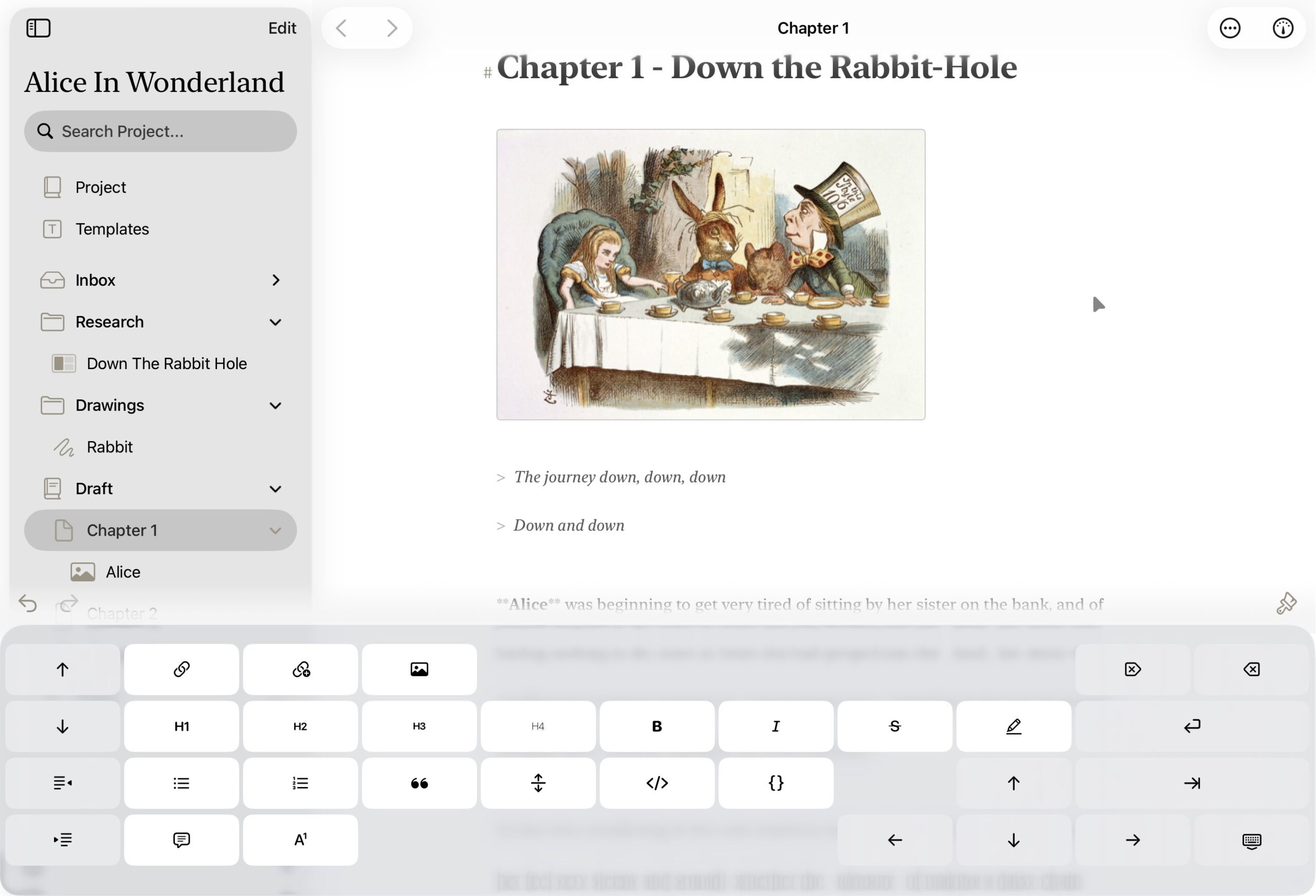
Atlas uses a hybrid live-rendering markdown editor—rich elements like images, links, and formatting (headings, emphasis, lists, etc.) appear as you type. By default, the markdown characters behind that formatting (like the ** around bold text) stay hidden until you need them: move your cursor into a formatted span and its markers reappear for editing, then hide again once you move on.
Why Markdown?
Markdown is a lightweight markup language that you can use to add formatting elements to plain-text documents. It allows you to easily produce consistently formatted documents in various formats, like HTML, docx, ePub, and PDF, that are styled independently from how you prefer to write (and hide markers).
Documents created with Markdown are also easily portable, editable by any editor, and future proof. Where Atlas diverges from the standard Markdown spec to include additional features, it aims to align with conventions used by other popular editors for best compatibility.
You can read more about Markdown at the Markdown Guide.
Info
Most of the content for these help documents was written and edited in Atlas and exported to raw Markdown for other serivces, like the Help book or online Help website!
Getting Started
To start writing, create a new text document from the Organizer using the + button, context menu, or the Cmd+N keyboard shortcut. The editor opens immediately, ready for text.
Info
Your scroll position is saved automatically between sessions, so you pick up exactly where you left off. Back and forward navigation in the toolbar lets you move through your recent document history.
Hidden Markdown Syntax
Markdown characters — the **, _, #, and similar markers behind your formatting — stay hidden by default, so the page reads more like a finished document while you write. Move your cursor or tap into a formatted span and its markers reappear so you can edit them directly; move on and they hide again.
You can turn this off if you'd rather see markdown syntax at all times. Use the editor's Editor menu → Hide Markdown / Show Markdown (Option+Cmd+R) for a quick toggle, or set it permanently in Settings > Editor Settings — see Customizing the Editor.
Formatting Reference
Atlas supports the following markdown syntax. Where available, keyboard shortcuts are listed for Mac and iPad with an external keyboard.
Headings
Use # symbols to create headings. Additional # symbols mean deeper levels.
| Syntax | Result | Shortcut |
|---|---|---|
# Heading |
Heading 1 | Cmd+Shift+1 |
## Heading |
Heading 2 | Cmd+Shift+2 |
### Heading |
Heading 3 | Cmd+Shift+3 |
#### Heading |
Heading 4 | Cmd+Shift+4 |
##### Heading |
Heading 5 | Cmd+Shift+5 |
###### Heading |
Heading 6 | Cmd+Shift+6 |
Headings also appear in the Document Outline in the Inspector, giving you a clickable table of contents for long documents. See The Inspector for details.
Inline Formatting
| Syntax | Result | Shortcut |
|---|---|---|
**text** |
Bold | Cmd+B |
*text* |
Italic | Cmd+I |
~~text~~ |
Cmd+U | |
::text:: |
Highlighted text | Cmd+Shift+H |
`code` |
Inline code | Markup menu |
Block Elements
Blockquotes — Prefix lines with > to create a blockquote. You can quote multiple lines together, too.
> This is a blockquote
> that spans multiple lines
Shortcut: Cmd+D
Ordered lists — Start lines with a number and period or parenthesis:
1. First item
2) Second item
3. Third item
Unordered lists — Start lines with a dash, star, or plus:
- First item
* Second item
+ Third item
Use Cmd+] to indent list items and Cmd+[ to de-indent.
Code blocks — Wrap multiple lines in triple backticks:
```
Your code here
```
Horizontal rules — Type three dashes on their own line to insert a visual divider:
---
Tables — Create a grid of rows and columns for structured data, comparisons, or reference lists. Tables follow GitHub Flavored Markdown syntax and support full inline formatting inside each cell.

A sample of a table in Atlas
For insertion, editing, row and column management, pasting from spreadsheets, and export options, see the Tables guide.
Beyond Text
Atlas also supports images, links to other documents, annotations and footnotes, equations for embedding LaTeX math expressions inline or as blocks, and Document Variables (type {{) for placeholders like title and dates that fill in automatically — each covered in their own articles.
Formatting Controls
Both platforms provide quick-access formatting tools so you don't need to remember syntax.
iOS — Formatting Keyboard
A dedicated formatting keyboard appears above the system keyboard when editing. It adapts its layout for iPhone and iPad screen sizes, providing buttons for all text styles, headings, lists, blockquotes, horizontal rules, links, images, annotations, and footnotes.
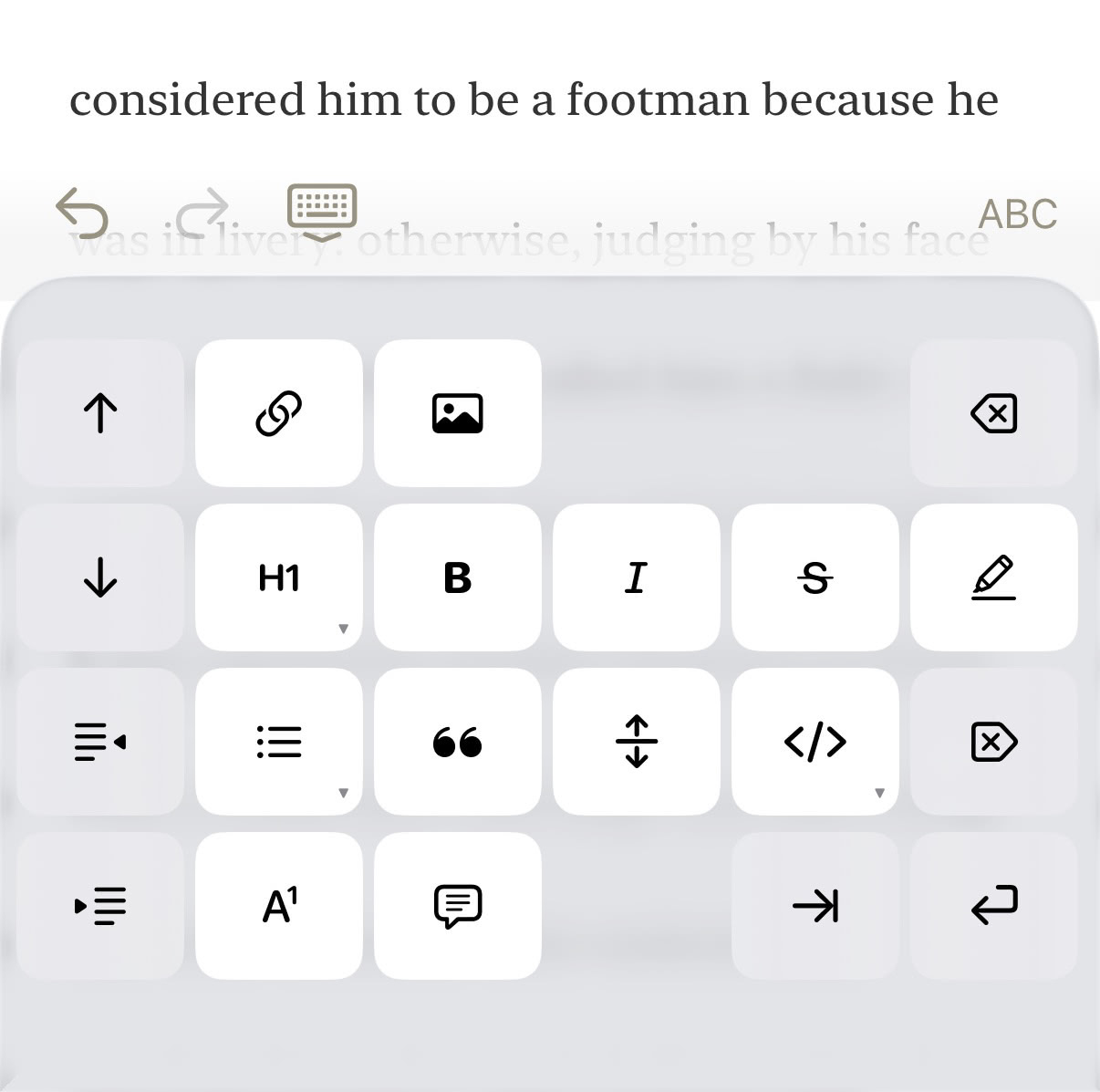
The iOS formatting keyboard
Mac — Floating Formatting Bar
A formatting bar is anchored to the bottom of the editor, providing the same quick-access options. Toggle its visibility from Editor > Show/Hide Formatting Bar (Option+Cmd+K). It's enabled by default.

The macOS formatting bar
Info
The formatting keyboard and bar are also available in the canvas text editor and template editors.
Editor Style
The look of the writing environment is controlled separately from how documents are published. Atlas includes seven built-in themes — Nifty, Typist, Oolong, Birds of Paradise, Solarized, Natural, and Monochrome — each with light and dark variants. Switch between them in Settings > Editor Settings; the change takes effect immediately.
You can also adjust text size and line height, swap in custom fonts, and turn on writing aids like Focus Mode and Typewriter Scrolling — see Customizing the Editor. For per-element colors, fonts, and marker styles, see The Theme Editor. To change the look of exported documents instead, see Custom Export Styles.
Escape Characters
Markdown lets you prefix a special character with a backslash to keep it literal — for example, \*not italic\* renders as *not italic*. Atlas highlights backslash escapes in the editor so you can see at a glance where you've used them, and strips the backslashes from the final output when exporting to HTML, ePub, or PDF, so readers see only the intended character.
Finding and Replacing Text
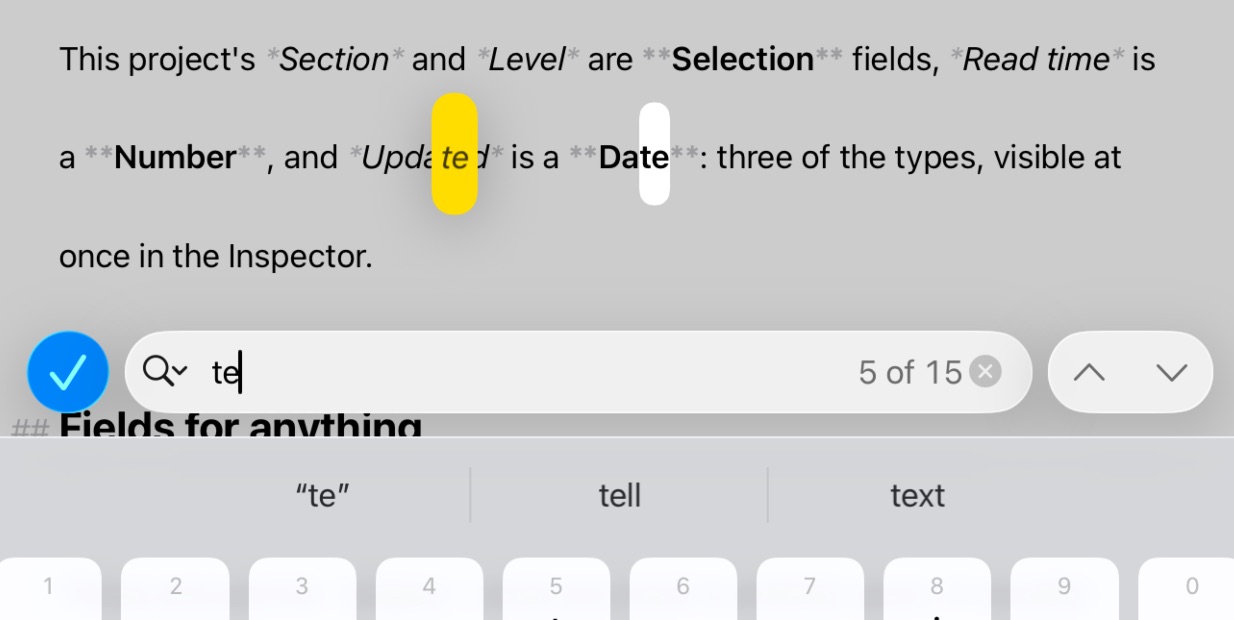
The Find and Replace UI on iOS
Atlas uses the system find bar in the Markdown Editor so you can search within the current document at any time. Use Cmd+F to show it or select Find in Document in the menu.
The find bar shows a live match count and gives you case-sensitive and whole-word toggles. Toggle Replace in the find bar to reveal the replacement field — from there you can replace the current match or replace all matches in the document at once. Find and Replace matches your text whether markdown syntax is currently shown or hidden, and works inside table cells, too. Find and Replace is scoped to the document you're currently editing; to search across an entire project, use Atlas's search instead. See Searching.
iOS and iPadOS
Open the editor's More menu in the toolbar and choose Find in Document. With an external keyboard attached, Cmd+F opens the same find bar directly.
macOS
Press Cmd+F in the editor to open the find bar. Use Cmd+G to jump to the next match and Cmd+Shift+G to jump to the previous match.
Converting to and from Markdown on Copy and Paste
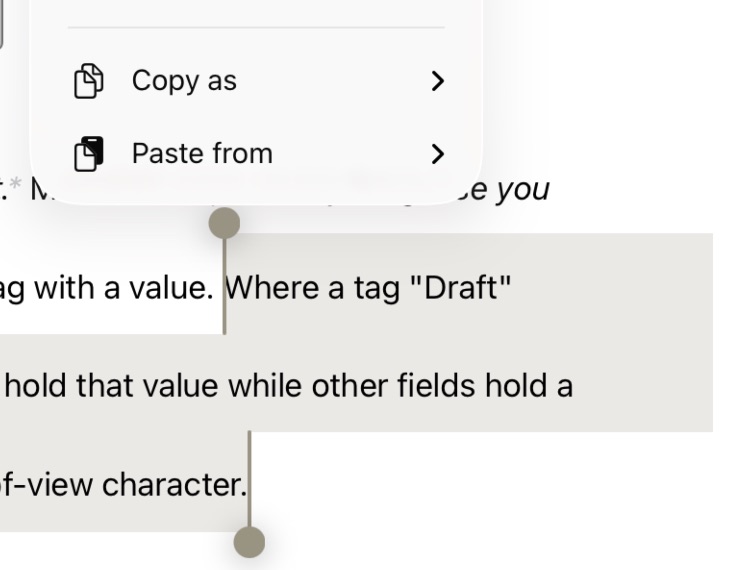
The Copy as and Paste from menus in the iOS selection context menu
Atlas stores your writing as Markdown, but the Edit menu can move text in and out in other formats — converting on the way through — so you're not stuck hand-cleaning markup when you copy into or paste from another app.
Copy as
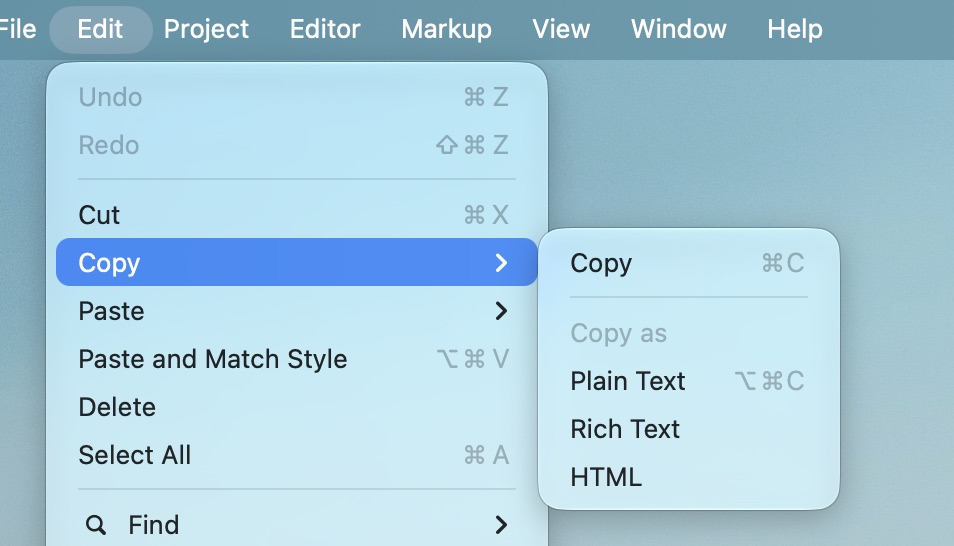
The Copy as menu on macOS
The default Copy (Cmd+C) copies your selection as Markdown. The Copy menu also offers Copy as:
- Plain Text (Option+Cmd+C) — the selection with Markdown markers stripped
- Rich Text — formatted rich text (RTF), for pasting into a word processor or email
- HTML — rendered HTML source
Paste from
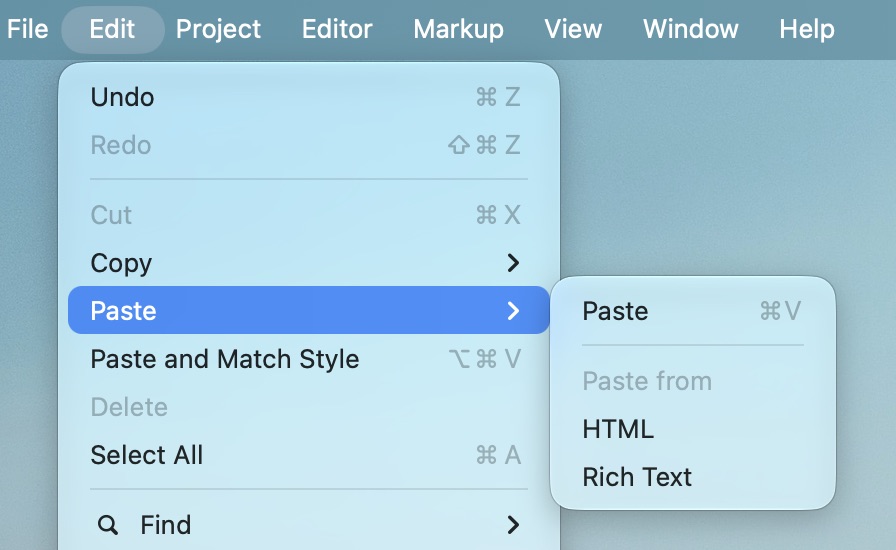
The Paste from on macOS
The default Paste (Cmd+V) brings the clipboard in as Markdown. The Paste menu also offers Paste from to convert other formats into Markdown as they land:
- HTML — clipboard HTML converted to Markdown
- Rich Text — clipboard rich text converted to Markdown
The available options adjust automatically to what's on the clipboard and to the editor you're working in.
Info
These commands live in the Edit menu on Mac and in the hardware-keyboard menu bar on iPad. To copy a table as Plain Text, CSV, Markdown, or HTML, see Copying Tables in Different Formats.
See Also
- Images and Sketches — Embedding images and creating sketches
- Linking — Connecting documents with internal and external links
- Annotations and Footnotes — Adding commentary and reference notes
- Math Equations — Embedding LaTeX math expressions
- Document Variables — Placeholders like title, author, and dates that fill in automatically
- Customizing the Editor — Themes, text size, and line height
- The Theme Editor — Creating and customizing editor themes
- Tables — Adding structured tables to your documents
- The Inspector — Writing statistics and document outline
- Keyboard Shortcuts — Find, editing, and navigation shortcuts