Getting Started
Welcome to Atlas — a writing and research app for macOS, iPadOS, and iOS built around projects, documents, and the connections between them. Whether you're drafting a novel, organizing research, or building a reference library, Atlas gives you a flexible workspace that adapts to how you work.
This guide walks you through the essentials: creating your first project, navigating the workspace, writing and formatting your content, organizing documents, and exporting your finished work. If you're brand new, start with The Basics below and work your way through. If you're looking for something specific, each section links directly to the relevant topic.
A Tour of Atlas, The Sample Project
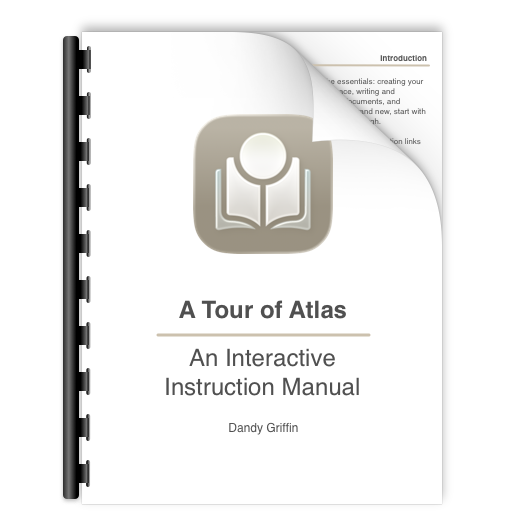
The Tour of Atlas Project Icon
Atlas comes with a bundled sample project called A Tour of Atlas, a small, complete project you can open to see how documents, folders, canvases, and media fit together. It's the fastest way to get a feel for Atlas and see what it can do before building a project of your own.
Tip
When you have no projects yet, the Welcome to Atlas screen offers an Explore the Sample Project button. With a subscription or free trial, choosing it installs the sample as a real, editable project that behaves like any other — poke around, change things, add documents, or delete it entirely when you're done. The sample project is a great sandbox. Because it's a normal project, nothing you do in it is permanent to Atlas — rename it, reorganize it, or remove and restore it whenever you like. Without one, it opens as a temporary tour instead (see below). The sample never counts toward Atlas Preview's limits.
Tour before buying
Without a subscription, Explore the Sample Project opens a hands-on tour. You can also start it from Sample Project on the About screen, or from the Tour a sample project button on the subscription screen when it opens from the project list. Unlike a subscriber's copy, the Tour is temporary. It opens the sample in a dedicated tour mode that resets each time you restart Atlas. While you're in the tour, a card sits at the bottom of the Organizer:
Enjoy the Tour! — Play around in the sample project and learn how Atlas works. Tap here to go back.
Tap that card to leave the tour and return to the project list.
Info
The Tour resets whenever you restart Atlas, so changes you make in it aren't kept. If you subscribe or start the free trial, you can install the sample as a normal project that never resets and delete and recreate it whenever you like.
The Basics
Get oriented with the core concepts and interface. These pages cover how Atlas is structured and where to find things as you move between projects, documents, and views.
-
Create and manage your workspaces — title, author, cover image, and project settings.
-
The three-column layout: Organizer, Editor, and Inspector, and how they adapt across Mac, iPad, and iPhone.
-
Your navigation hub — browse, rearrange, and manage everything in your project.
-
The six content types: text documents, folders, canvases, sketches, media, and web pages.
-
Document metadata, writing statistics, heading outline, and connections like incoming links and references.
Writing
Atlas uses a live-rendering markdown editor where your formatting appears as you type. These pages cover the editor itself, the formatting you can use, and how to attach images, links, and notes to your writing.
-
The live-rendering editor, making it comfortable to write in, and formatting controls.
-
Embed images from URLs, files, or your photo library. Create freehand sketches with Apple Pencil.
-
Internal document links, wiki-links, external URLs, and the Link Editor.
-
Attach commentary and numbered reference notes to your text.
-
Themes, text size, line height, and display settings.
Organizing
Projects grow quickly, and Atlas gives you several ways to structure your content. Folders provide traditional hierarchy and canvases let you arrange things spatially.
-
Hierarchical structure, the Folder Outline View, and organizational patterns.
-
Spatial workspaces for arranging document cards, pins, text blocks, and media visually.
Collecting
Bring external content into your projects — files from your device, content shared from other apps, and web pages clipped from Safari.
-
Bring in images, PDFs, audio, video, and web pages from files, photos, or other apps.
-
Send text, links, images, and video from any app directly into Atlas on iPhone, iPad, and Mac.
-
Save web pages from Safari with full content extraction, editing, and template-based capture.
Publishing
When your work is ready to leave Atlas, you have plenty of options. Export to a wide range of formats with live previews and per-folder settings that remember how you like things.
-
Export to Markdown, Plain Text, HTML, ePub, RTF, or PDF — with live preview and folder export options.
Next Steps
Once you're comfortable with the basics, explore the in-depth guides for specific workflows:
- Exporting an ePub — Producing polished eBooks
- Using Wiki Links Effectively — Building a connected knowledge base
- The Theme Editor — Designing custom editor themes
- Metadata and Tags — Cross-cutting organization
- Searching — Finding anything across your project
- Canvas Workflows — Practical canvas patterns
- Document History — Reviewing and restoring past versions
- Web Clipper — Saving web pages with full content extraction
- Advanced Web Clipper Templates — Template syntax for custom capture