Web Clipper
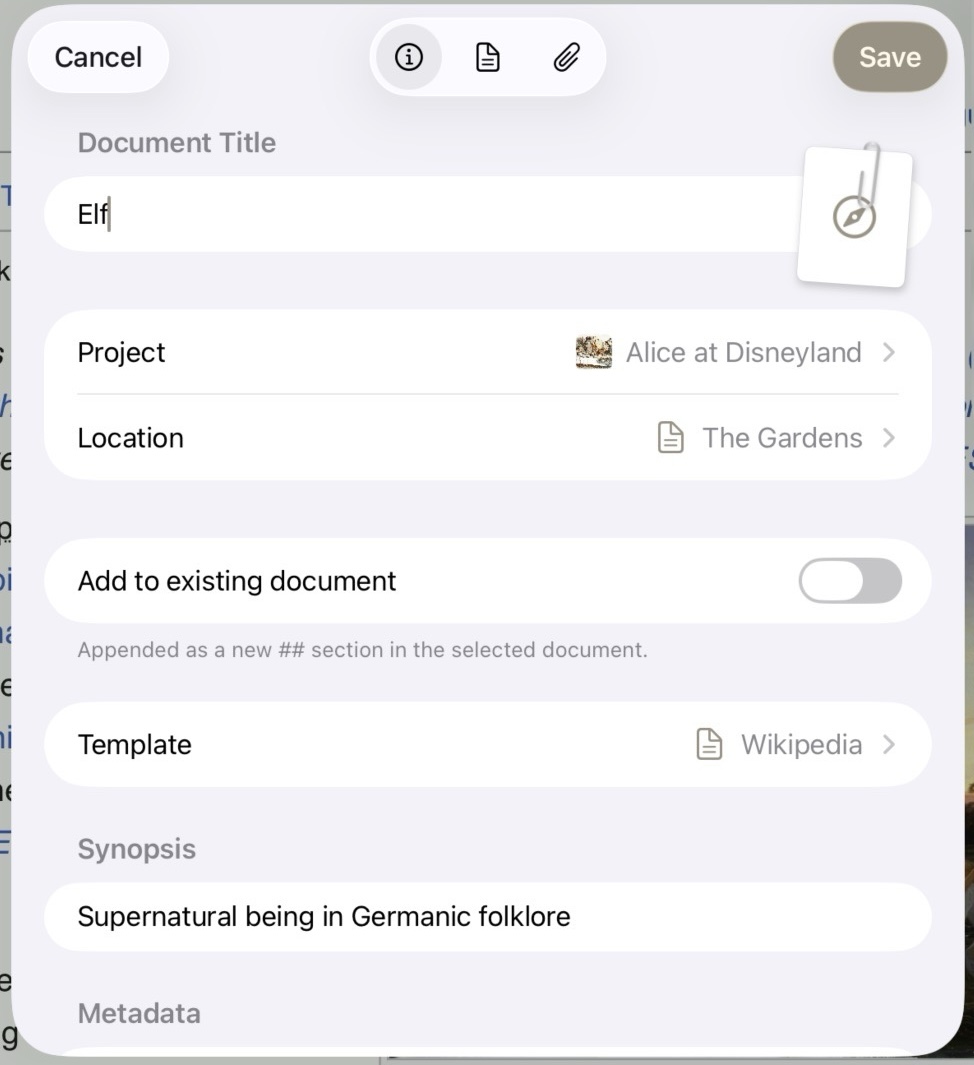
The Web Clipper on iOS
The Web Clipper saves web pages from Safari — or any browser — directly into your Atlas projects. Unlike the Share Extension, which performs a quick add of content as-is, the Web Clipper extracts and structures the page content before you save anything: you review the title, body, images, metadata, and tags in a full editing sheet, then save once everything looks right.
The Web Clipper is available on iPhone, iPad, and Mac.
Enabling the Web Clipper
The Web Clipper is a system extension that must be enabled once before it appears in the share menu.
Note
If you don't see Atlas in the Share menu when browsing, follow these steps to enable the Web Clipper.
On iPhone and iPad:
- In Safari (or any app's share sheet), tap the Share button
- Scroll horizontally in the app row and tap More (the three-dot icon)
- If Atlas is not listed, tap Edit Actions and toggle Atlas on
- You can also tap the plus to Add to Favorites so Atlas appears prominently at the top of the share sheet without needing to tap More each time
On Mac:
- Open System Settings
- Navigate to Privacy & Security → Extensions
- Under Share Menu, check the box next to Atlas
Once enabled, the Web Clipper persists across app updates — you won't need to re-enable it.
The Clip Sheet
When you invoke the Web Clipper, a JavaScript preprocessor captures the page content before the clip sheet appears. By the time you see the sheet, the content is already extracted and ready to review. Every field is editable before you save.
| Field | Description |
|---|---|
| Title | Pre-filled from the page title; becomes the document title in Atlas |
| Project | The project that receives the clipped document |
| Destination | Where inside the project the clip lands — Inbox or a specific folder or document |
| Clip Template | The active template; switching templates re-processes the page content |
| Synopsis | Auto-populated from the page's content; saved to the document synopsis field |
| Metadata fields | Defined by the active Clip Template and prefilled values from content extracted from the page |
| Tags | Suggested tags appear, existing project tags are suggested as you type, and new tags can be added freely |
| Body | The extracted page content as editable Markdown |
Additionally, some options may appear depending on specific configurations.
| Field | Description |
|---|---|
| Add to Existing Document | Visible when the location is a text document, allowing content to be appended to the selected document |
| Create Canvas Card | Visible when the location is a canvas document and when enabled, automatically creates a card on the parent canvas |
| Save original page | Always available: When on, saves the source URL as a child web page document nested under the clip |
Generating a Synopsis
On devices that support Apple Intelligence (iOS, iPadOS, or macOS 26 or later), a Generate Synopsis button appears in the synopsis area of the clip sheet. Tap it and Atlas writes a short, neutral summary of the page — three or four sentences — and fills it into the Synopsis field. Generation runs on-device, so the page content never leaves it. The result is fully editable before you save, and you can regenerate if you'd like a different take.
On devices without Apple Intelligence the button doesn't appear; the synopsis stays whatever the active template produced, and you can always write your own.
Tip
Clip Templates can reach the same on-device AI directly through the summarize and prompt template tags — useful for auto-filling the synopsis, notes, or body as a page is clipped. See Advanced Web Clipper Templates.
Tabs: Details, Content, Images
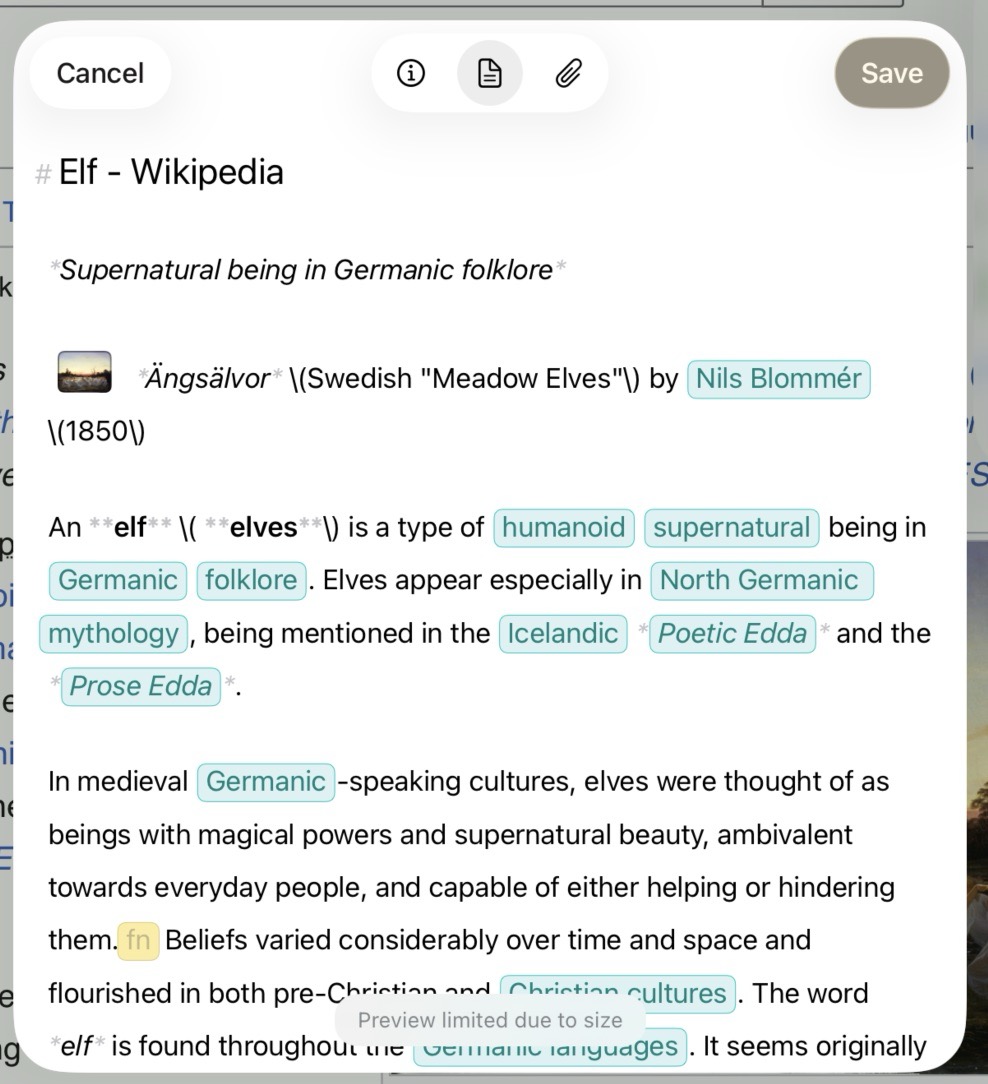
Editing the markdown capture in the content tab
The clip sheet is organized into three tabs:
- Details — All the fields listed above
- Content — A live rendered preview of the extracted body; also editable as Markdown
- Images — A gallery of every image detected on the page, with per-image controls
The Content editor renders in your app's active theme, so editing a clip looks just like writing in the main app — the same is true of the Share Extension editor.
Image Controls
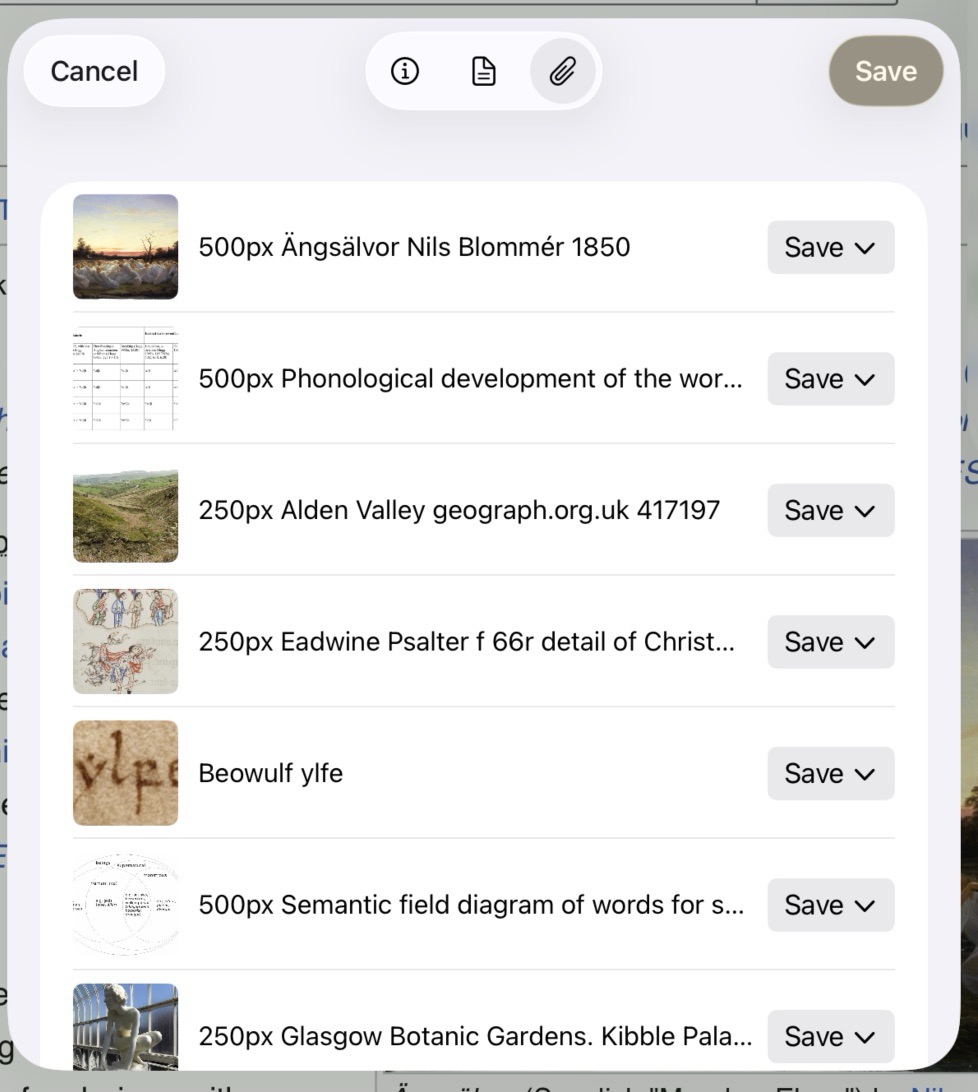
Customizing how Images are captured
The Images tab gives you control over every image found on the page before anything is downloaded. Each image card shows a thumbnail preview and editable alt text, and lets you choose one of three actions:
| Action | What happens |
|---|---|
| Save | The image is downloaded at save time and stored as a child media document; the reference in the body is rewritten to the local path, making it available offline |
| Link | The remote URL is kept in the body as-is; no download occurs; if the original URL goes away, the image goes with it |
| Remove | The image is stripped from the body entirely |
The default action for all images is set by the active Clip Template. You can override individual images before saving.
What Gets Saved
When you tap or click Save, Atlas creates:
- A text document at the chosen destination with the edited title, body, and synopsis
- A child media document for each image set to Save — nested under the clip document
- A child web page document if "Save original page" is turned on — points to the source URL for reference
- Metadata values for each field defined by the active template — visible in the Inspector
- Tags on the document, created in the project if they don't exist yet
Clipping YouTube Videos
Clip a YouTube video and Atlas builds a structured document for you automatically — no extra steps. The clip includes the video title, channel, duration, thumbnail, description, and a link to watch, tagged video and youtube. When the video has captions, Atlas pulls them in as a full Transcript section at the bottom, so you can search, quote, and annotate what was said.
Note
Transcripts depend on YouTube making captions available. If none can be retrieved, the clip still succeeds — you just get the video's details without the transcript section.
Clip Templates
Clip Templates control what fields appear in the clip sheet and how the page content is formatted into the body. Atlas includes several bundled templates:
| Template | Activates on |
|---|---|
| Default | Any page — always the fallback when nothing else matches |
| Recipe | Pages with Schema.org Recipe data |
| Book | Pages with Schema.org Book data |
| YouTube | youtube.com URLs |
| GitHub | github.com URLs |
| Wikipedia | wikipedia.org URLs |
| Product | Pages with Schema.org Product data |
| Social Post | Pages with social media schema data |
When you clip a page, Atlas checks it against all template triggers — your custom templates first, then bundled ones — and uses the first match. If nothing matches, Default is used.
Switching templates in the clip sheet re-processes the page using the new template, updating the body, metadata fields, and synopsis.
Managing Templates
Templates are managed in Settings → Clip Templates on any device. Available actions:
- New — Creates a new blank user template starting from the Default template
- Duplicate — Copies any template (including bundled ones); the only way to customize a bundled template
- Rename — Renames a user template
- Export — Saves the template as a
.atlasclip.jsonfile via the system share sheet - Import — Loads a
.atlasclip.jsonfile from Files - Delete — Removes a user template (bundled templates cannot be deleted)
User templates sync across your devices via iCloud. Atlas uses the .atlasclip.json format, which is fully compatible with Obsidian Web Clipper — you can import Obsidian templates into Atlas and export Atlas templates for use in Obsidian.
A Note on Large Pages
The Web Clipper is designed to handle a wide variety of web pages and degrades gracefully when a page is complex or unusual. On older iOS devices, very large pages — exceptionally long articles or content-heavy sites — may produce less complete extractions due to memory constraints. If this happens, consider using the Save original page toggle to keep the source URL for reference, or use the Share Extension to save the URL as a web page document directly.
See Also
- Advanced Web Clipper Templates — Full template syntax reference
- Share Extension — Quick content capture for any content type
- Importing Media and Web Pages — Other ways to bring content into Atlas
- Metadata and Tags — How metadata fields work in Atlas