Custom Export Styles
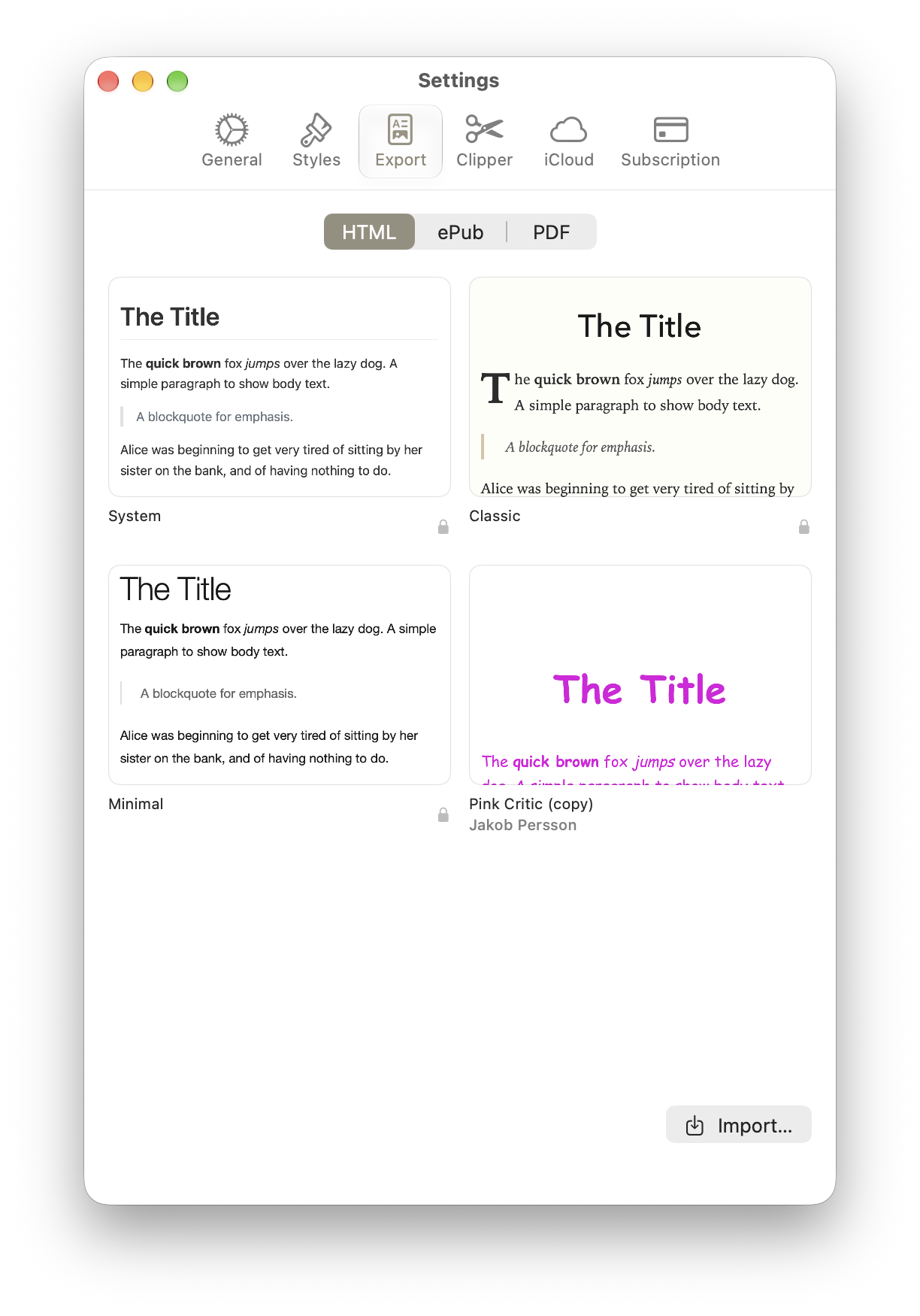
HTML Export Styles in Mac Settings, including an imported style.
An Export Style is a named configuration that controls how a document is rendered when you export it to HTML, ePub, or PDF. Styles cover everything from fonts and colors to margins, headers, and footers. Atlas ships with built-in styles for each format, and you can import, duplicate, edit, and create your own custom styles to match your publishing needs.
Info
Export Styles control rendered output. They're separate from your Editor Style, which only affects how a document looks while you're writing. See Customizing the Editor for the writing-side equivalent.
Built-in Export Styles
Every format has a handful of built-in styles:
| Format | Built-in Styles |
|---|---|
| HTML | System, Classic, Minimal |
| ePub 3 | Standard, Serif, Sans, Black Pearl |
| Default, Modern, Classic, Novel |
Built-in styles are marked with a lock badge in the style grid. They can't be deleted or edited directly, but you can always duplicate one to get an editable copy. Custom styles show an author line so you can tell who made them.
Where to Manage Styles
Export Styles live in Settings:
- iOS / iPadOS — Settings → Export Styles
- macOS — Settings → Export
The screen shows a thumbnail grid organized into tabs by format (HTML, ePub, PDF). Each card previews the style and shows its name; PDF cards also include an info (i) button that opens a popover with the style's full description.
Importing Styles
Use the Import button on the Export Styles screen (Import… on Mac) to bring in a style file. Atlas accepts three kinds:
.css— A CSS stylesheet. This is the file Atlas produces when you export an HTML or ePub style. Atlas's own exports carry a marker that returns them to the right tab; a hand-written.csswithout one imports as an HTML style..pdfstyle— An Atlas PDF style package..ulstyle— A Ulysses style file (see the walkthrough below).
After import, Atlas switches to the matching format's tab, selects the new style, and makes it available in the export sheet right away.
To create and edit your own HTML or ePub styles from a built-in starting point, see Create a Custom HTML Style and Create a Custom ePub Style.
Importing a Ulysses Export Style
Moving from Ulysses? Atlas reads Ulysses .ulstyle files directly, so you can bring your export styles with you.
Export the style from Ulysses. Open Ulysses › Settings and select the Styles tab (on iPhone or iPad, Settings → Styles). Right-click, or long-press, the style you want and choose the share or export option — Ulysses writes a .ulstyle file. Save it somewhere Atlas can reach, like iCloud Drive or Files.
Tip
Don't have the style yet? Ulysses distributes styles through its Style Exchange at styles.ulysses.app. Add one there first, then export it.
Import it into Atlas. Open the Export Styles screen, tap Import (Import… on Mac), and pick the .ulstyle file. Atlas reads it and places the new style in the matching tab:
- An HTML or ePub CSS theme imports faithfully into the HTML or ePub tab.
- A rich-text style — Ulysses' PDF and DOCX styles — is converted on a best-effort basis into a PDF style. When the conversion has to simplify something, Atlas shows a Some Features Were Simplified notice listing what changed (custom bold, emphasis, or list styling), so compare the result against the original before relying on it.
The imported style is selected automatically and syncs to your other devices.
Note
A .ulstyle is an export style. Don't confuse it with a Ulysses .ultheme, which is an editor theme for the writing surface. Atlas imports those too — see The Theme Editor.
A Note on CSS Imports
HTML and ePub styles in Atlas are plain CSS. When you import a .ulstyle CSS theme or bring in your own stylesheet, Atlas uses the CSS exactly as written — it doesn't rewrite selectors, inject variables, or wrap your content in extra markup. That means:
- Target standard HTML tags. Atlas emits semantic HTML (
h1–h6,p,blockquote,ul,ol,pre,code,img,a,hr,table). Style those directly. For tables, Atlas also emitsthead,tbody,th(withscope="col"), andtd— column alignment is written as an inlinetext-alignstyle on each cell. The three built-in HTML styles each include CSS targetingtable,thead th, andtbody trfor borders, header backgrounds, and row tinting. See Tables for the full HTML structure. - Atlas-specific hooks are limited. A handful of classes exist for layout-sensitive cases —
.chapter-break(wrapper on chapters 2+),hr.atlas-doc-separator(between documents in continuous export), andimg.inline(small images sized to flow with text). You can style these to taste. - Book-level metadata lives in ePub metadata, not in chapter markup. The title and author you set in the export sheet are written to the ePub's
content.opf, not injected into each chapter's body — so you can't style them with selectors like.titleor.author. Chapter openings (the firsth1in each file) are where your visual "title" styling should land. - ePub-safe properties. ePub 3 readers respect
page-break-before,page-break-after,page-break-inside,orphans, andwidows. Use them to control pagination. - PDF styles aren't CSS. PDF export styles are a structured configuration (fonts, margins, headers/footers, per-heading typography) rather than a stylesheet, and they're the one format the in-app style editor doesn't cover. Edit their JSON or import a
.pdfstylepackage instead — CSS does not apply to PDF output. See PDF Style Reference.
For the selectors Atlas emits, worked recipes, and a start-to-finish tutorial, see Create a Custom HTML Style and Create a Custom ePub Style. For PDF style JSON, see PDF Style Reference.
Managing a Style
Open a style card's menu — right-click on Mac, tap the card on iPhone and iPad — for its actions:
- Customize — Opens the style editor. On a built-in style this reads Duplicate and Customize…, since built-ins are edited through a copy. HTML and ePub only; PDF styles have no in-app editor.
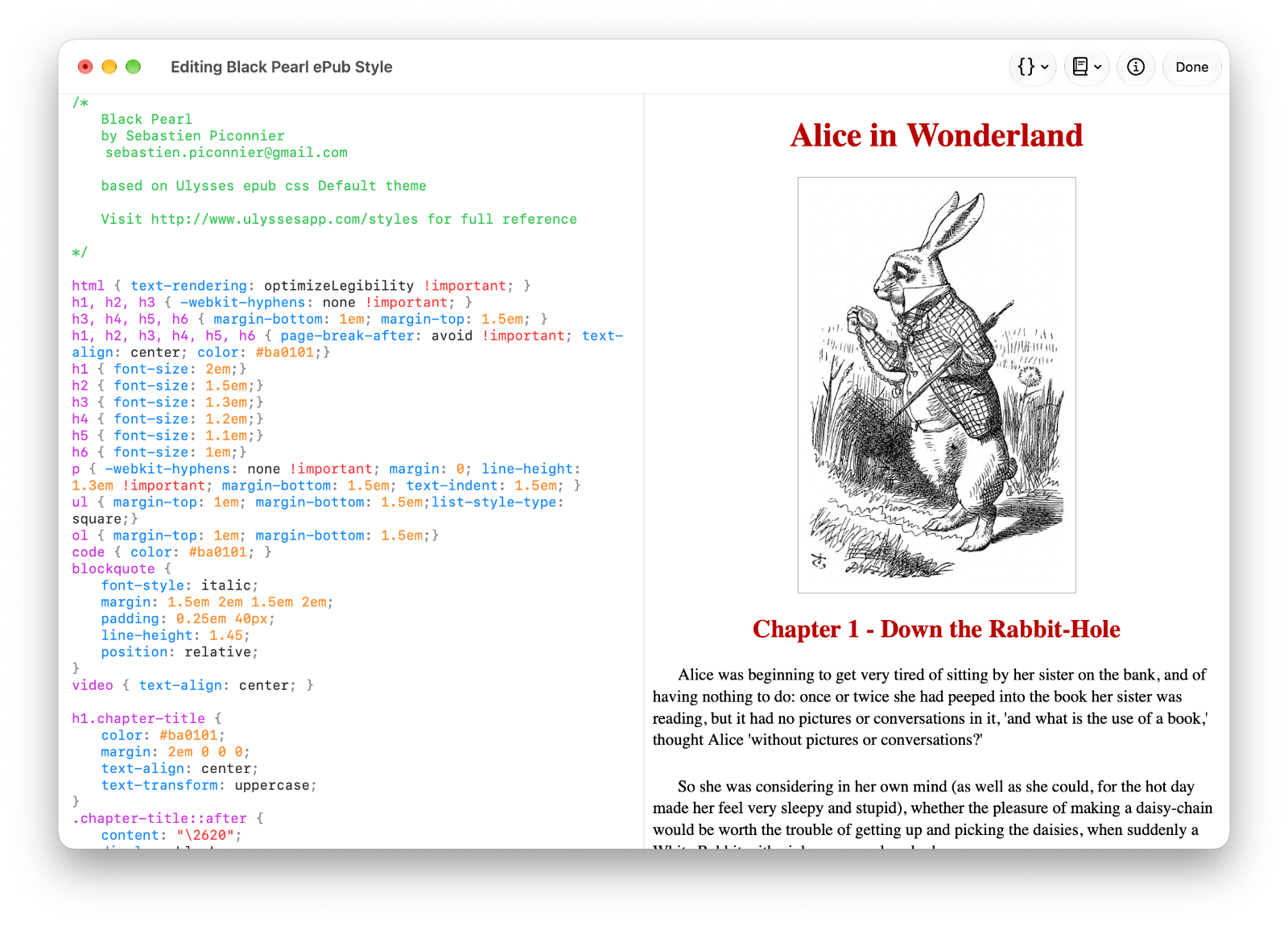
ePub Export Style Editor editing a Ulysses imported theme by Sebastien Piconnier
- Duplicate — Creates an editable copy (named
<name> Copy). Works on built-in and custom styles. - Export — Writes the style to a file you can share or edit elsewhere. On Mac it saves to a location you choose; hold Option to Share it through the share sheet instead. On iPhone and iPad it opens the share sheet.
- Delete — Removes a custom style, after a confirmation. Built-in styles can't be deleted.
iCloud Sync
When iCloud is enabled for Atlas, your custom Export Styles sync across all your devices automatically. Import a style on your Mac and it will appear on your iPad and iPhone shortly afterward.
If a style you imported on one device isn't showing up on another, check that iCloud is enabled and that sync is healthy. See iCloud Sync and Conflicts for troubleshooting.
Applying a Style at Export
- Start an export with Cmd+Shift+E or the Editor menu.
- Pick HTML, ePub, or PDF as the format.
- Choose a style from the thumbnail grid — built-in or custom.
- Configure format-specific options (chapter mode, margins, headers, and so on).
- Review the live preview, then export.
Folder exports honor the same style pipeline, so whatever style you pick applies across every document in the folder — with separate or continuous output, flat or hierarchical structure, and your chosen image location.
See Also
- Exporting Your Work — The export sheet and all available formats
- Create a Custom HTML Style — Tutorial, selectors, and recipes for web-page styles
- Create a Custom ePub Style — Tutorial, pagination, and package details for eBook styles
- PDF Style Reference — JSON configuration for PDF Export Styles
- Exporting an ePub — ePub-specific options in depth
- iCloud Sync and Conflicts — How styles sync across devices
- Customizing the Editor — Editor Style vs. Export Style
- Keyboard Shortcuts — Export and editor shortcuts