Document History
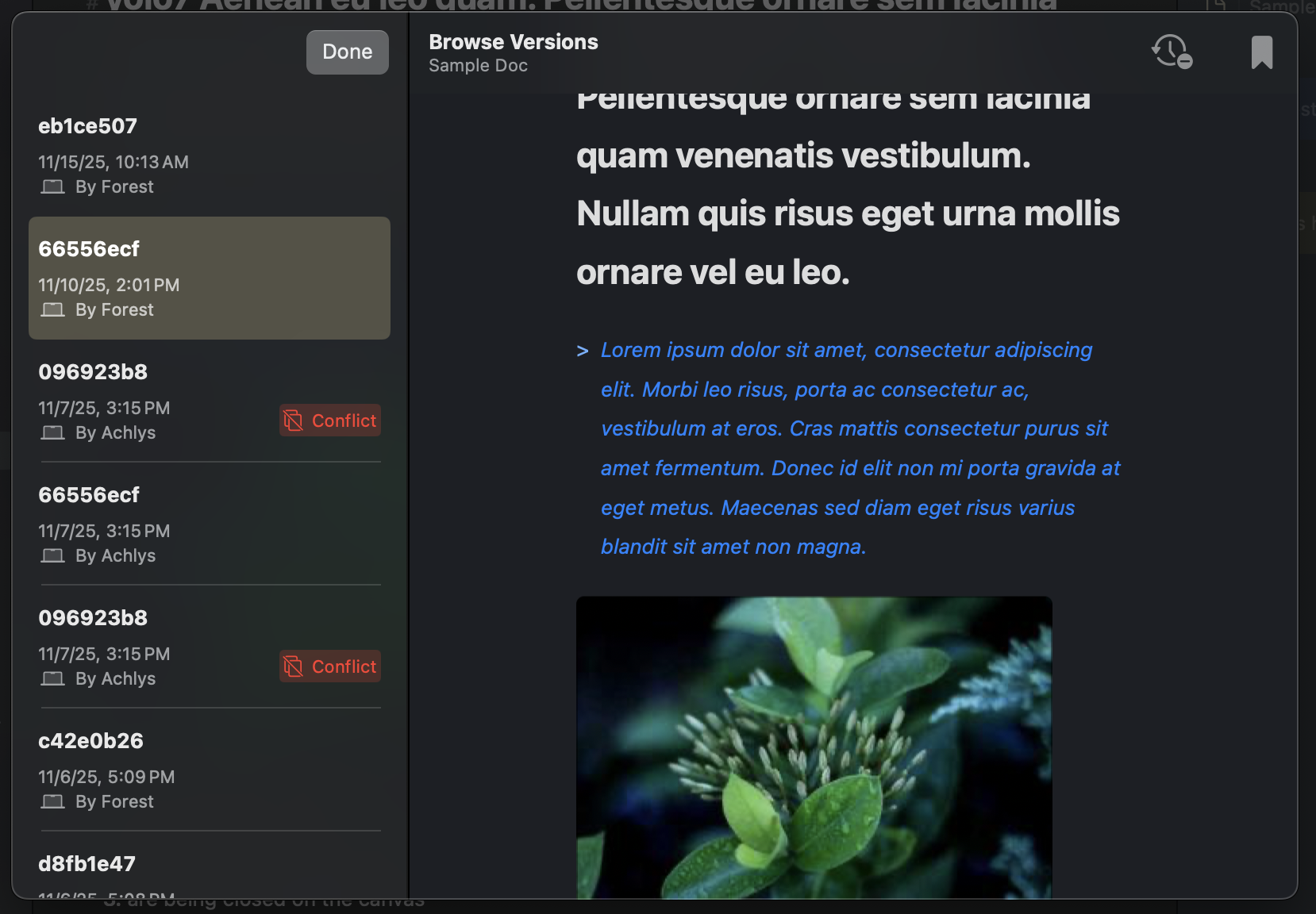
Version Browsing in Atlas
Atlas automatically tracks changes to your documents, letting you browse, compare, and restore previous versions.
Automatic Snapshots
Versions are created automatically when a document is saved and its content has actually changed. Atlas uses content hash comparison to avoid creating duplicate versions when no real changes were made.
You can also create a version manually at any time with Cmd+S. This is useful before making major changes — the version browser let's you name the version something descriptive like "Before restructuring" so you can find it easily later.
Each version records:
- A content snapshot of the document at that point in time
- The device name and type where the edit was made
- A timestamp of when the version was created
The Version Browser
Open the Version Browser from the editor menu to browse all versions of a document chronologically.
Previewing Versions
Select any version to see a read-only preview of its content. Sketch documents display a visual preview of the drawing.
Organizing Versions
- Titles — Add a descriptive title to any version for context (e.g., "Before restructuring chapter 3")
- Notes — Attach longer notes to a version for additional detail
- Starring — Star important versions to bookmark them for quick access
Restoring a Version
Two restore options are available:
- Restore to original — Overwrites the current document content with the selected version. A safety snapshot of the current content is created automatically before restoring.
- Restore to new document — Creates a copy of the version as a new document, leaving the original untouched.
Info
A safety snapshot is always created before any restore operation, so you can recover your current content if needed.
Versions and Sync Conflicts
When the same document is edited on multiple devices before changes sync, Atlas creates a safety snapshot of your local content before any conflict resolution takes place. This means your work is never lost — regardless of how the conflict is resolved, the version browser preserves what you had.
Many conflicts are resolved automatically in the background when the edits don't overlap. Versions created this way carry an Auto Merged badge so you can spot them at a glance.
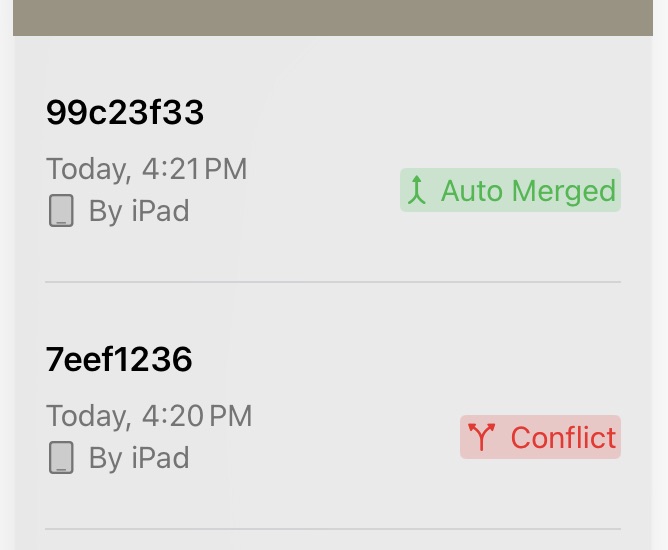
Auto-merged Conflict in the background. Text that wasn't overlapping cleanly came together.
For details on how conflicts are detected and resolved, see iCloud Sync and Conflicts.
See Also
- iCloud Sync and Conflicts — How sync works, conflict resolution, and troubleshooting
- The Inspector — Document dates and metadata