Searching
Atlas's search finds documents and canvas items across your entire project — start typing and results narrow instantly. Tags and metadata fields are created and managed on Metadata and Tags; this page covers how to find things with them.
Opening Search
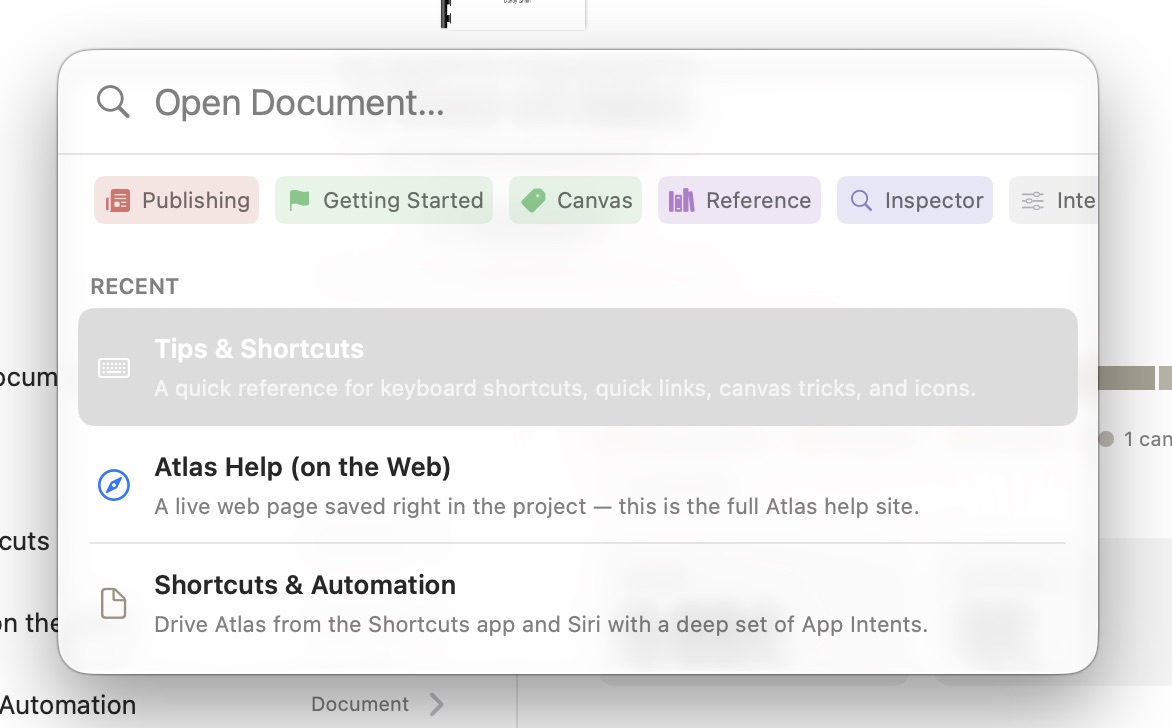
The Search/Open Document dialog in Atlas
On macOS, click the search icon in the toolbar, choose File > Open Document…, or press Cmd+O to open Quick Open — a floating panel that searches your entire project as you type. On iOS and iPadOS, tap the search bar at the top of the Organizer to open the same search experience full-screen; with a hardware keyboard attached, Cmd+O opens it directly too.
When search opens empty, your most recently edited documents appear for quick access.
What You Can Search
Atlas searches across document titles, body content, synopses, and notes all at once, along with the text on your canvases. A matching pin, card, text block, or labeled group appears as a result, and choosing it jumps straight to that item on its canvas — see The Canvas for more on canvas items.
Query Tokens
For more targeted searches, add query tokens to narrow results beyond plain text:
| Token | What it does |
|---|---|
| Text scope | Limit the search to all content or titles only |
| Has synopsis | Show only documents that have a synopsis filled in |
| Has notes | Show only documents that have notes |
| By tag | Filter to documents with one or more specific tags |
| By metadata field | Filter to documents that have a value set for a specific project field |
| Item type | Filter to a specific canvas item type, like Pin, Text Block, or Group |
| In Group | Show only canvas items inside a specific canvas group, including items in nested groups |
To use In Group, type part of a group's name and choose the suggestion, which shows the group and the canvas it lives on.
Tokens of different types combine with AND logic — so filtering by a tag and "has synopsis" returns only documents that match both. Multiple tokens of the same type combine with OR logic — filtering by two tags returns documents with either tag.
Tip
Query tokens and text search work together. You can type a search term and add a tag filter to find, say, every document tagged "Character" that mentions "the forest."
Opening a Result
Select a result to open it. Hold a modifier while clicking or pressing Return for a different action, and a small badge in the search field shows which one is active while you hold it:
- ⌘ (Command) — open the result in a new window instead of in place. On iPad this opens a separate window if your multitasking setup supports it; on iPhone, which doesn't support multiple windows, it opens in place as normal.
- ⌥ (Option) — reveal the result in the Organizer instead of opening it, expanding its parent folders and scrolling to it. Only available for documents — canvas items and other results just open normally.
Searching from Tags
Tap or click a tag in the Inspector, or in a project's tag cloud on the Project Overview, to open search already filtered to that tag — no need to build the filter yourself.
Adding a Document to a Canvas
The same search opens when you choose Add Existing Document on a canvas to add a document reference card (see Document Cards) — narrowed to documents, but with the same tag and metadata filtering available.
Searching with Metadata
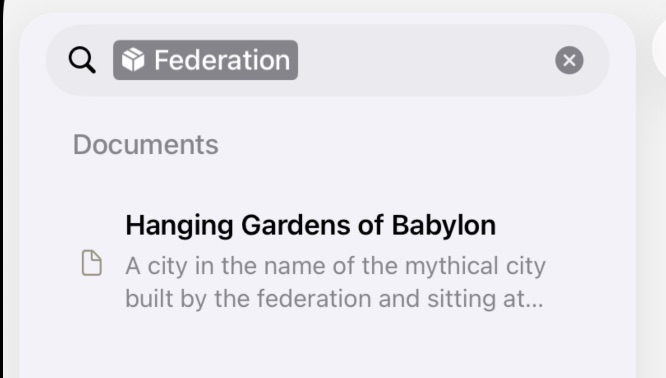
Searching with metadata on iPadOS
Project metadata fields appear alongside tags in the search token picker. Start typing a field's name and it surfaces as an attribute in the dropdown. Adding a metadata token filters results to documents that have any value set for that field.
For Selection fields, the token stays drillable — tap or click it to choose a specific option and narrow results further (for example, filtering to just documents where "Status" is "Draft").
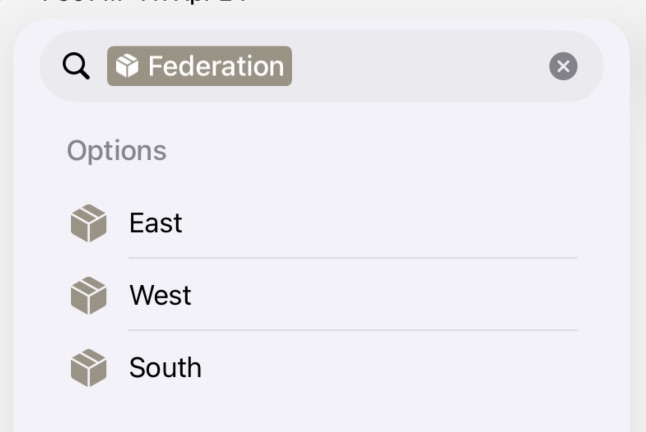
Searching by Metadata Selection Value
Metadata values are also folded into Spotlight keywords, so plain text search finds documents by their field values without an explicit token. Typing a value like "Draft" or a character's name will surface any document with a matching metadata value.
For a full overview of how metadata fields are defined and assigned, see Metadata and Tags.
Spotlight Integration
Atlas indexes your documents for system-wide Spotlight search, so you can find your writing without even opening the app. Indexed content includes document titles, body text, synopses, notes, tags, and metadata field values. Individual canvas items — pins, cards, text blocks, and labeled groups — are indexed too, and opening one from Spotlight deep-links straight to it on its canvas. Results display the document's icon and project name for context.
Use Cmd+Space on Mac or pull down on the Home Screen on iPad/iPhone to search for Atlas documents from anywhere on your device.
See Also
- Metadata and Tags — Creating tags and defining metadata fields
- The Inspector — Assigning tags and metadata, and viewing document details
- The Canvas — Canvas items that participate in search
- The Organizer — Where search lives