Shortcuts & Automation
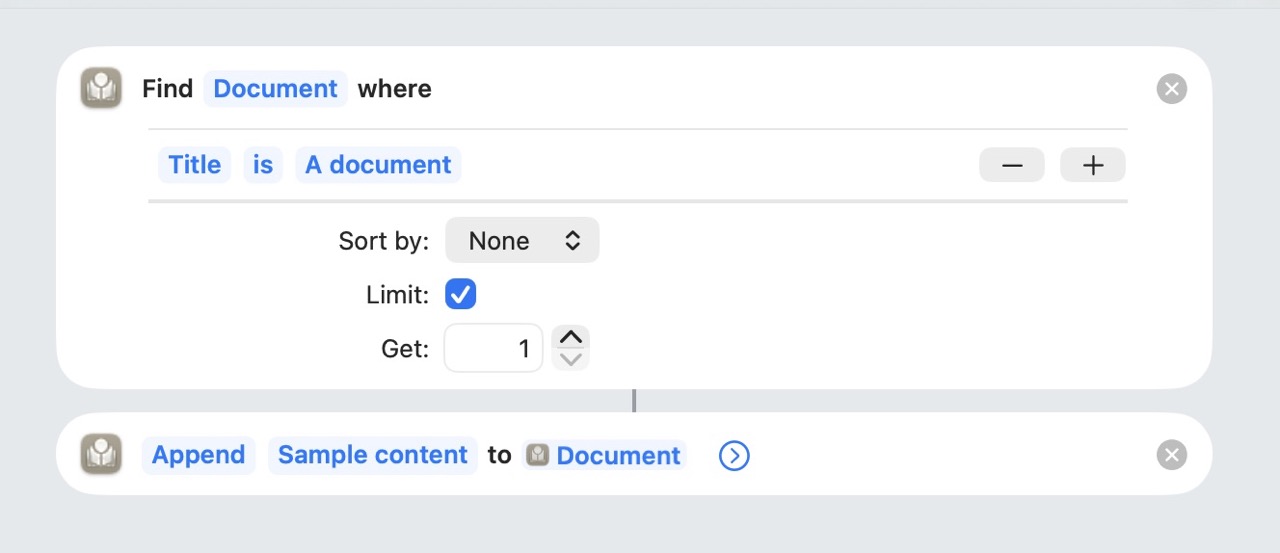
Shortcut Automations with Atlas in the Shortcuts app
Atlas exposes its core actions to Apple's Shortcuts app and to Siri through App Intents. You can build shortcuts that create documents, pull text and statistics out of a project, edit content and metadata in batches, reorganize your work, and even arrange items on a canvas — then run them by tap, from a widget, on a schedule, or with your voice.
Requirements
Shortcuts support requires iOS 18, iPadOS 18, or macOS 15 or later. Atlas actions appear automatically in the Shortcuts app once Atlas is installed — there's nothing to enable.
Featured Shortcuts and Siri
A handful of actions ship as App Shortcuts, which means they work with Siri out of the box and appear in Spotlight. Just speak or type a phrase:
| Action | Try saying |
|---|---|
| Create Document | "Create a document in Atlas" |
| Add Media Document | "Add media to Atlas" |
| Get Project Documents | "Get my Atlas documents" |
| Open Document | "Open a document in Atlas" |
| Export as Markdown | "Export an Atlas document as Markdown" |
Every other action listed below is available in the Shortcuts editor under Atlas, ready to drop into a shortcut of your own.
How Atlas Actions Work
Most actions share a few common ideas, so you don't have to relearn them per action:
- Projects and documents are pickers. Actions that act on your content take a Project and/or a Document parameter. Tap the parameter to choose, or set it to Ask Each Time to be prompted when the shortcut runs.
- An optional Project scopes the picker. Many actions accept an optional Project that simply narrows the document list — handy when you have a lot of projects and want the picker to show only one.
- Batch by default. Editing and organizing actions accept a list of documents, so a single step can act on many documents at once.
- Actions return values. Most actions hand back the documents (or the file, text, or items) they produced, so you can chain one action's output into the next — for example, feed an exported file straight into the system Share action.
Return Values
When an action returns something — a document, a canvas, a list of items — Shortcuts keeps it as a variable you can reuse later in the shortcut. Tap that variable and pick a property to pull one specific value out of it instead of passing the whole result along. A returned Document, for instance, surfaces its Title, Kind, Project, Tags, Synopsis, creation and modification dates, and — when the document is a canvas — its Canvas.
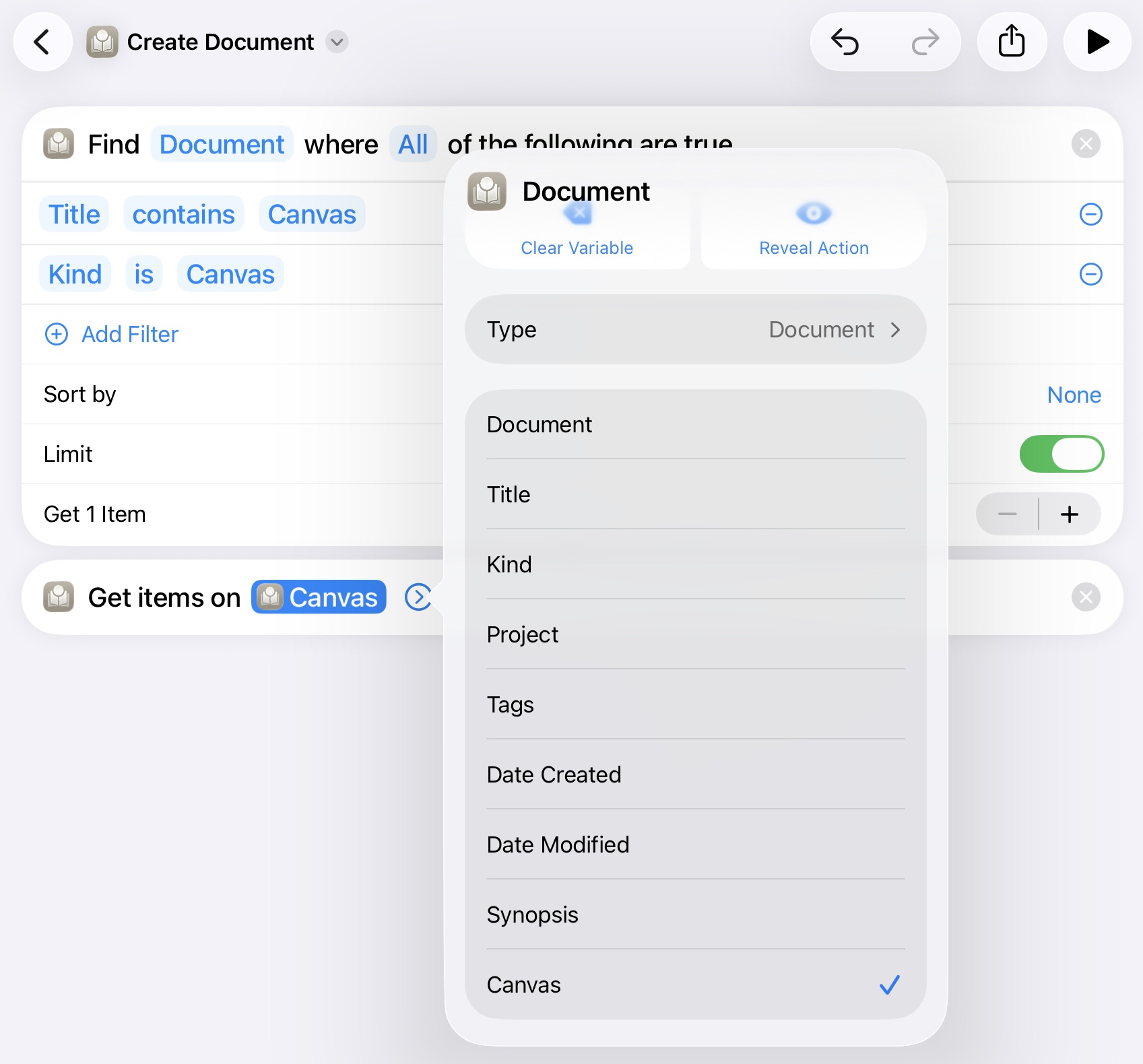
A returned Document, accessing the Canvas to pass to a Canvas accepting input
That Canvas property is what bridges the two halves of Atlas. In the example above, a Find Document filter narrows to a single canvas-kind document, and tapping its Canvas property hands that canvas straight to Get Canvas Items (shown as "Get items on…" in the editor) — no separate lookup required. The relationship runs both ways:
- From a document to its canvas — a canvas-kind document exposes a Canvas property you can feed into Get Canvas Items, Add to Canvas, or Manipulate Canvas Item.
- From a canvas back to its document — a canvas exposes a Document property, so you can return to the underlying document to read its synopsis, set metadata, or export it.
- From a canvas item to its document — a card returned by Get Canvas Items carries a Referenced Document property holding the title of the document it points to, so you can see or filter on what each card represents.
Because every action that produces these entities returns them as variables, you can keep chaining: find a canvas document, get its items, filter to cards, and act on what they reference — all within one shortcut.
Action Catalog
Create
| Action | What it does | Key inputs |
|---|---|---|
| Create Document | Creates a text document, folder, or canvas in a project | Kind (Document / Folder / Canvas), Title, Project, Location (parent folder), Content (Markdown, documents only), Tags |
| Add Media Document | Imports a file as a media document | Media (image, movie, audio, or PDF), Title (optional), Project, Location, Tags |
| Create Metadata Field | Creates a project metadata field — or reuses the existing one if the name already exists | Name, Type (Text, Number, Date, and so on), Project |
Details
| Action | What it does | Key inputs |
|---|---|---|
| Get Document Text | Reads a text document's Markdown and returns it as text | Document, Project (optional) |
| Get Document Metadata | Returns the metadata field/value pairs set on a document | Document, Project (optional) |
| Get Document Statistics | Returns word, character, sentence, and paragraph counts | Document, Project (optional) |
| Get Project Documents | Lists a project's documents, newest first | Project, Kind (optional filter), Include Trashed |
| Get Project Tags | Lists a project's tags, each with its hierarchical path | Project |
Text-only actions
Get Document Text, Get Document Statistics, and Export as Markdown work on text documents only. Pointed at a folder, canvas, sketch, media, or web page, they report an error rather than guessing.
Edit
| Action | What it does | Key inputs |
|---|---|---|
| Edit Document Text | Sets, appends, or prepends Markdown on one or more documents | Documents, Edit Mode (Set / Append / Prepend), Content, Section Title (optional heading), Project (optional) |
| Set Metadata | Sets (or updates) a metadata field's value on documents | Documents, Field, Value, Project (optional) |
| Add Tags to Documents | Adds tags to a batch of documents | Documents, Tags, Project (optional) |
| Remove Tags from Documents | Removes tags from a batch of documents | Documents, Tags, Project (optional) |
| Modify Document Property | Sets a document's name, synopsis, or notes | Documents, Property (Name / Synopsis / Notes), Value, Project (optional) |
| Remove Metadata | Clears a field's value from documents — the field definition itself is untouched | Documents, Field, Project (optional) |
Values are entered as text
Set Metadata takes the value as text and interprets it according to the field's type — for example, true or false for a Boolean field, or an ISO-8601 date like 2026-07-01 for a Date field.
Organize
| Action | What it does | Key inputs |
|---|---|---|
| Move Documents | Moves documents within their project to the Inbox or into a folder | Documents, Destination (Inbox / Folder), Folder, Project (optional) |
| Move or Copy to Project | Moves or duplicates documents into another project, carrying their tags and metadata | Documents, Action (Move / Duplicate), Project (destination), Folder (optional) |
| Move Documents to Trash | Sends documents of any kind to the Trash | Documents, Project (optional) |
| Restore Documents | Restores trashed documents | Documents, Project (optional) |
Cross-project limits
Move or Copy to Project can move or duplicate text documents, media, and web pages between projects. Folders and canvases can't cross projects, and tags are project-scoped — so a tag that doesn't exist in the destination is left behind.
Canvas
| Action | What it does | Key inputs |
|---|---|---|
| Add to Canvas | Adds a document card, pin, text block, or group to a canvas | Canvas, Kind (Card / Pin / Label / Group; Label is a text block), plus per-kind options: Document, Text, Shape, Icon, Style, Color, and X / Y position |
| Remove from Canvas | Removes items from a canvas — the referenced documents are untouched | Items, Canvas (optional), Project (optional) |
| Manipulate Canvas Item | Moves, resizes, recolors, reshapes, or changes the icon or text of canvas items | Items, Change (Move / Resize / Recolor / Reshape / Change Icon / Change Text), plus the matching value (X·Y, Width·Height, Color, Shape, Icon, or Text) |
| Get Canvas Items | Lists the cards, pins, text blocks, and groups on a canvas | Canvas, Kind (optional filter), Project (optional) |
Groups appear as a canvas item kind. A returned canvas item exposes Group Members (the items inside a group, including nested groups) and In Groups (the groups an item sits in). Groups have no shape or icon, so Manipulate Canvas Item can move, resize, and recolor a group but can't reshape it. Leave X and Y empty in Add to Canvas and the item lands beside the canvas's newest card.
Open
| Action | What it does | Key inputs |
|---|---|---|
| Open Document | Opens a document in Atlas | Document |
| Open Canvas Item | Opens a canvas item in Atlas, focused on its canvas | Canvas Item |
Export
| Action | What it does | Key inputs |
|---|---|---|
| Export as Markdown | Exports a text document as a .md file and returns it |
Document, Include Front Matter (default on), Project (optional) |
Worked Examples
Append a dated note to a running log
This shortcut adds a timestamped entry to the bottom of an existing document:
- Add a Text action (or Ask for Input) to capture what you want to record.
- Add the Edit Document Text action.
- Set its mode to Append, pick your log document, and set the content to the text from step 1.
- Optionally set a section title — the current date, say — so each entry gets its own heading.
Run it from the Home Screen, a widget, or by saying "Hey Siri" with your shortcut's name.
Export a draft and save it
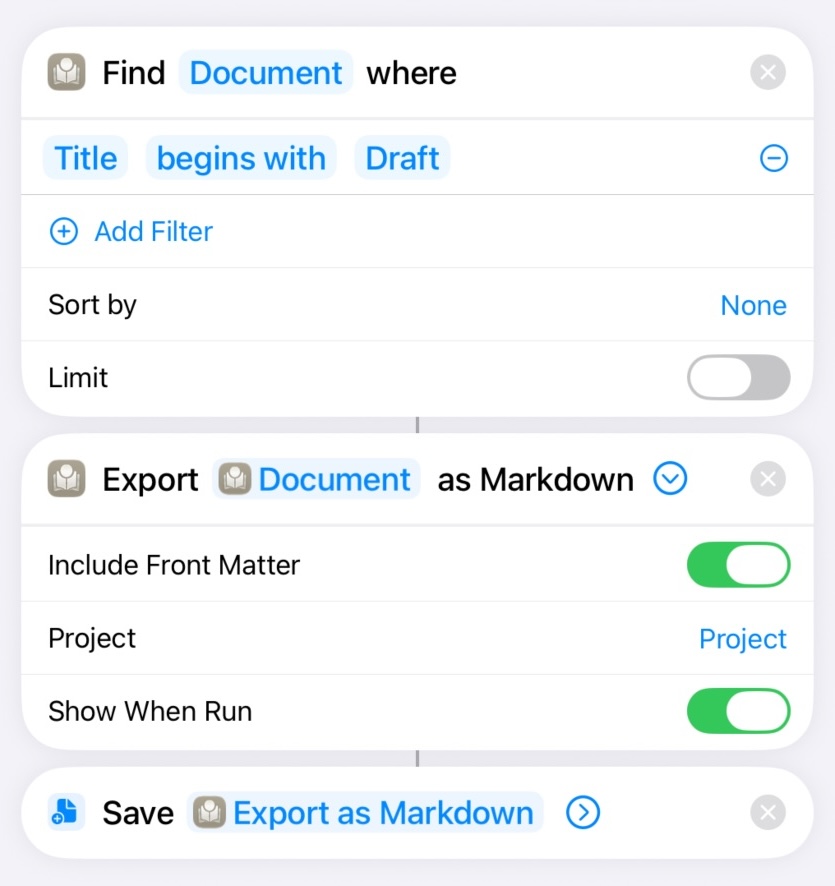
Three actions which automatically Export draft documents
This one turns any document into a Markdown file you can send anywhere:
- Add Export as Markdown and choose the document (or set it to Ask Each Time). Leave Include Front Matter on to carry tags and metadata into the file.
- Add the system Share (or Save File) action.
- The file returned by step 1 flows straight into step 2 — no extra wiring needed.
See Also
- Exporting Your Work — The full export tool, and the Markdown frontmatter the Export as Markdown action produces
- Metadata and Tags — Defining the fields that the metadata actions read and write
- The Canvas — Cards, pins, and text blocks that the canvas actions manipulate
- Metadata and Tags — How project-scoped tags behave