Write with Focus
The hardest part of writing is often everything around the writing: the sidebar, the toolbar, the notifications, the next paragraph pulling your eye down the page. Atlas is a markdown writing app built to get out of the way, with a set of tools that narrow your attention to the words in front of you. If you've reached for a dedicated distraction-free app like iA Writer, you'll find the same ideas here, woven into a full project workspace rather than bolted on.
This guide pulls those tools together into one place. Each links to its full reference if you want to go deeper.
Focus Mode
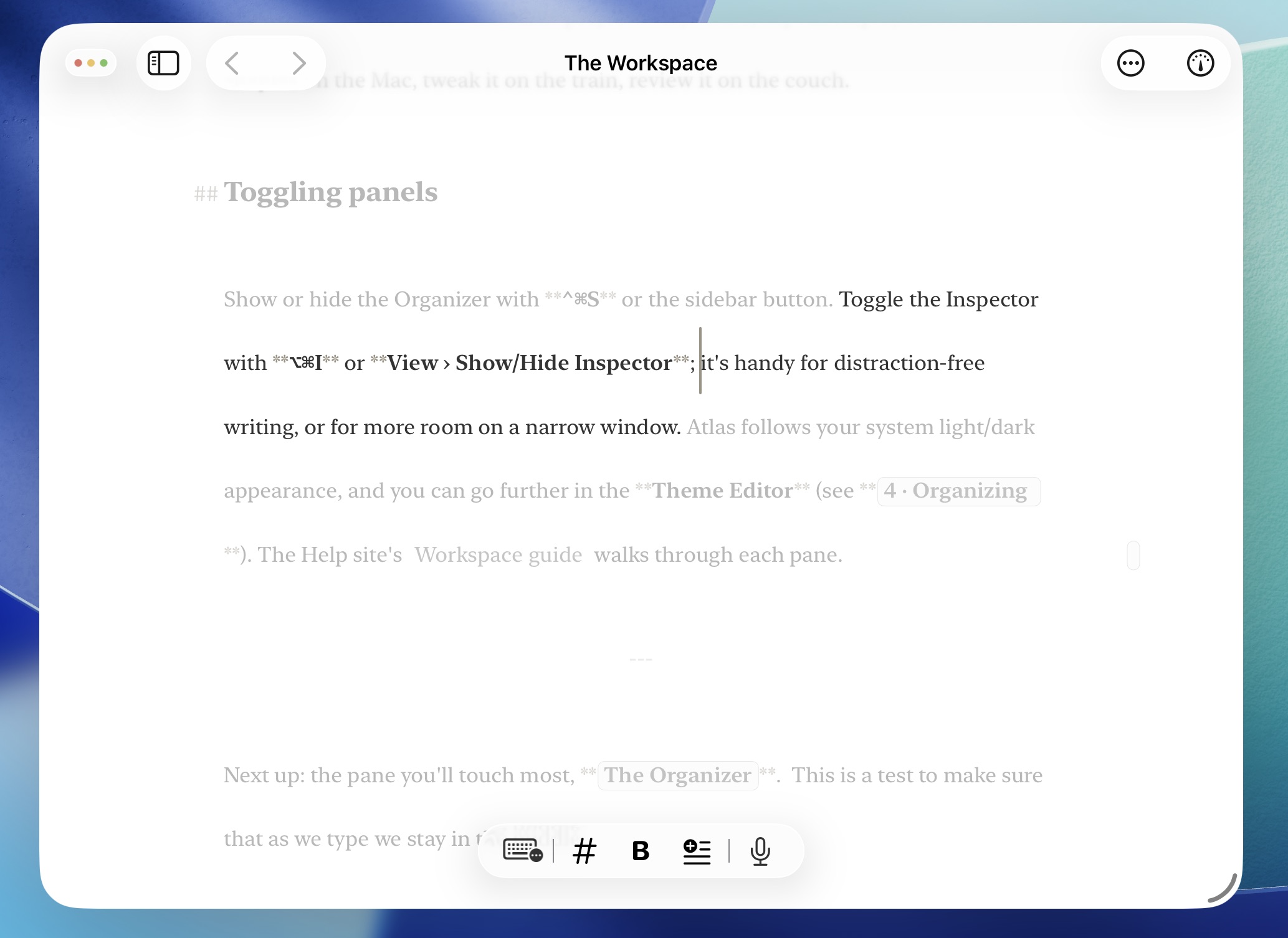
Focus Mode enabled on iPadOS
Focus Mode dims everything except the passage you're actively editing, so the current text stays sharp while the rest recedes. It's the fastest way to stop your eyes from wandering ahead. Choose how tight the beam is:
- Paragraph — keeps the active paragraph in focus
- Sentence — narrows to the current sentence
- Line — narrows to the current visual line
A Dimming slider controls how far the surrounding text fades, from a gentle hush to nearly black. Turn Focus Mode on from Settings > Editor Settings or the Focus Mode submenu in the editor's Editor menu. On Mac and iPad with a keyboard, Option+Cmd+G toggles it and restores your last granularity.
See Focus Mode for the full settings.
Typewriter Scrolling
Typewriter Scrolling (sometimes called typewriter mode) pins the line you're editing in place as you type, so the text scrolls beneath a steady cursor instead of marching down the screen. Your eyes stay in one spot. Pick where the active line sits: Top, Center, Bottom, or Variable (hold it wherever it currently is).
Set it in Settings > Editor Settings under Typewriter Scrolling, or from the Editor menu. With a keyboard, Option+Cmd+J toggles it, and Shift+Cmd+J snaps the current line back to your chosen position.
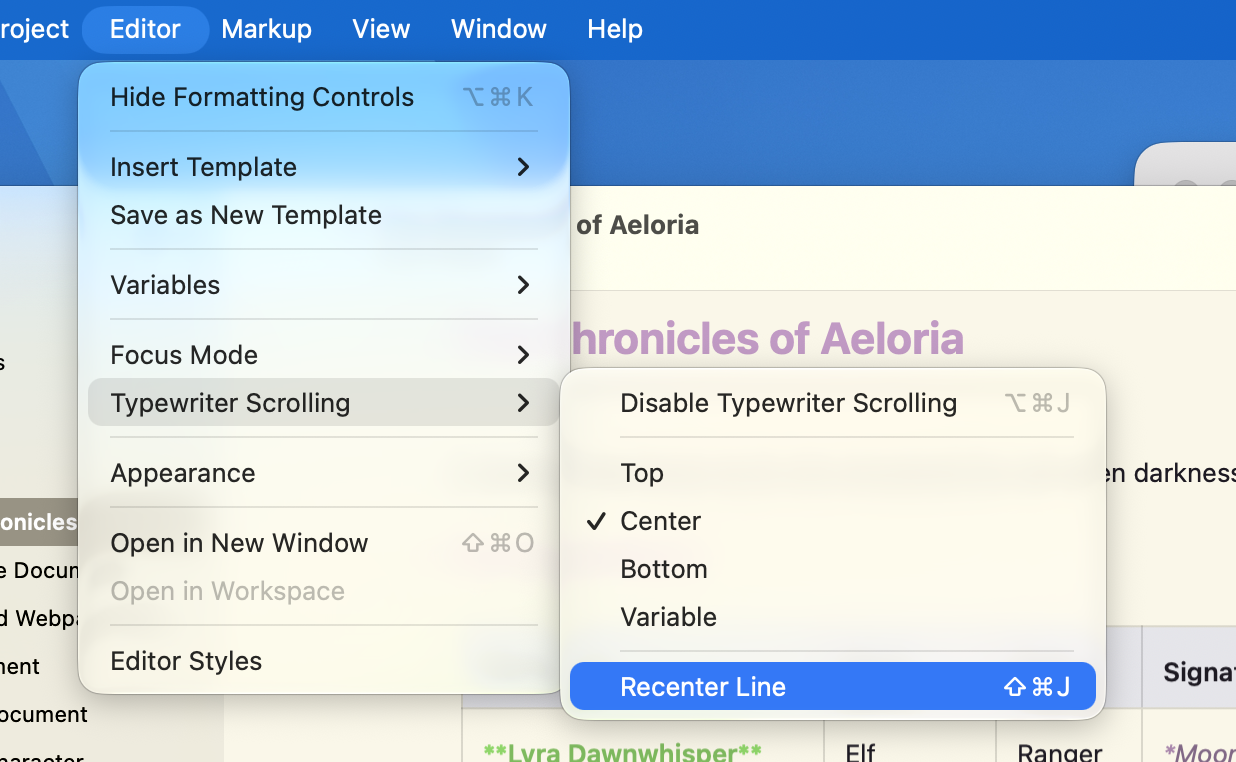
The Typewriter Scrolling Menu on macOS
See Typewriter Scrolling for details.
Clear the Deck
Focus is as much about what you remove as what you highlight. Atlas lets you strip the workspace down to just the editor:
- Hide the Organizer — collapse the document sidebar with Ctrl+Cmd+S, the View menu, or the Organizer button ().
- Hide the Inspector — close the metadata and statistics panel with Cmd+Option+I, from View > Hide Inspector, or the Inspector button (). Hiding it gives a narrow window more room and clears the last bit of chrome from view.
- Go full screen — on Mac, enter full screen to drop the window frame and let the editor fill the display.
With both panels hidden, the editor is a single column of text on your chosen background, and nothing else.
See The Workspace for how the columns fit together.
Tune the Writing Environment
A comfortable page is easier to stay on. Atlas gives you the same typographic control a dedicated writing app would, all in Settings > Editor Settings:
- Themes — seven built-in themes, each with a light and dark variant. Monochrome strips color out entirely for a spare, ink-on-paper feel; a dark theme quiets a late-night session.
- Custom fonts — set your own Standard, Serif, and Monospace faces, or one typeface everywhere.
- Text size and line height — scale the type and open up the leading until a line feels easy to read.
These change how your writing looks while you work, and never touch how it exports. See Customizing the Editor for every option, and The Theme Editor to build your own.
Keep Your Hands on the Keys
Atlas writes in Markdown, so structure comes from a few characters rather than a formatting toolbar. A # makes a heading, * makes a list, > makes a quote — you never leave the keyboard to reach for a button, and there's no formatting bar taking up space or attention. Pair that with the keyboard shortcuts for markup, navigation, and file management, and a full drafting session can happen without your hands leaving the keys.
See Also
- Customizing the Editor — Focus Mode, Typewriter Scrolling, themes, fonts, and sizing in full
- The Workspace — Showing and hiding the Organizer and Inspector
- Writing with Markdown — Keyboard-driven formatting basics
- Keyboard Shortcuts — Complete shortcut reference
- The Inspector — Writing statistics and document metadata