Exporting an ePub
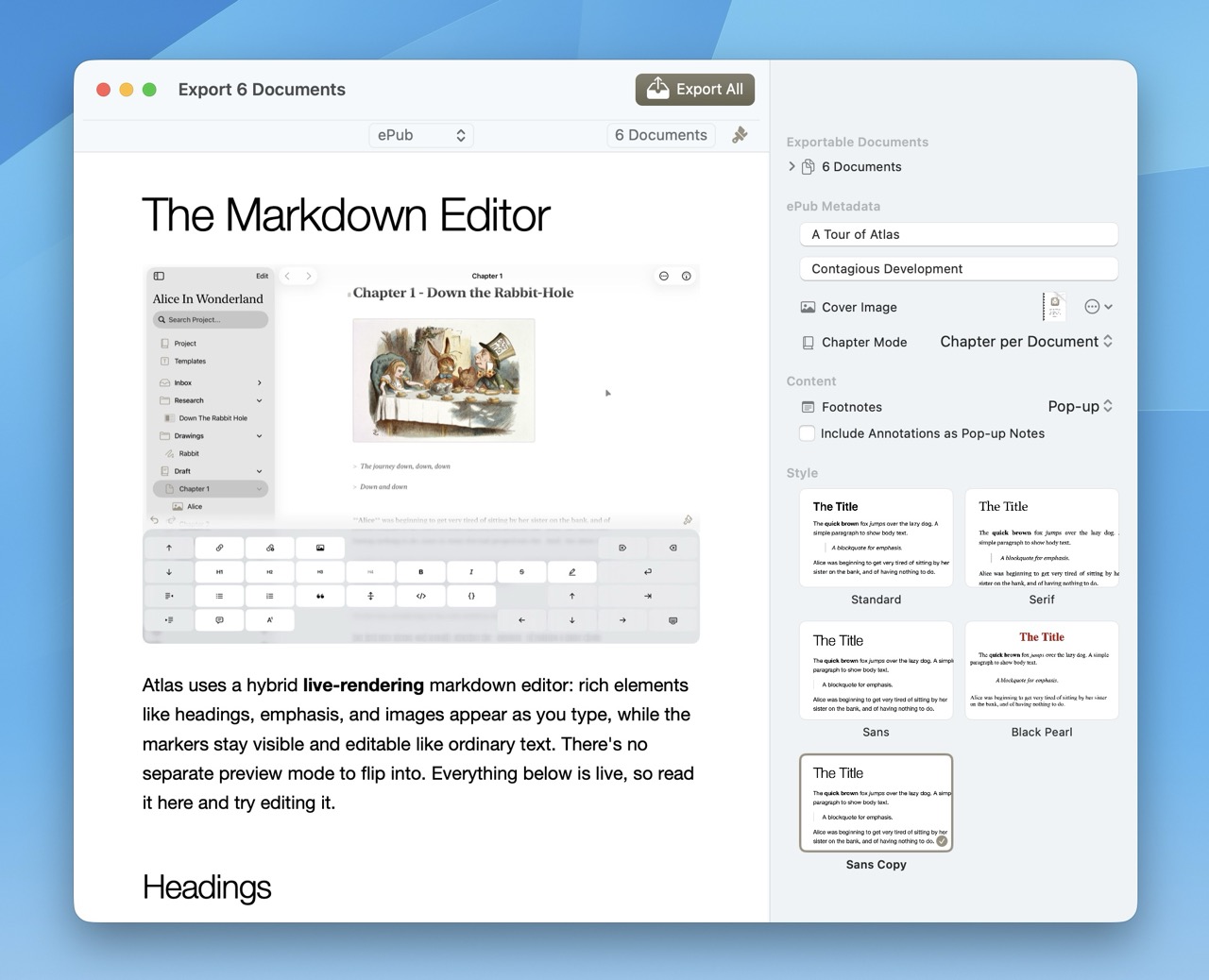
The Export Tool currently exporting an ePub
ePub is the standard eBook format, and Atlas gives you fine-grained control over how your exported book looks and behaves. The result is an ePub 3 file suitable for reading in Apple Books, Kindle (via Send to Kindle), Kobo, and other readers that support the standard.
To start an ePub export, select a document or folder and use Cmd+Shift+E or the Export menu item, then choose ePub as the format. The export settings are organized into three sections: metadata, content, and style.
Metadata
The metadata section defines how your book presents itself to readers.
Title — The book title that appears in the reader's library and title page. This defaults to the document or folder name, but you can change it to whatever you'd like.
Author — The author name embedded in the ePub file. This defaults to your project author (set in Project Settings), so if you've already filled that in, you're covered.
Cover Image — Select an image to use as the book cover. This is what readers will see in their library alongside the title. If you skip this, the ePub is exported without a cover.
Chapter mode — When exporting a folder with multiple documents, this controls how the ePub is structured:
- Single Document — All content flows together as one file, without chapter breaks. Works well for short stories, essays, or single-chapter exports.
- Chapter per Document — Each document becomes its own chapter, and the ePub includes a table of contents so readers can jump between them. This is the better choice for novels and longer works.
- Custom Selection — You decide where chapters begin. In the Exportable Documents list, each row shows a bookmark button; tap it to mark that document as a chapter start (the bookmark fills in). Documents you leave unmarked fold into the chapter above them. Use this when a chapter spans several documents — mark the first document of each chapter and let the rest flow underneath it.
Tip
In Custom Selection mode the bookmark replaces the usual include toggle, so to leave a document out of the book entirely, use its context menu (Disable Export). Excluded documents appear dimmed in the list.
Content
The content section controls how footnotes and annotations are handled in the exported book.
Footnote Placement
If your documents include footnotes, you have three options for where they appear:
Pop-up — Footnotes appear as interactive pop-up overlays when the reader taps a reference marker. This is the most modern option and works well in Apple Books and other readers that support epub:type="footnote". Readers see footnotes in context without losing their place.
End of section — Footnotes are collected at the bottom of each chapter as a numbered list, with numbering resetting per document. This is the traditional academic style — familiar and predictable.
End of all documents — All footnotes across the entire book are collected at the very end with sequential numbering. This option is only available when exporting a folder, and works well for books that treat endnotes as a single reference section.
Annotations
By default, annotations are stripped during ePub export — they're meant as your private commentary while writing. If you want to include them in the finished book, enable Include Annotations as Pop-up Notes in the content settings. They'll appear as tappable pop-up notes, similar to the pop-up footnote style.
Style
Four built-in styles control the visual appearance of your ePub:
- Standard — A balanced default that works across most readers and content types
- Serif — A traditional serif typeface for a classic reading experience, well-suited to fiction and long-form prose
- Sans — A clean sans-serif style with a modern feel, good for non-fiction or technical writing
- Black Pearl — A literary style with a serif body and bold, centered crimson headings for a dramatic, book-like feel
The style you choose affects typography, spacing, and overall layout within the ePub. Since eBook readers also let the reader adjust fonts and sizes on their end, think of this as setting the default experience rather than the final word.
Custom ePub Styles
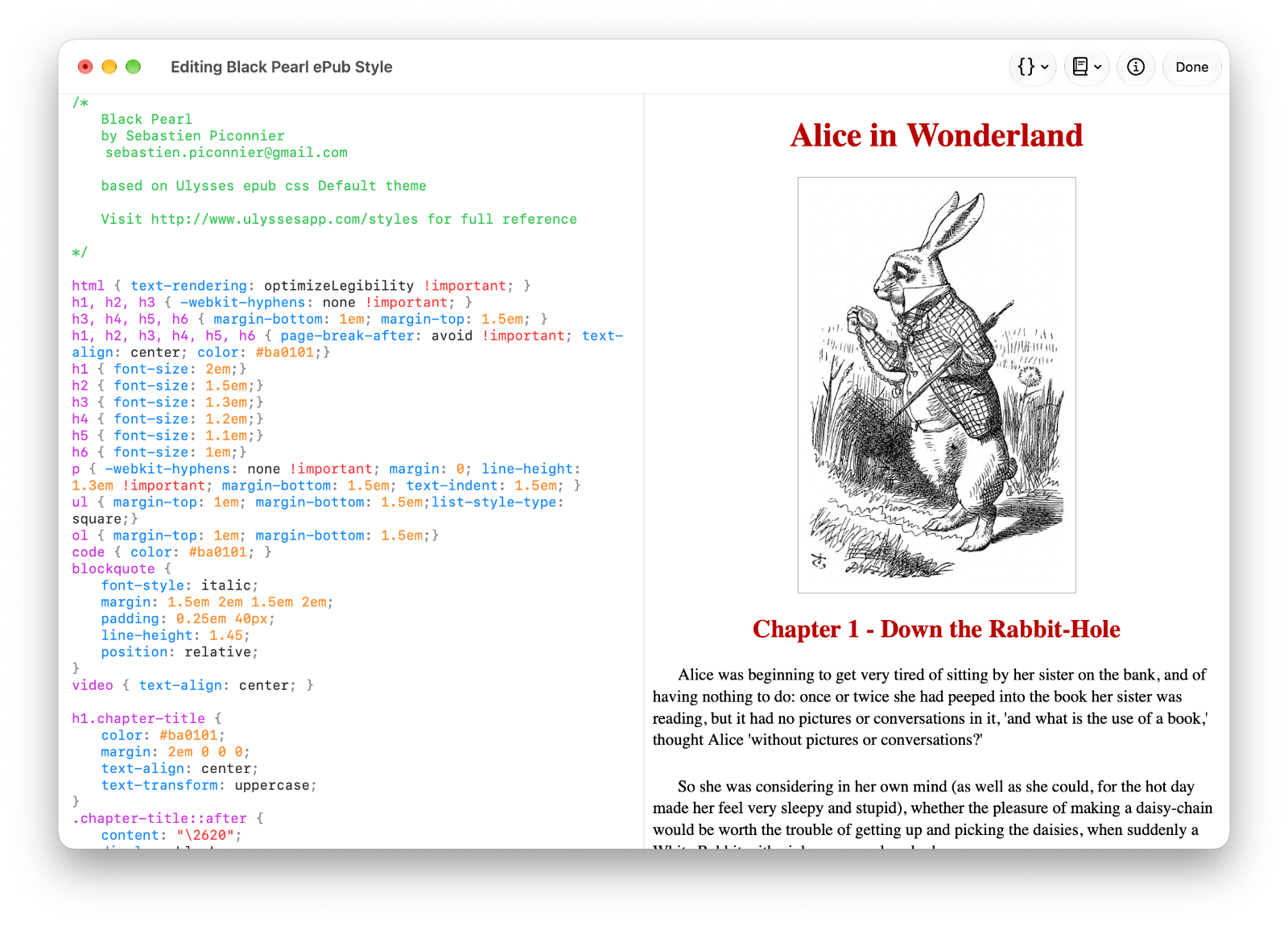
ePub Export Style Editor editing a Ulysses imported theme by Sebastien Piconnier
Beyond the built-ins, Atlas supports custom ePub Export Styles you've built or imported — including Ulysses .ulstyle CSS themes, which Atlas imports directly. Custom styles appear alongside the built-ins in the style picker. See Create a Custom ePub Style to build one from a built-in starting point, or Custom Export Styles for how to import, duplicate, share, and sync them.
Export Preview
Before finalizing, the export preview shows you how your content will look with the current settings — style, chapter mode, footnote placement, and annotation inclusion all reflected. Use this to catch any surprises before you export.
See Also
- Exporting Your Work — All export formats and general export options
- Create a Custom ePub Style — Build your own eBook style, with pagination and package details
- Custom Export Styles — Importing and managing HTML, ePub, and PDF styles
- Annotations and Footnotes — Creating annotations and footnotes in your documents