Projects
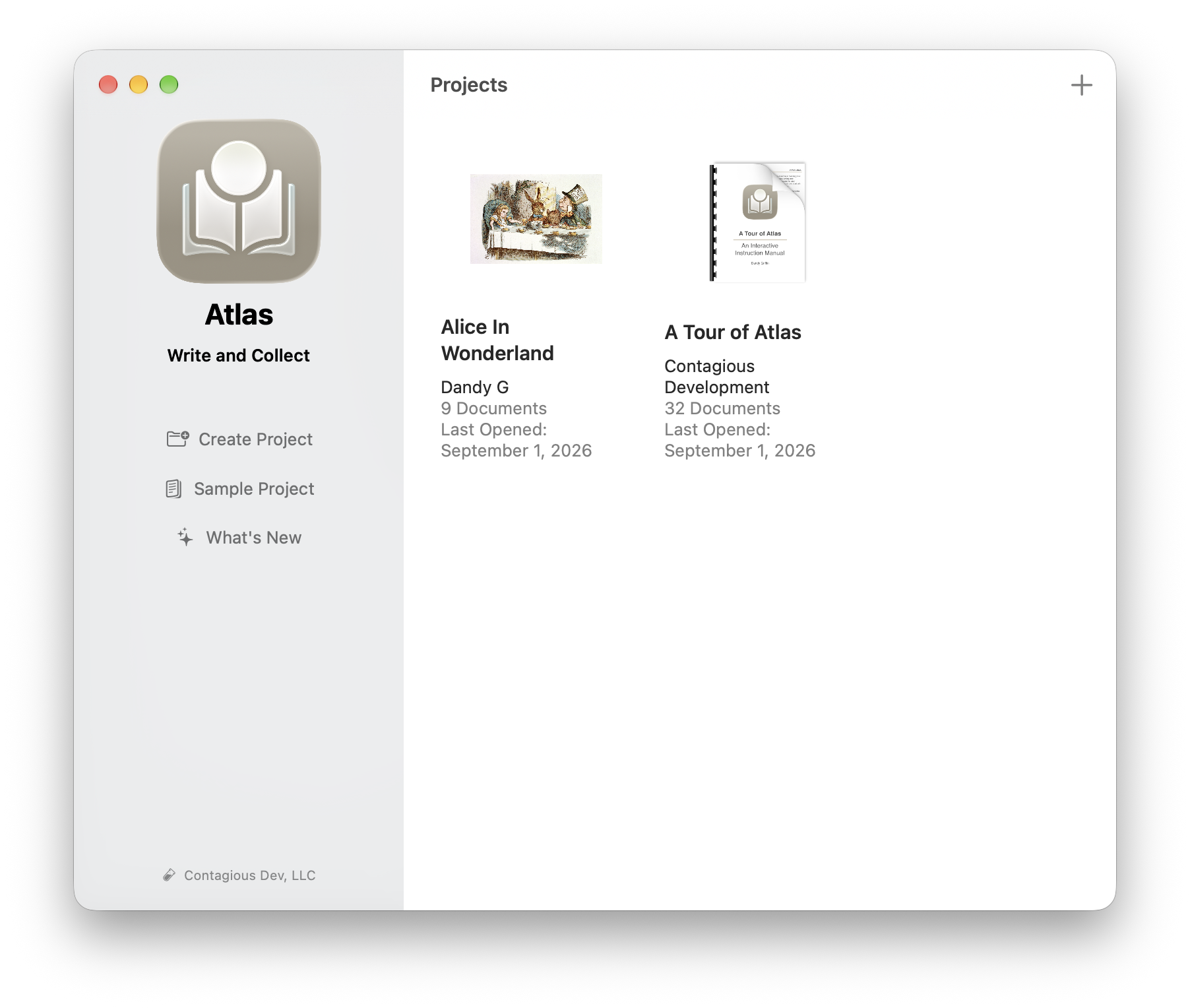
The Project Organizer on macOS
Projects are the top-level containers in Atlas. Each project is an isolated workspace with its own documents, tags, templates, and settings.
Tip
New to Atlas? Try the Sample Project & Tour to explore a ready-made project before creating your own.
The Project List
Projects appear in the project list as either Icons or a List. Use the switch at the top to change views. In List view, columns show each project's name, document count, and when you last opened it. Atlas remembers your choice on each device.
Choose Sort on Mac, or More () on iPad and iPhone, to sort by Name, Last Opened, or Date Created, in ascending or descending order. The default is Last Opened, most recent first.
Creating a Project
Create a new project using the + button in the project list, or press Ctrl+Cmd+N. When you finish creating it, Atlas opens the new project straight away. Each project has the following metadata:
- Title — The project name
- Author — Optional author name (also used as default author in ePub exports)
- Cover Image — An optional cover image displayed in the project list
- Overview — A description field for summarizing the project's purpose
Info
New projects include default Draft and Research folders to get you started. These can be renamed, moved, or deleted — they're a starting point, not a requirement. You can disable automatic folder creation in Settings > General.
Note
Without a subscription, free trial, or Lifetime Pass, Atlas runs in Preview, which includes one project and 25 documents. See the FAQ for what counts toward the limits.
The Project Workspace
Opening a project brings you to the workspace — a multi-column layout with the Organizer, Editor, and Inspector. See The Workspace for details on navigating this layout.
Project Home
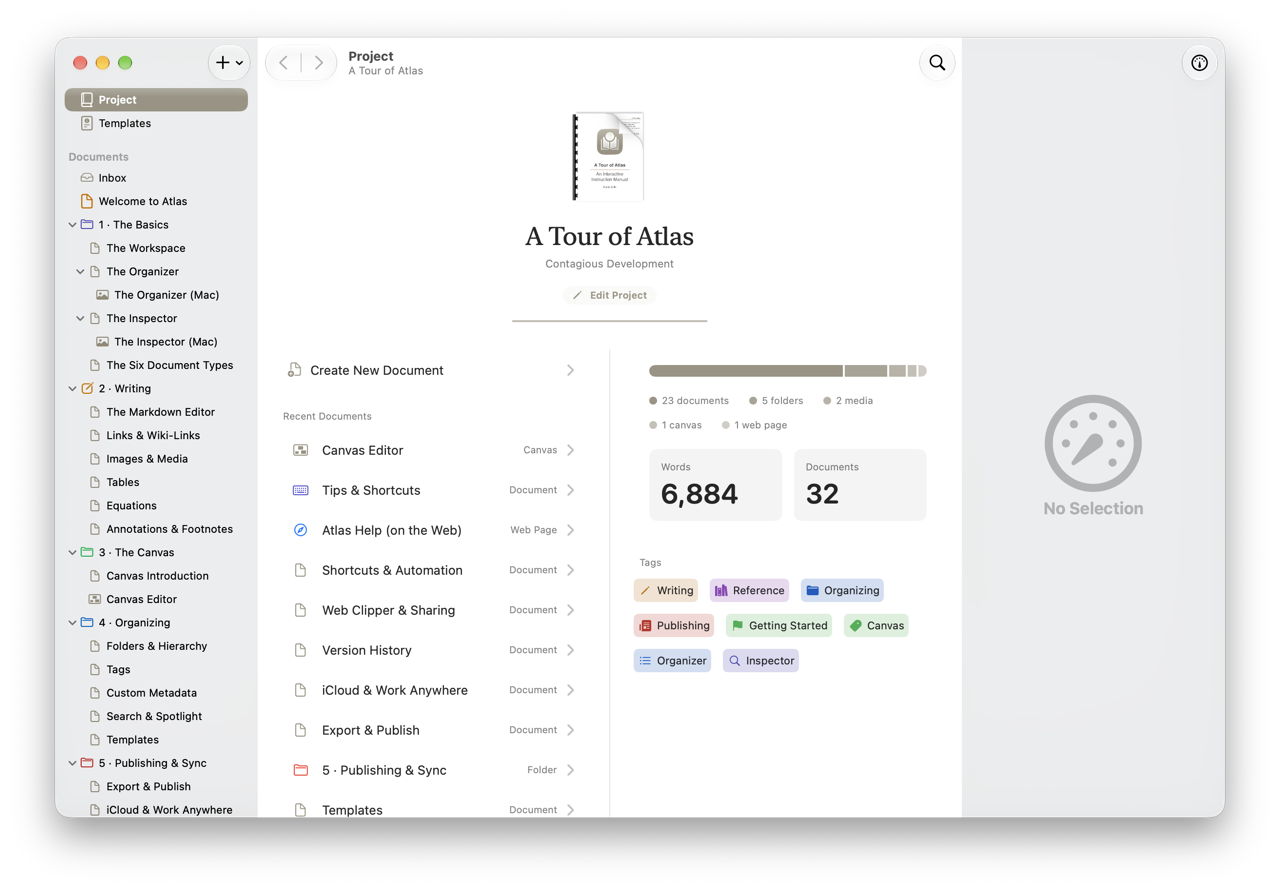
Atlas Project Home
With no document selected, the editor area starts on Project Home — an overview of the whole project:
- Statistics — a breakdown of your documents by type, plus total word count and document count
- Tags — every tag in use, sorted by how often it appears; tap one to jump to the Organizer filtered to that tag
- Recent Documents — your most recently edited documents, for quick reopening
- Description — your project's overview text, with a Show more toggle when it runs long
Use Edit Project to change the title, author, cover image, or description, and Create New Document to start writing right away.
Archiving Projects
Projects have two states: Active and Archived. Archiving hides a project from your main project list while preserving all its data. Use it for completed work or projects you want to set aside.
To archive a project, right-click it (Mac) or long-press it (iPad and iPhone) in the project list and choose Archive Project. Atlas asks you to confirm, and the project moves out of the list.
To see archived projects, open Archived Projects. On Mac it's a button in the projects sidebar, and on iPad and iPhone it's in the More menu. From the list, choose Open Project to look inside an archived project without restoring it, or Unarchive to return it to your project list. You can also archive or unarchive a project from its settings.
Info
On Mac, the Project menu item for a project's settings window is now called Project Settings (previously Project Information). The window itself gained an Edit Project button for changing title, author, cover image, and description — mirroring the action already available from Project Home.
Importing and Exporting Projects
Atlas supports full project import and export:
- Export as an
.atlasprojectbundle or folder, including a JSON manifest with all metadata, documents, attachments, sketches, and canvases - Import from an
.atlasprojectbundle or manifest-based folder structure, with automatic internal link rewriting and progress tracking
For a full breakdown of what's inside a project file and how to re-import one, see Atlas Project Files.
Info
Project export is always available, even when your subscription has expired — Atlas never holds your data hostage.
See Also
- The Workspace — Navigating the project workspace
- The Organizer — Managing your project's document structure
- Documents — The six content types available in a project
- Atlas Project Files — The
.atlasprojectexport format in detail