Images and Sketches
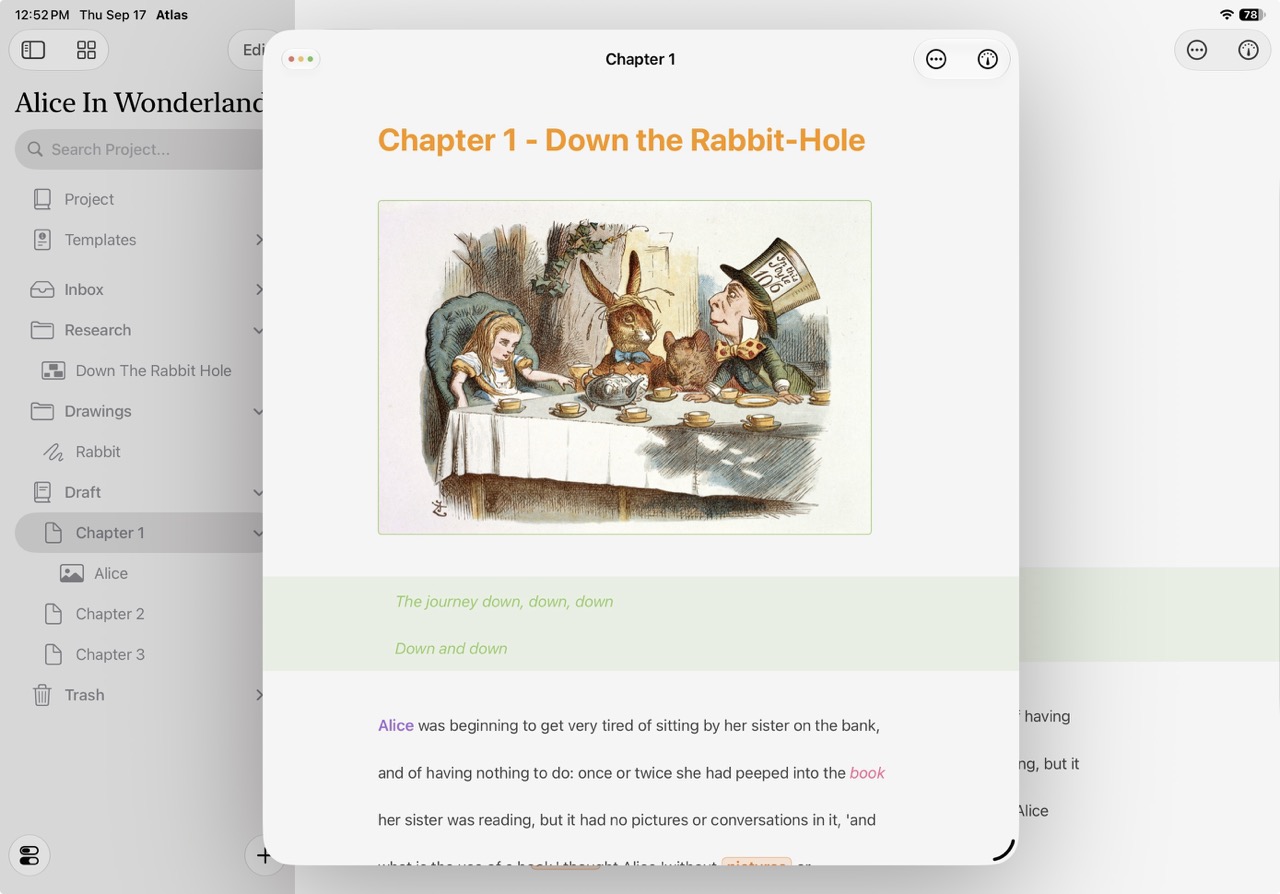
An image embedded in the Editor on iOS
Images and sketches are visible directly in your documents — either as block-level elements on their own line or inline alongside your text. Sketches are freehand drawings created on iPad or iPhone that sync across all your devices. On Mac, they can be viewed and used just like any other image.
Embedding Images
Embed images directly in your documents using standard markdown syntax:

You can quickly insert an image by typing ![Caption], which will open the image editor so you can choose a source and configure the image.
You can also drag and drop images from Finder, Files, or other apps directly into the editor.
The Image Editor
Double-tap any inserted image to open the image editor.
The editor provides five source options:
| Source | Description |
|---|---|
| URL | An external web address for the image |
| Media Document | A media file already in your project |
| File | Import an image from your device's file system |
| Photo | Select from your photo library |
| Sketch | Reference a sketch document from your project (iOS only) |
The editor includes an Alt Text field for accessibility descriptions, a preview of the selected image, and a recent media section that shows your recently used images for quick access.
The image editor also supports Web card previews — When the source is a URL, the editor shows a rich web card preview with the page's title, image, and description
Caching
Images from the web are cached to disk for faster loading and usage offline. See Working Offline for details on how caching works, including refresh intervals and storage limits.
Converting Between Images and Links
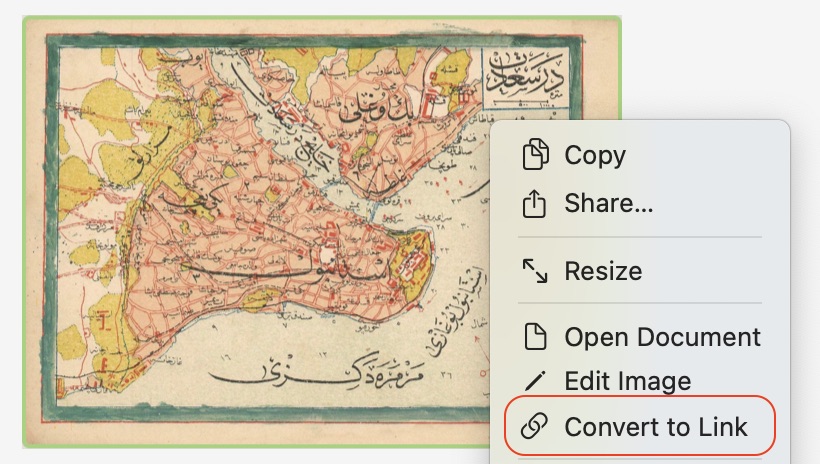
The context menu on macOS highlighting convert to Link
You can convert an image to a link (and vice versa) at any time using the Convert to Link command in the image editor. This is useful when you want an embedded image to become a clickable link instead, or the other way around. See Linking for more on the link side of this conversion.
Quickly Convert Links to Images
You can quickly convert existing links to images by inserting a "!" (exclamation mark)" before the link.
Image Context Menu
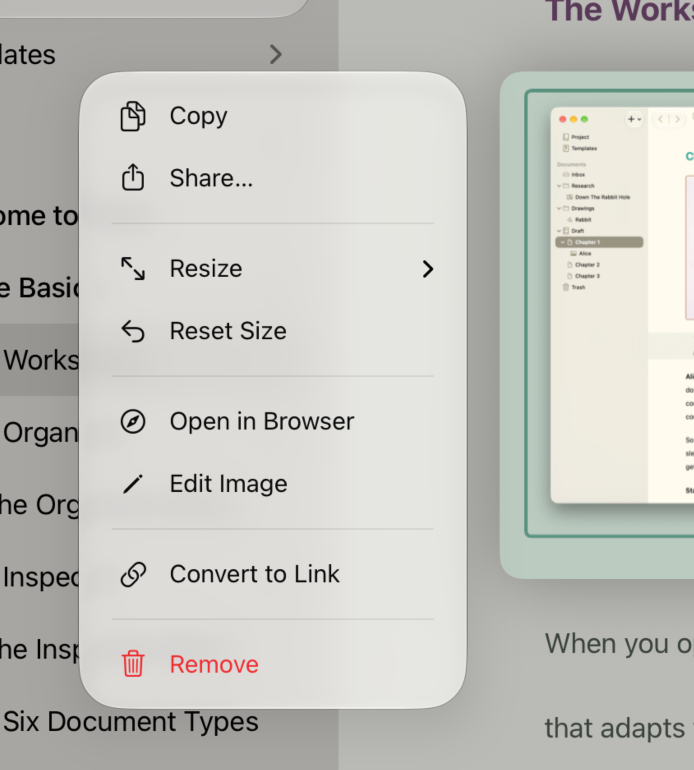
The image context menu on iOS
Long-press (iPad/iPhone) or right-click (Mac) on an embedded image to access options for opening the source URL, navigating to an internally linked document, resizing, or removing the image.
Resizing Images in the Editor
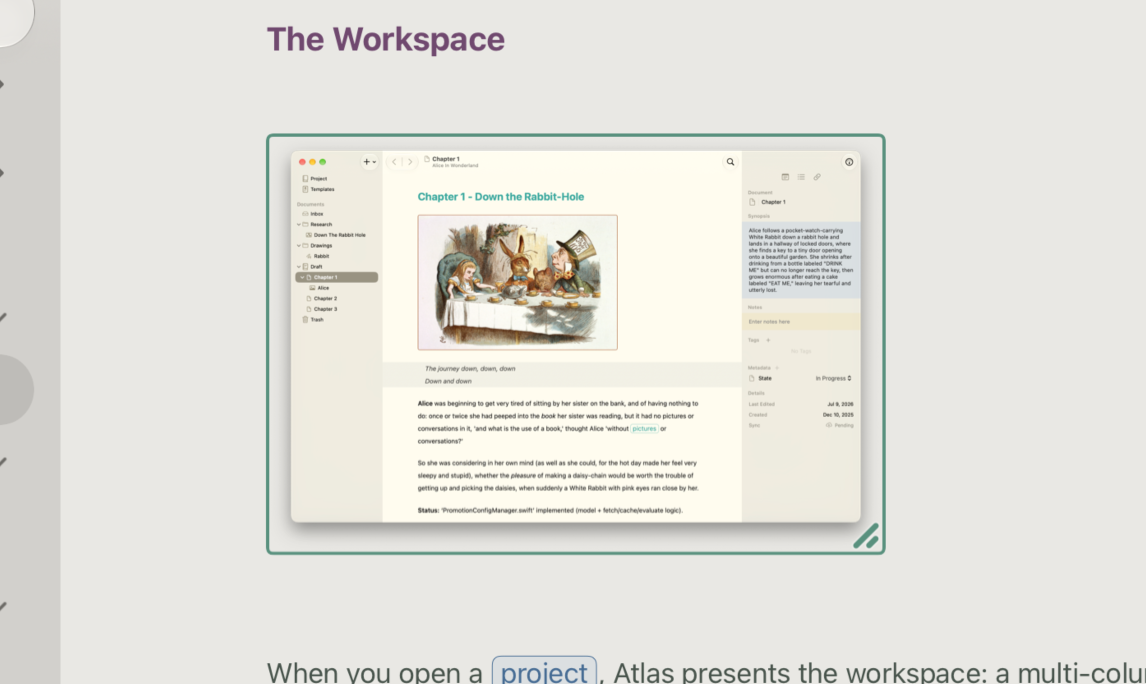
A Selected Image. You can grab the handle in the lower right to resize it freely.
Select any embedded block image and a resize handle appears immediately in the bottom right corner. Drag the handle for a free-form width, or open the image's context menu and choose Resize for fixed Small, Medium, or Large presets (with Reset Size to clear whichever you've applied). Block images are also capped to the editor's current width, so they never flow past the edge of the column.
You can set a default display size for all new images at block level in Settings > Editor Settings. See Customizing the Editor for details.
Info
A free-form drag resize only affects the editor — it has no effect on exporting or publishing. Choosing a Small, Medium, or Large preset is different: that size carries through to HTML and ePub export as well.
Sketch Documents
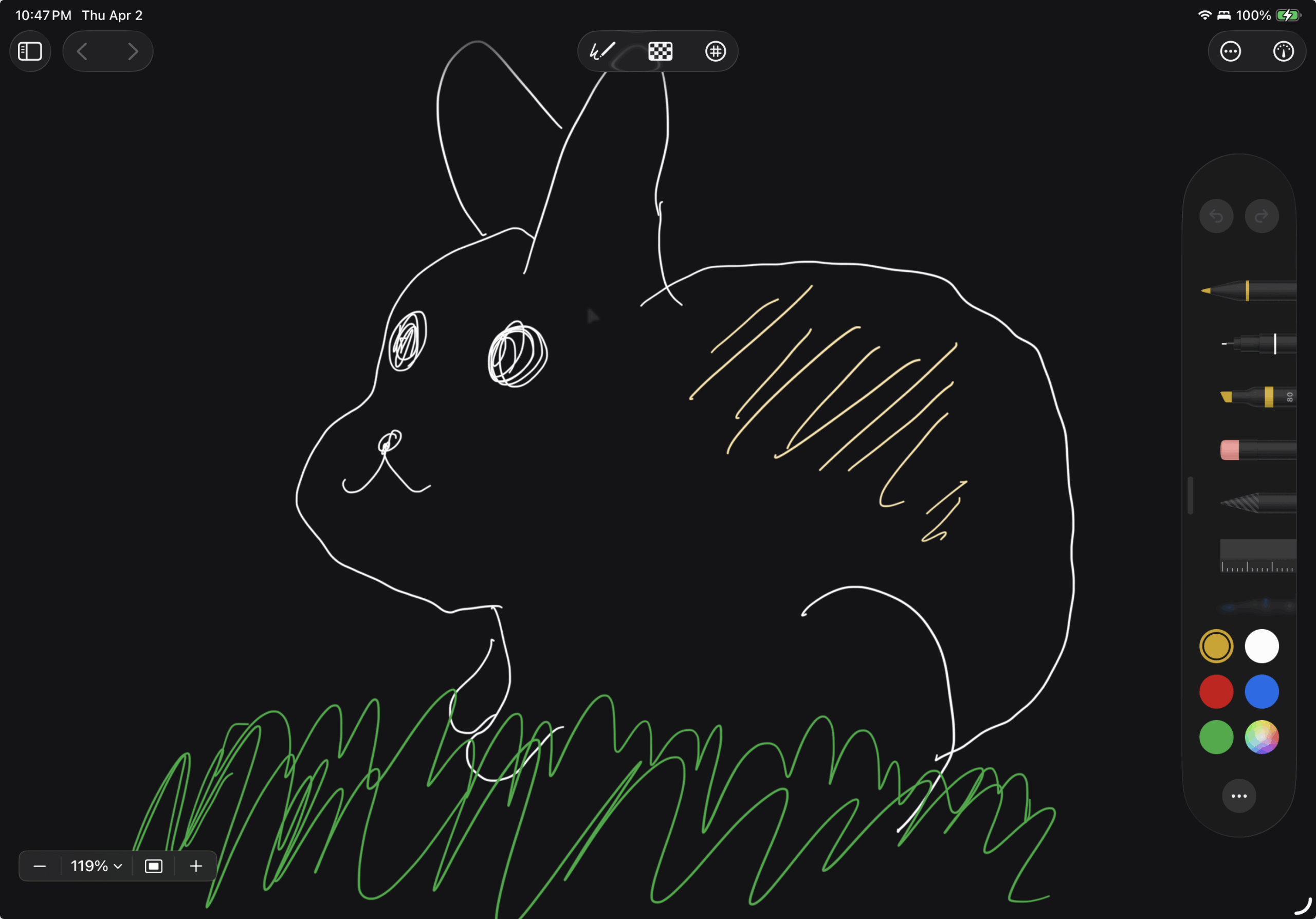
A Sketch Document on iPadOS
Sketch documents are freehand drawing canvases powered by PencilKit. Use Apple Pencil or your finger to create sketches that live alongside your writing.
Each sketch has a configurable canvas with three background options:
- Transparent — No background, useful for overlaying on other content
- Light — A light-colored canvas
- Dark — A dark-colored canvas
An optional grid overlay is available in two styles: dots or lines. Toggle grid visibility and choose a style from the sketch editor's settings.
Sketches can be:
- Embedded in documents — Reference a sketch as an image source using the image editor
- Placed on canvases — Add sketch cards to your canvas workspace
- Exported as images — Share your drawings as standard image files
Sketch editing is available on iPad and iPhone. On Mac, sketches synced from your other devices are viewable and can be used just like any other image.
See Also
- Linking — Converting between images and links
- Customizing the Editor — Default image display size setting
- Working Offline — Image caching and offline behavior