Documents
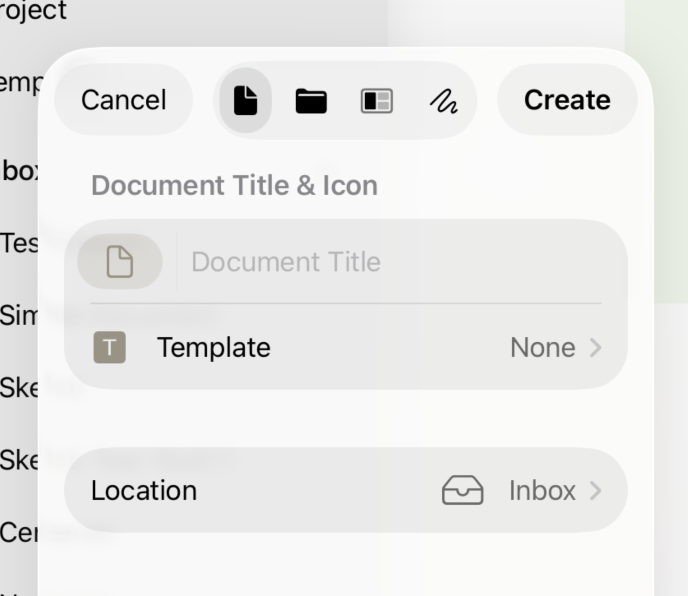
The Document Creation Screen on iPadOS
Every piece of content in your project is one of six document types. Each serves a different purpose, and together they give you the flexibility to keep all of your creative work — writing, visuals, research, references — in a single place.
Text Documents
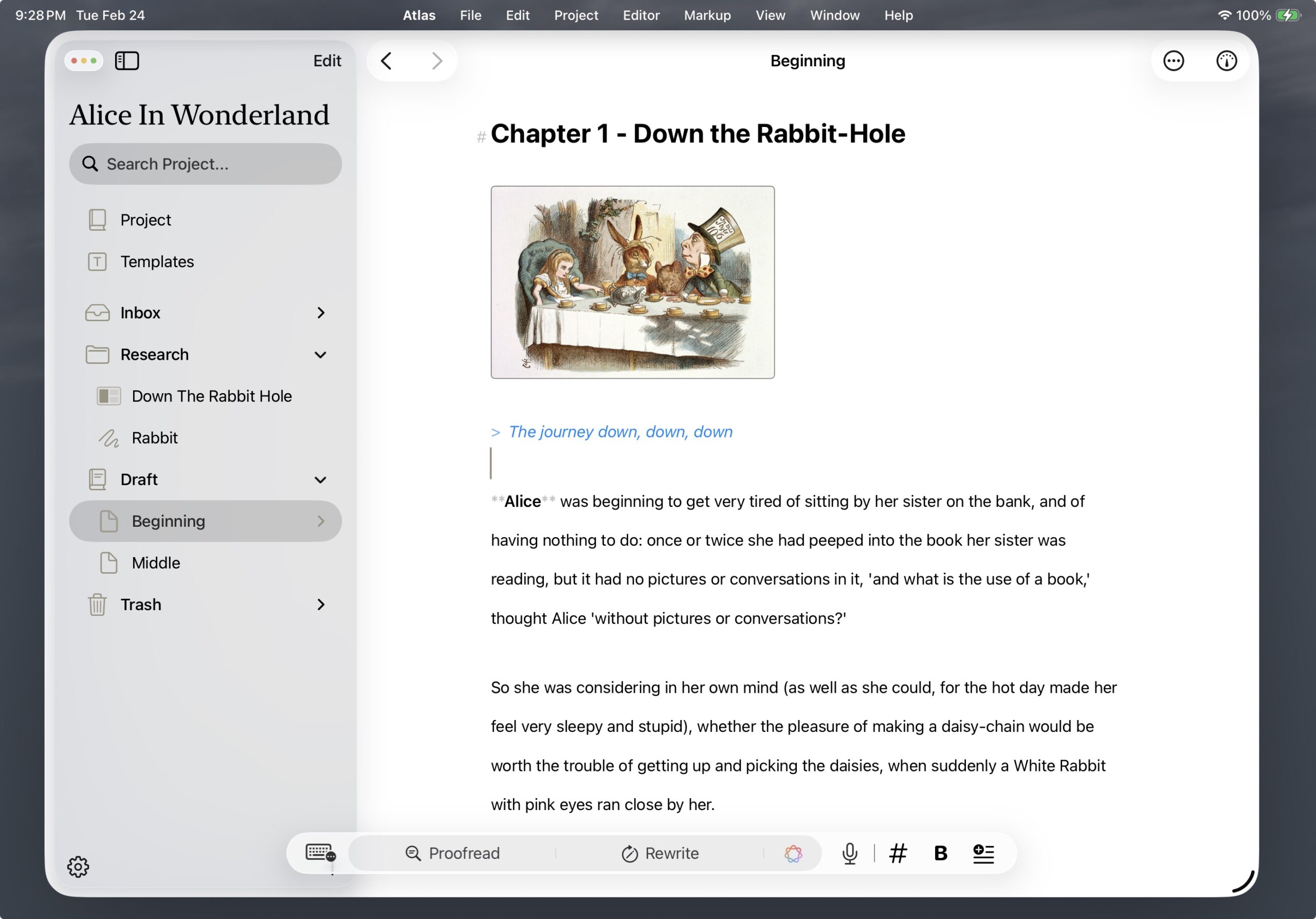
A Text Document on iPad
Markdown-based writing documents with live formatting. Use them for chapters, notes, research summaries, character profiles, or any text-based work. Each document includes a synopsis field for brief summaries that appear in the Folder Outline View and on canvas cards, a notes field for private context that stays out of your exports, and full writing statistics in the Inspector.
See The Editor to get started with the editor.
Folders
Hierarchical containers that organize content at any depth, providing a snapshot of the Organizer. Folders can contain documents, other folders, canvases, media, and web pages.
Info
Any document type can contain children — not just folders. This means a chapter can hold its own research, and a location description can nest related images right where they belong.
See Using Folders for more on folder structure and the Folder Outline View.
Canvas Documents
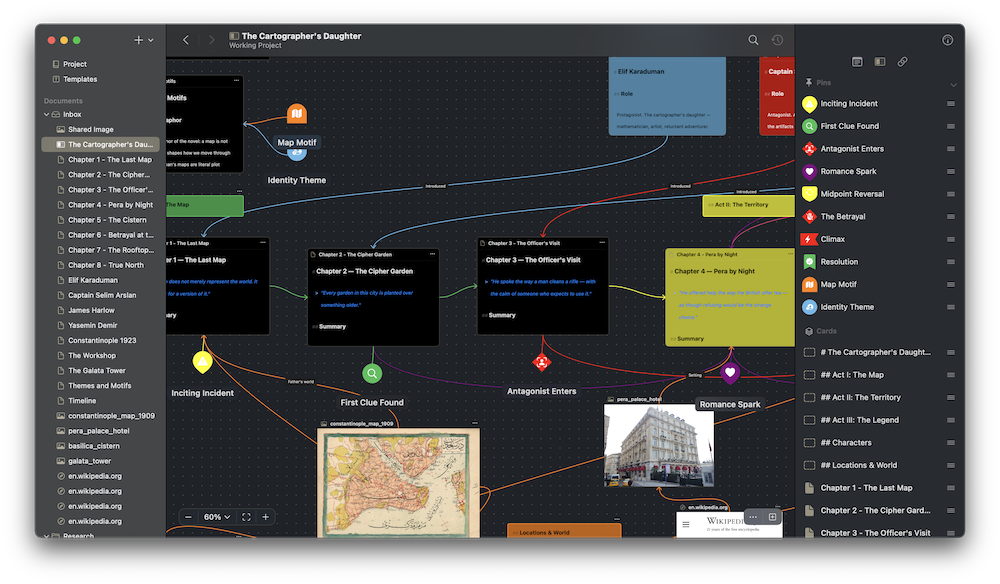
A Canvas Document on macOS
Canvases are spatial workspaces for arranging content visually. Place document cards, images, text blocks, web pages, and pin markers on the canvas, then draw connections between them to map relationships. You can edit documents directly on their canvas cards without leaving your spatial context.
See The Canvas for a full introduction.
Sketch Documents
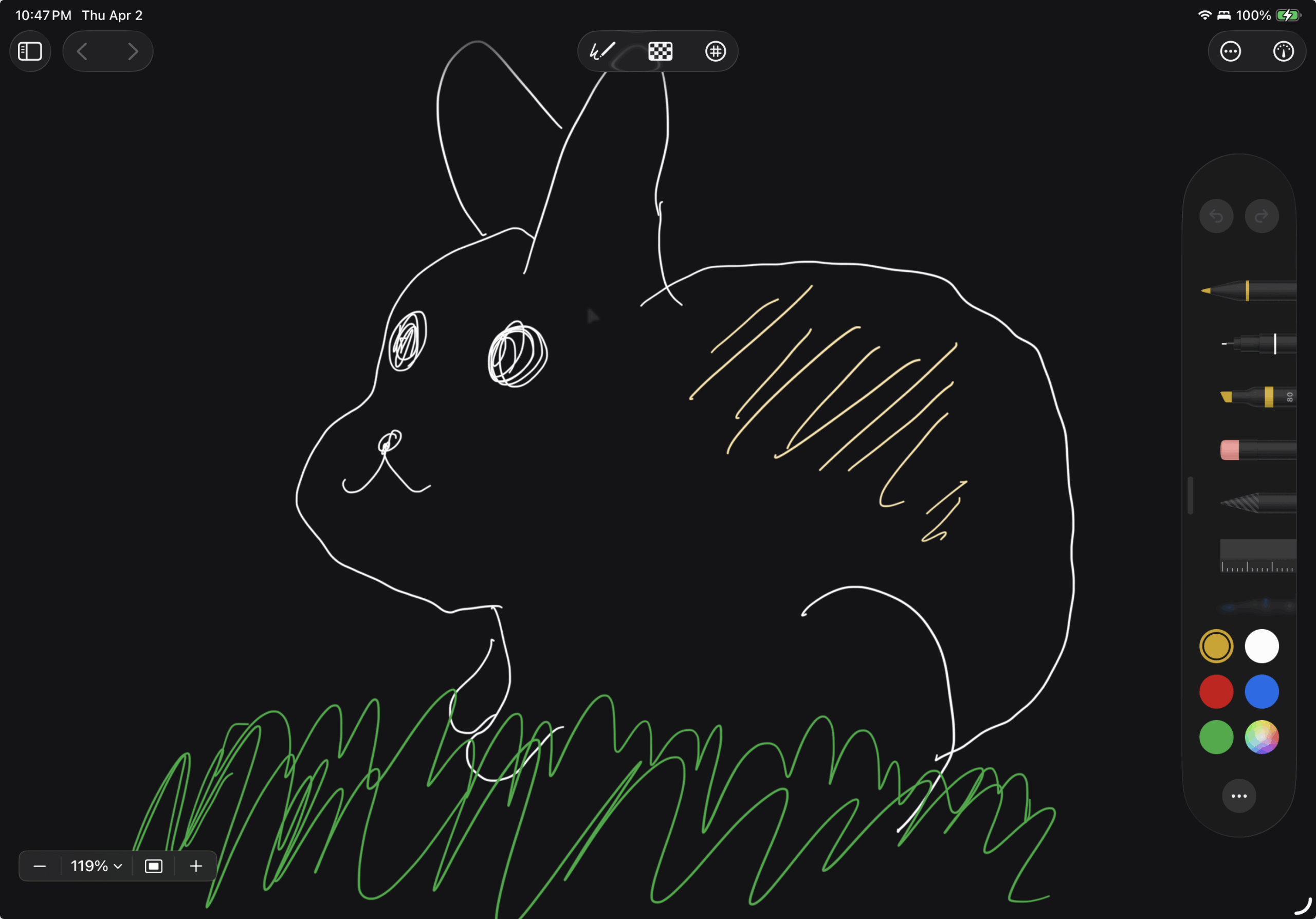
A Sketch Document on iPadOS
Sketches are freehand drawing documents. Use Apple Pencil or your finger to create sketches that live alongside your writing. Each sketch has a configurable canvas with background options (transparent, light, or dark) and an optional grid overlay (dots or lines). Sketches can be embedded in other documents and placed on canvases.
Sketch editing is available on iPad and iPhone. On Mac, sketches synced from your other devices can be viewed and used like any other image — you just can't draw on them there.
See Images and Sketches for more on embedding sketches in your documents.
Media Documents
Store images, PDFs, audio, and video files directly in your project. Supported formats include:
| Category | Formats |
|---|---|
| Images | JPG, JPEG, PNG, GIF, BMP, TIFF, WebP, HEIC/HEIF |
| Audio | MP3, WAV, AAC, M4A, FLAC, OGG |
| Video | MP4, MOV, AVI, MKV, WebM, M4V |
| Documents | PDF, DOC, DOCX |
See Importing Media and Web Pages for how to bring media into your project.
Web Page Documents
Save URLs as project documents so research sources live alongside your writing. Drag a URL into the Organizer, use the Share Extension on iPhone, iPad, or Mac, or paste a link to create one. For a richer capture with full content extraction and editing, the Web Clipper lets you review the page body, images, and metadata before saving. Web pages open in a built-in browser you can scroll and read right inside Atlas.
See Web Pages for browsing, pinning a home page, and editing a web page document's URL.
See Also
- The Organizer — Creating and managing documents in your project
- The Inspector — Viewing document metadata and statistics
- Projects — The top-level containers that hold your documents
- Web Pages — Browse, pin, and edit web page documents
- Share Extension — Send content from any app into Atlas
- Web Clipper — Rich web page extraction and editing