Templates
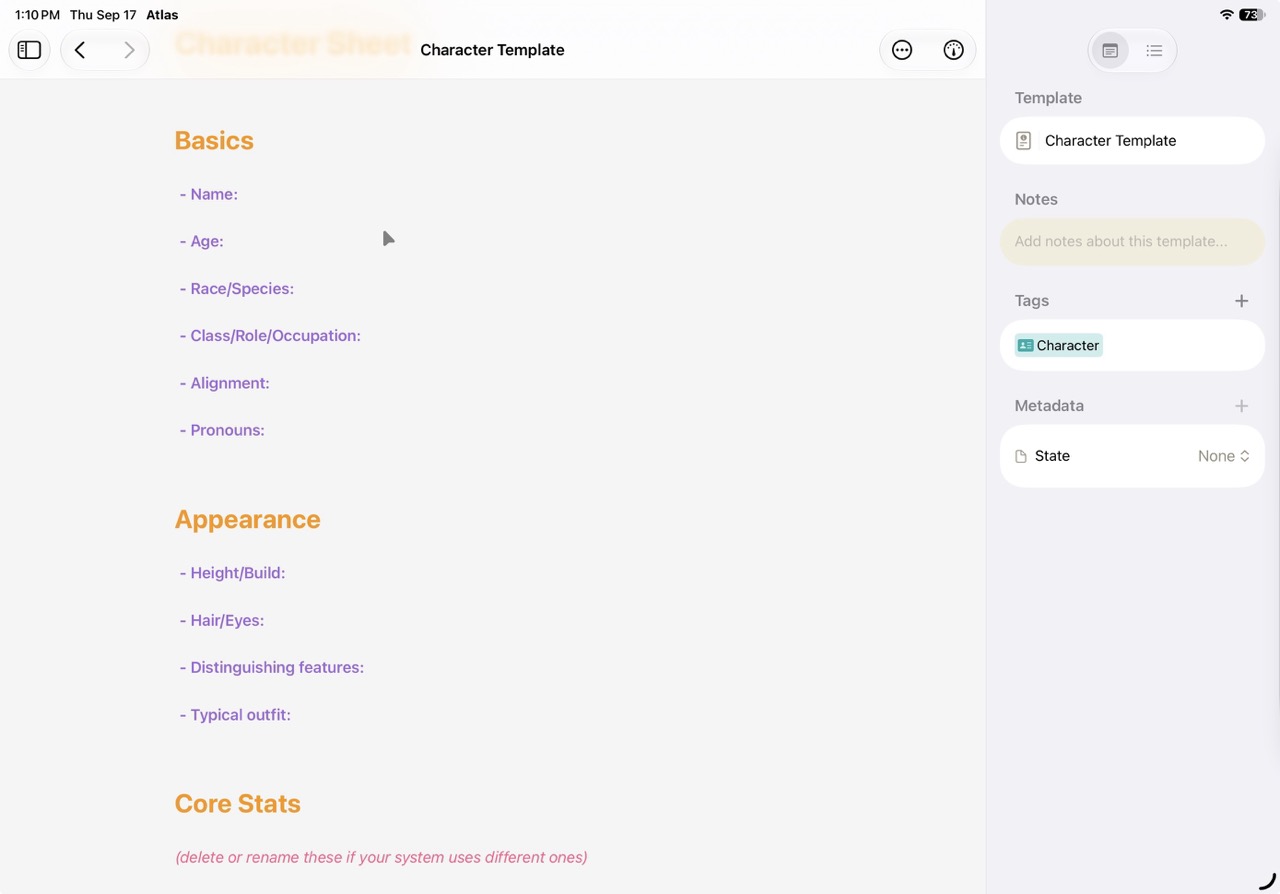
A template in the template editor
Templates are reusable document blueprints with pre-filled content. They help you start new documents quickly with a consistent structure.
Browsing Templates
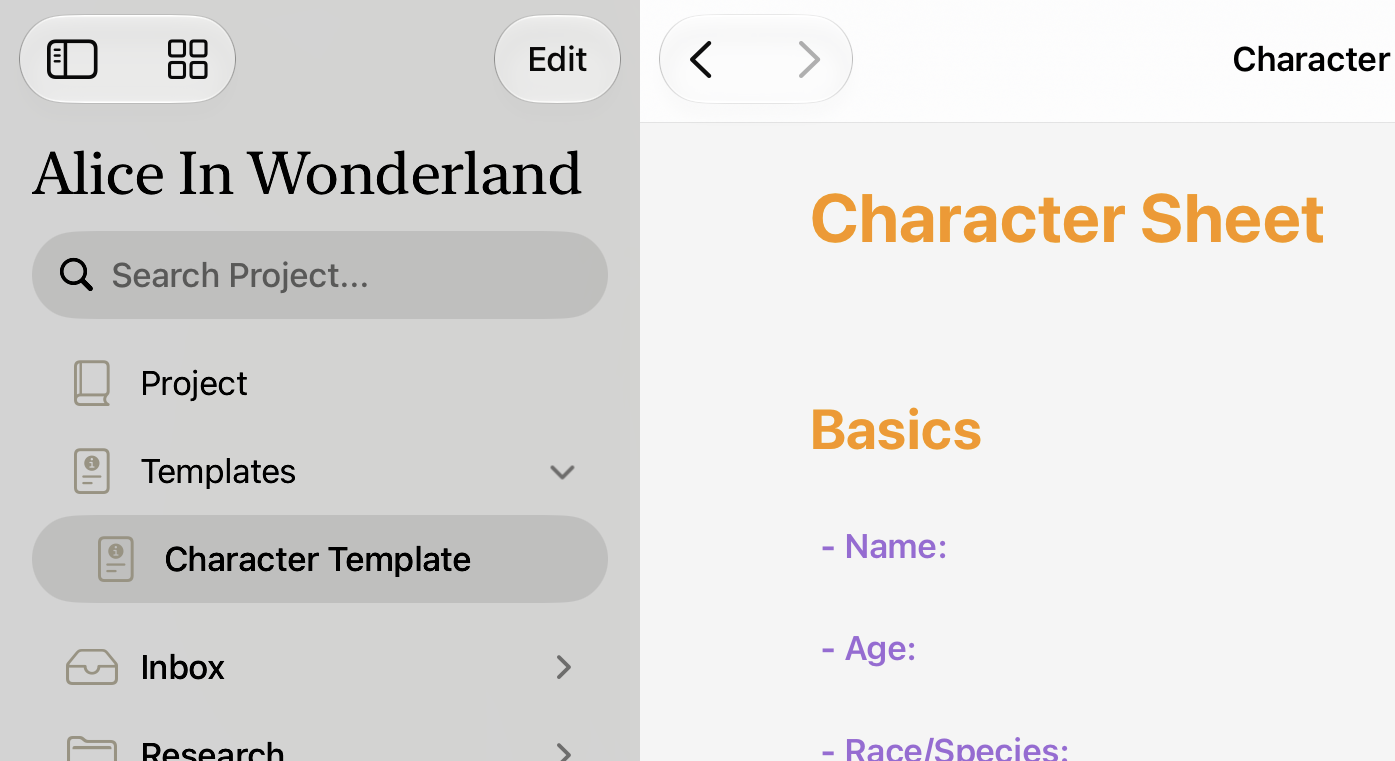
Templates are listed in the organizer, like other documents.
Templates are managed per project and live right in the Organizer, under the Templates workspace location — the same tree you browse your documents in. The list shows your templates with their icons and colors. Select any template to preview its content before using it. Right-click (Mac) or long-press (iOS) a template for Duplicate or Delete, the same as any other Organizer row.
Creating a Template
Create a new template from the template browser. Each template has:
- Title — A descriptive name for the template
- Icon — A custom icon from the Atlas icon catalog (the same catalog of over 400 icons used for tags)
- Color — A custom color for the template
- Content — Markdown text that will be copied into new documents
- Tags — Tags that will be automatically assigned to documents created from this template
The template editor supports full markdown formatting, including wiki-link autocomplete ([[) for linking to project documents within your template content, and Document Variables ({{) for placeholders like title and dates.
Variables in a Template
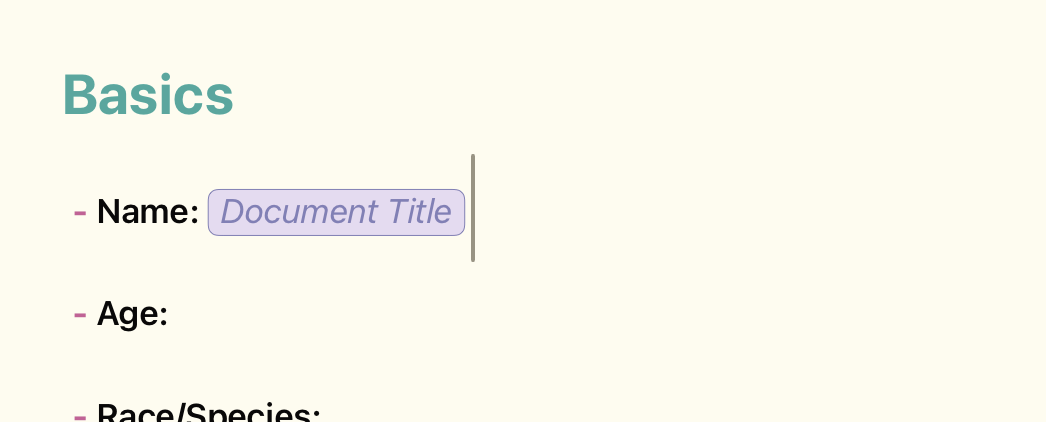
A Document Variable which will reflect the document's name when created
Type {{ in the template editor to insert a Document Variable — the same picker and the same variables you use while writing. The key difference is that nothing freezes inside a template: even Date created and Time created stay live while you build it. When you apply the template to a new document, the snapshot variables capture that document's own creation date and time, and the live ones (title, author, and so on) keep resolving as usual. This is what lets one template stamp every new document with its own correct information.
Writing Aids in the Template Editor
The template editor supports the same writing aids as the document editor: Focus Mode (Option+Cmd+G), Typewriter Scrolling (Option+Cmd+J), Hide/Show Markdown Syntax (Option+Cmd+R), and Text Zoom (Cmd++/Cmd+-) all work the same way here. An Appearance submenu lets you override light/dark appearance for the template editor specifically, though it has no keyboard shortcut.
The template editor's Inspector also has an Outline tab alongside Overview, with the same live word-count statistics and jump-to list of headings, annotations, and footnotes you get while editing a document. See The Inspector for details on both tabs.
Applying a Template
When creating a new document, you can select a template to use as a starting point. Applying a template copies:
- The template's content (markdown text)
- The template's tags
- The template's icon and color
- The template's metadata values
If the document already has a value for a given metadata field, that field is skipped — so re-applying a template to an existing document won't overwrite values you've already set.
After applying, the new document is fully independent — editing it won't affect the template, and updating the template won't change existing documents created from it.
You can view and edit a template's metadata (title, icon, color, tags) from the Inspector, just like any other document.
Tip
Templates are great for recurring document types: chapter outlines with pre-filled heading structure, character profiles with fields for traits and backstory, meeting notes with date and attendee sections, research summaries with slots for source information and key findings, or any structure you use repeatedly.
Dragging a Template Anywhere
Because templates sit in the Organizer alongside your documents, you can drag one directly to wherever you want it to become a new document — no menu required:
- Onto the documents area or a folder — creates a new document from the template at that location
- Onto a specific document or folder row — creates a new document nested under it
- Onto an open text document — inserts the template's content at your cursor, merging its tags and metadata into the document you're editing (the same as Inserting a Template While Writing below)
- Onto a canvas — creates a new document from the template and drops a document card for it at that spot
Inserting a Template While Writing
You don't have to start a document from a template — you can drop one in mid-write. From the Editor > Templates menu (Mac and iPad) or the editor's More (…) menu (iPhone and iPad), choose Insert Template and pick one of the project's templates. Its content is inserted at your cursor, and its tags and metadata are merged into the document without overwriting values you've already set. If the project has no templates yet, the option reads No Templates.
Saving a Document as a Template
Turned a document into exactly the structure you want to reuse? Choose Save as New Template from the same Templates menu. Atlas creates a new template in the current project, seeded from the document — its body, title, type, tags, and metadata — and opens it in the template editor so you can rename it and refine it. There's no naming prompt; the new template simply takes the document's title until you change it.
Note
Because a saved template keeps the document's body as-is, any Document Variables in it stay as live {{…}} tokens — they'll resolve freshly each time you apply the new template.
Templates in Project Export and Import
A project's templates travel with it: exporting a project as an .atlasproject bundle or folder includes every template alongside your documents, and importing one brings its templates back automatically — they land in the new project's Organizer, under Templates, with no extra step. See Atlas Project Files for what else a project export contains.
See Also
- Document Variables — Placeholders that auto-fill documents created from a template
- The Organizer — Where to find the Templates workspace location
- Writing with Markdown — Formatting syntax for template content
- Metadata and Tags — How tags and metadata assigned by templates work
- Atlas Project Files — What travels in a project export, including templates