Metadata
Metadata lets you attach typed values to documents — think of them as tags with a value. Where a tag like "Draft" tells you a document's status, a metadata field called "Status" can hold that same value while also carrying other kinds of data: a word target, a due date, a point-of-view character, a toggle for whether a chapter needs review. Fields are defined once per project and can be attached to any document or template from the Inspector.
Defining Fields
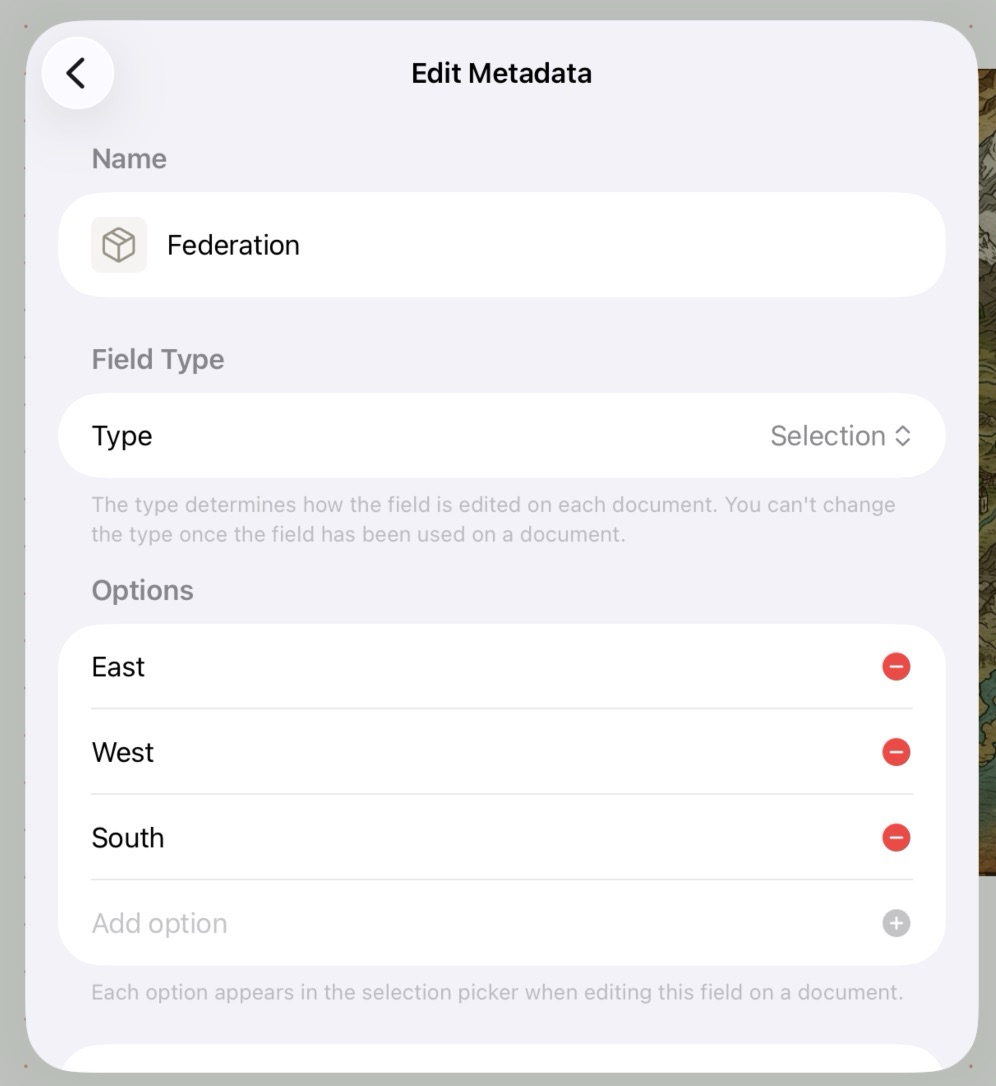
Editing Metadata for a Project
Metadata fields are managed in Project Settings → Metadata. Each field has a name, a type, and an icon.
| Type | What it stores |
|---|---|
| Text | Free-form single-line string |
| List | Multiple free-form values, entered as chips |
| Selection | One value chosen from a predefined list of options |
| Number | A decimal number |
| Boolean | An on/off toggle |
| Date | A calendar date |
| Date & Time | A calendar date with hour and minute |
Selection options are managed inline in the field form — add options, reorder them by drag, and delete individual entries. Options are project-scoped, so all documents in the project share the same list.
Reorder fields by dragging them; the order here determines the order they appear in the Inspector and in Markdown export. Rename a field at any time from its edit form. Deleting a field is permanent and cascades to all values attached to it across every document in the project — a confirmation dialog appears before the deletion is committed.
Tip
The icon picker lets you choose from the full Atlas icon catalog. The icon appears in the Inspector next to each field row, making it easy to scan at a glance.
Setting Values on Documents
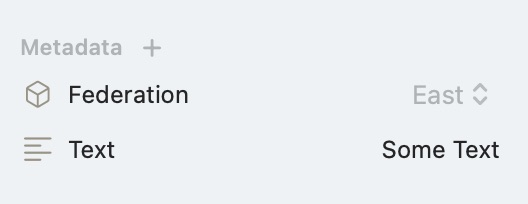
Metadata set in the Inspector on macOS
Open the Inspector while viewing a document and find the Metadata section in the Overview tab, directly below Tags. Use the + button to add a field — the picker shows only definitions that aren't already attached to this document. Each field type has a purpose-built editor for quick entry.
To remove a field from a document, hover over its row on macOS to reveal the × button, or swipe left (or long-press for the context menu) on iOS.
When multiple documents are selected, any field whose values differ across the selection shows a "Mixed values" indicator rather than a single value. Editing the field at that point sets the same value on all selected documents.
Templates and Inheritance
Templates support metadata values using the same Inspector UI. Any field you attach to a template is copied to new documents created from that template — alongside the template's content, tags, icon, and color.
If a document already has a value for a given field, that field is skipped when a template is applied. Re-applying a template to an existing document is safe: user-set values are preserved.
Searching with Metadata
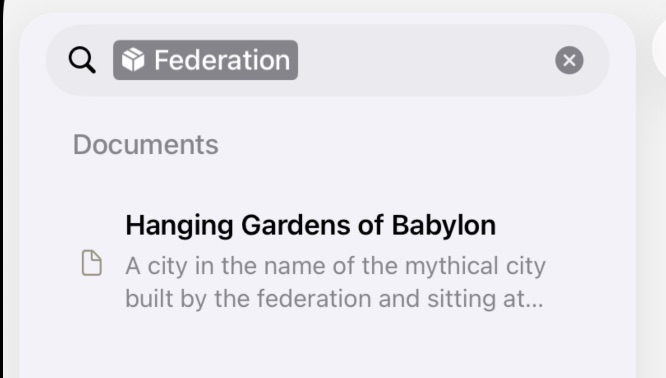
Searching with metadata on iPadOS
Start typing a field's name in the search bar and it surfaces as an attribute token in the dropdown. Adding a metadata token filters results to documents that have any value set for that field.
For Selection fields, the token stays drillable after you add it — tap or click to choose a specific option and narrow results further.
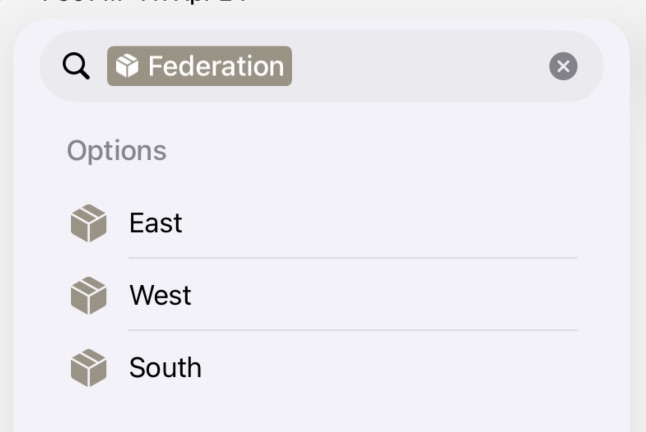
Searching by Metadata Selection Value
Metadata values are also indexed as Spotlight keywords, so plain text search finds them without an explicit token. Typing a field value like "Draft" or a character's name surfaces any document with a matching metadata value.
See Tags and Search for the full picture on tokens and Spotlight.
Markdown Export
When exporting a document as Markdown, an Include Frontmatter toggle appears in the export settings — it defaults on. When enabled, Atlas prepends the exported file with a YAML block. Tags are listed first as a flow-style array, followed by metadata fields in project-defined order:
---
tags: [Character, Protagonist]
pov: "Alice Liddell"
status: "Draft"
word-target: 5000
needs-review: false
due-date: 2026-07-01
---
Frontmatter is emitted for single-document Markdown exports only. Bulk and continuous folder exports do not include it, and HTML, ePub, and PDF exports never emit frontmatter regardless of the toggle.
Importing Frontmatter
The reverse works too. When you import a Markdown file whose frontmatter includes keys beyond tags, title, and the standard date fields, Atlas creates a project metadata field for each unrecognized key and attaches its value to the imported document. Field types are inferred from the values — a Boolean for true/false, a Number for plain numbers, a List for arrays, a Date for ISO-8601 timestamps, and Text otherwise. A document exported with frontmatter therefore returns with its metadata reconstructed. See Markdown Files and Frontmatter for the full key mapping.
Metadata in Project Export & Import
Metadata also travels with a whole project. When you export an .atlasproject, Atlas records every field definition and each document's values in the project manifest, and writes the same values as YAML frontmatter into the exported Markdown files (for use in other tools). On import, your metadata is rebuilt from the manifest — field definitions first, then each document's values — so a project round-trips with its metadata intact. See Atlas Project Files.
See Also
- The Inspector — Where to attach and edit metadata values
- Tags and Search — Combining tags and metadata tokens in search
- Templates — How metadata values carry over when applying a template
- Exporting Your Work — The YAML frontmatter toggle in Markdown export
- Importing Media and Web Pages — How frontmatter is read back in on import