Importing Docs, Media, and Web Pages
Atlas lets you bring external content directly into your projects — images, documents, audio, video, and web pages all live alongside your writing and sync with your project like any other Document.
Supported Formats
| Category | Formats |
|---|---|
| Images | JPG, JPEG, PNG, GIF, BMP, TIFF, WebP, HEIC/HEIF |
| Audio | MP3, WAV, AAC, M4A, FLAC, OGG |
| Video | MP4, MOV, AVI, MKV, WebM, M4V |
| Documents | PDF, DOC, DOCX |
| Other | Markdown (.md), Canvas (.canvas), Sketch (.drawing) |
Import Methods
From the Organizer
Tap the + button in the Organizer toolbar and choose:
- Add from Files — Opens the system file picker to select files from your device
- Add from Photos — Opens the photo library picker to import images and videos
You can also use the context menu on any folder to import files or photos directly into that location — handy when you want content to land in a specific folder rather than the root level.
Drag and Drop
Drag files, media, and URLs from Finder (Mac), Files (iPad/iPhone), or other apps directly into the Organizer. You can drag multiple files at once — Atlas imports them all as the appropriate document types automatically.
The Canvas let's you drop media directly onto it as well, and it will be imported as a new document with the Canvas as its parent.
Keyboard Shortcut
Use Cmd+Shift+I to open the file import dialog.
Share Extension
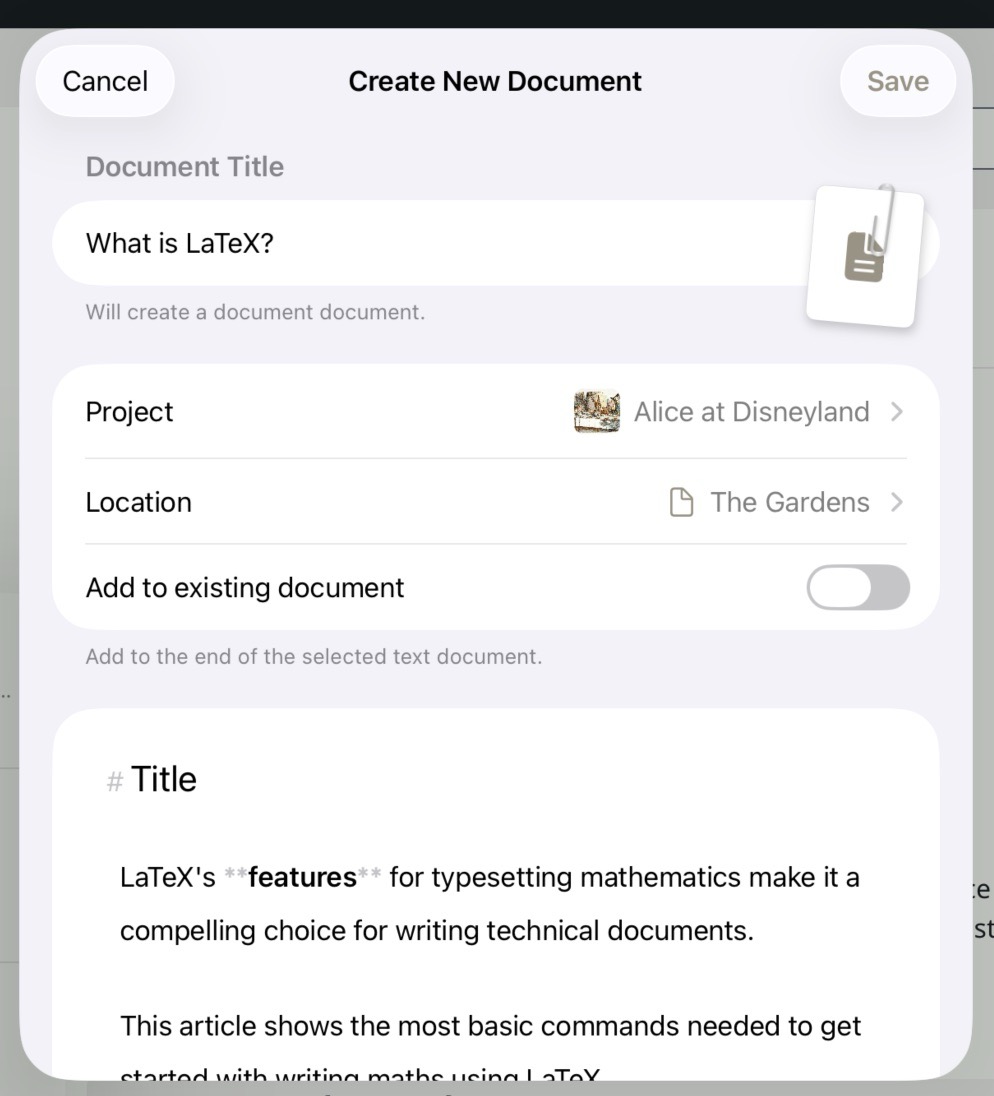
The Share Extension on iOS
Send content from other apps directly into Atlas using the system share sheet on iPhone, iPad, and Mac. See Share Extension for a full overview of what you can share and how to use it.
Markdown Files and Frontmatter
When you import a Markdown (.md) file, Atlas brings the body in as a text document. If the file begins with a YAML frontmatter block — the ----fenced section many Markdown tools add at the top — Atlas reads it and applies the values rather than leaving them in your text:
| Frontmatter key | Becomes |
|---|---|
title |
The document's title |
description or synopsis |
The document's synopsis |
tags |
Tags on the document, created in the project if they don't exist |
date / created, modified / updated |
The document's created and last-edited dates |
| Any other key | A project metadata field, created automatically with a type inferred from the value |
For metadata, Atlas infers the field type from the value: true or false becomes a Boolean field, a plain number a Number field, a list a List field, an ISO-8601 timestamp a Date field, and anything else a Text field.
Tip
Frontmatter import is the mirror image of Markdown export. A document you exported from Atlas with Include Frontmatter turned on comes back with its tags and metadata intact. See Exporting Your Work and Metadata and Tags.
Files without frontmatter are imported as-is, with the whole file becoming the document body.
Web Page Documents
When you import a URL — by dragging it into the Organizer, using the Share Extension, or pasting — Atlas creates a web page document. Web pages display in a built-in browser, so you can scroll and read them right inside Atlas. Each one also generates a rich link preview with the page title, image, and description. See Web Pages for browsing, pinning a home page, and editing a web page document's URL.
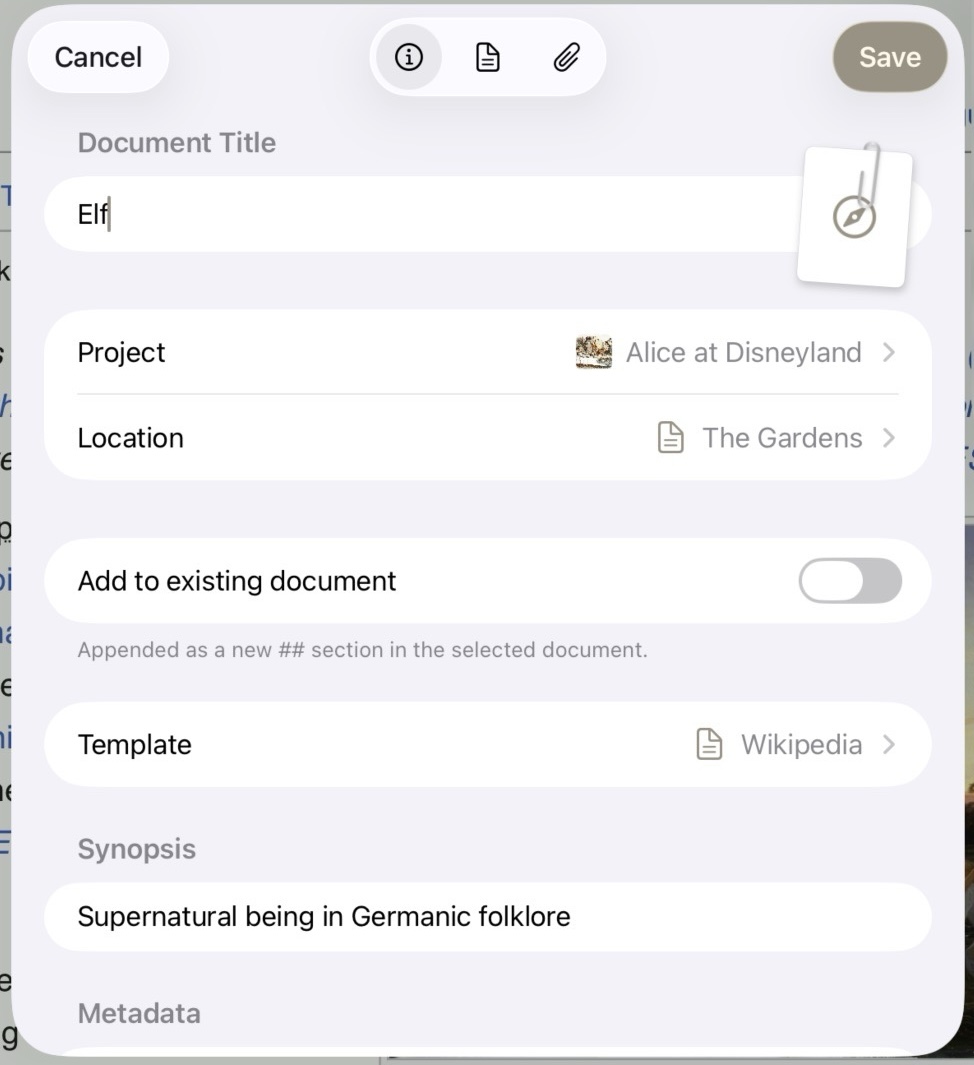
The Web Clipper on iOS
For richer web page capture, the Web Clipper extracts the full page content, lets you edit the title, body, and images before saving, and supports templates for consistent capture across sites.
Web pages are especially useful as research references that live alongside your writing, keeping sources in context without switching between apps.
See Also
- Web Pages — Browsing and editing web page documents
- Share Extension — Send content from any app into Atlas
- Web Clipper — Rich extraction and editing for web pages
- Documents — The six content types in Atlas
- The Organizer — Where imported content appears in your project
- Metadata and Tags — How frontmatter keys become project metadata fields