Linking
Atlas supports both internal document links and external web links, making it easy to connect ideas across your project and reference outside sources.
There are two quick ways to create a link. Type [[ to search for a document and insert an internal link, or type [Caption] to open the Link Editor where you can create any type of link — internal or external. Both are covered in detail below.
Wiki-Style Quick Links
Type [[ anywhere in the editor to open an autocomplete search for any document in your project. Start typing to filter results, then select a document to insert a link.
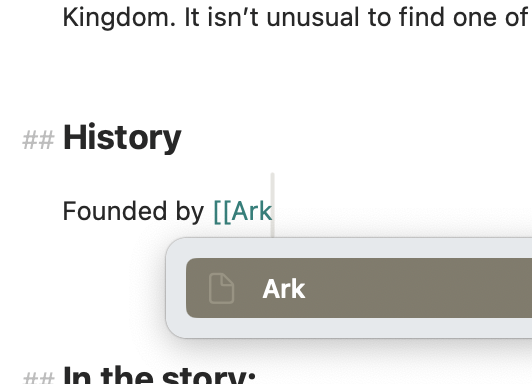
A wiki-link inline being created
Wiki-links use token-based titles, so they update automatically when you rename the linked document. You never need to manually fix broken references.
If you type or paste a [[…]] link that doesn't yet match a document — or leave one unfinished — Atlas highlights it so it's easy to spot, and it autocompletes like any other link when you return to it. The moment a matching document exists, the link resolves into a live internal link on its own. Completion is suppressed inside inline code and code blocks, so [[ in a code sample won't trigger the picker.
Info
Wiki-link autocomplete is also available in the canvas and template editors.
Interacting with Links
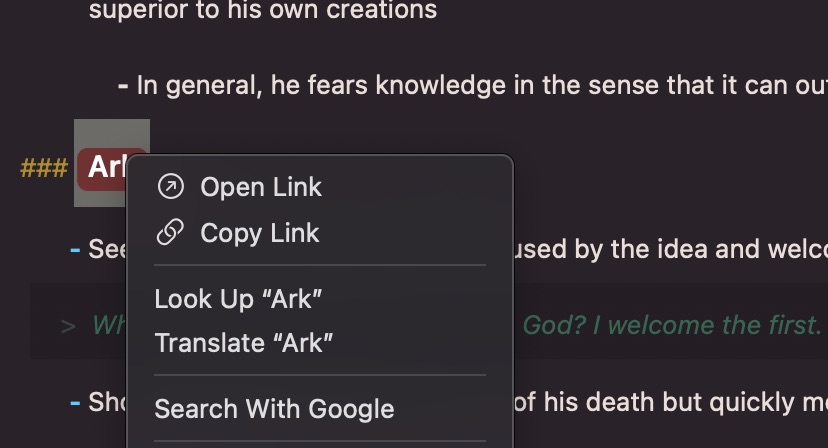
Options presented from context clicking a link on macOS
Right-click (Mac) or long-press (iPad/iPhone) on a link to open a context menu with options to open the link — navigating to the linked document or opening the URL in your default browser — or copy the link URL. On Mac and iOS devices with a connected keyboard, Cmd + click will open the link immediately.
Double-clicking or tapping a link will open the Link Editor, allowing you to modify its contents.
Opening links in an in-app browser (iOS)
By default, opening an external web link on iPhone and iPad hands off to Safari. Turn on Use In-App Web Browser in Settings > General > Browsing to open web links in a browser inside Atlas instead — links you open from the Inspector follow the same setting. Internal atlas:// document links and non-web links like mailto: always open in their usual place, and web page documents keep their own browser regardless.
The Link Editor
The Link Editor is a dedicated interface for creating and managing links.
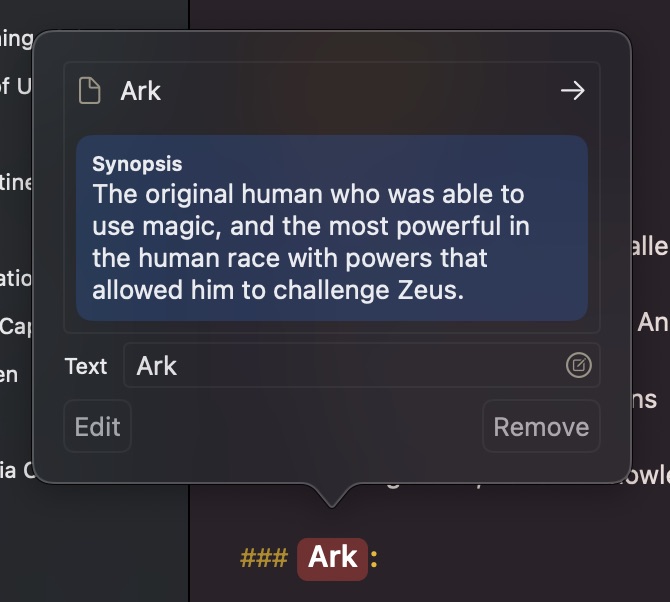
The Link Editing and Preview Window on macOS
The Link Editor provides:
- Link Text — The display text for the link
- Destination — A URL or internal document reference
- Document search — Search your project's documents with results showing synopsis previews and media thumbnails to help identify the right target
- Suggestions — Quick picks based on your search
- Image preview — Link destinations show a preview: images display directly, while web pages show a rich web card with title, image, and description
Editing an Existing Link
Open the Link Editor on an existing link to see a preview of its destination. Tap Edit to modify the link text or destination, or tap Remove Link to strip the link markup while keeping the display text.
Tip
The Link Editor works the same way for both internal document links and external URLs — you don't need to switch modes.
Internal Document URLs
Internal links use the atlas://document/<identifier> protocol to reference other documents in your project. When you create a link through the wiki-link shortcut or the Link Editor, Atlas handles this protocol automatically — these links can be used anywhere and will launch Atlas to the document.
Because links are identifier-based rather than name-based, renaming a document updates all references to it throughout your project.
Auto-Linking
URLs typed or pasted into the editor are automatically detected and converted to links — you don't need to wrap them in markdown link syntax. Right-click (Mac) or long-press (iPad/iPhone) on an auto-linked URL to open a context menu where you can edit or open the link.
Pasting a URL from your clipboard creates a tokenized link automatically, so it behaves just like any other link in your document.
Converting Between Links and Images
You can convert a link to an image (and vice versa) at any time. Use the Convert to Image or Convert to Link command in the link or image editor, or simply insert ! before an existing link's [ bracket to turn it into an image.
This is useful when you paste a URL and later decide it should display as an embedded image, or when you want to change an embedded image back to a clickable link.
See Also
- Writing with Markdown — Formatting syntax reference
- Images and Sketches — Converting between links and images
- The Inspector — Incoming Links show which documents link to the current one