Annotations and Footnotes
Annotations and footnotes let you attach commentary and reference notes to your documents without cluttering the main text.
Info
Annotation and footnote colors are customizable in the Theme Editor. See Customizing the Editor for theme options.
Annotations
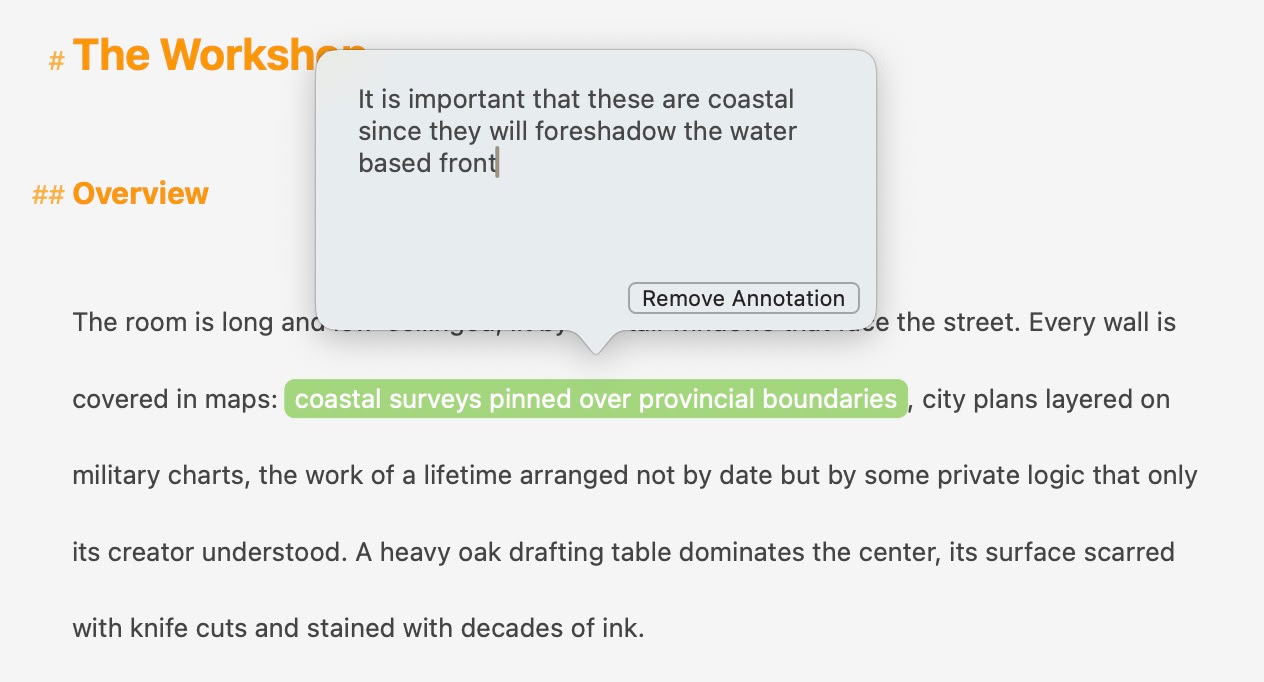
Text marked and the annotation editor
Annotations attach a hidden comment to a span of text. Use them for editorial comments, revision notes, or contextual commentary that shouldn't appear in the final output.
Type brackets around text you'd like to annotate ({annotated text}) in the editor to mark it and open the annotation editor, where you can write a comment to associate with the selection. You can also use the keyboard shortcut Cmd+Shift+J.
Footnotes
Footnotes insert a numbered reference marker in your text linked to a note that can be edited in a popup window. Use them for citations, tangential information, or source references.
Type |fn| in the editor to open the footnote editor, where you can write the footnote content. Footnotes are numbered automatically in the order they appear.
The Editor
Annotations and footnotes share the same editor. On Mac, it appears as a popover inline with your text. On iPad and iPhone, a full-screen editor opens. Both support line breaks and auto-hyperlinked URLs in their content.
Double-click or tap an annotation or footnote to open its editor for reading or editing.
Removing Annotations and Footnotes
To remove an annotation or footnote, open its editor and tap Remove. This removes the annotation or footnote while keeping the text in your document.
In the Inspector
Both annotations and footnotes appear in the Inspector > Attachments tab. Click any entry to jump to its location in the editor.
Export Behavior
How annotations and footnotes appear in exported documents depends on the format:
Plain text — A toggle in export settings lets you include or exclude annotations. When included, annotation comments appear inline as parenthesized text next to the annotated content.
ePub — Two options are available:
- Footnote placement — Choose where footnotes appear: as pop-up notes (Apple Books style), at the end of each section, or at the end of all documents (folder export only)
- Annotations — Optionally include annotations as pop-up notes
See Also
- Writing with Markdown — Formatting syntax reference
- The Inspector — Where annotations and footnotes are listed