Web Pages
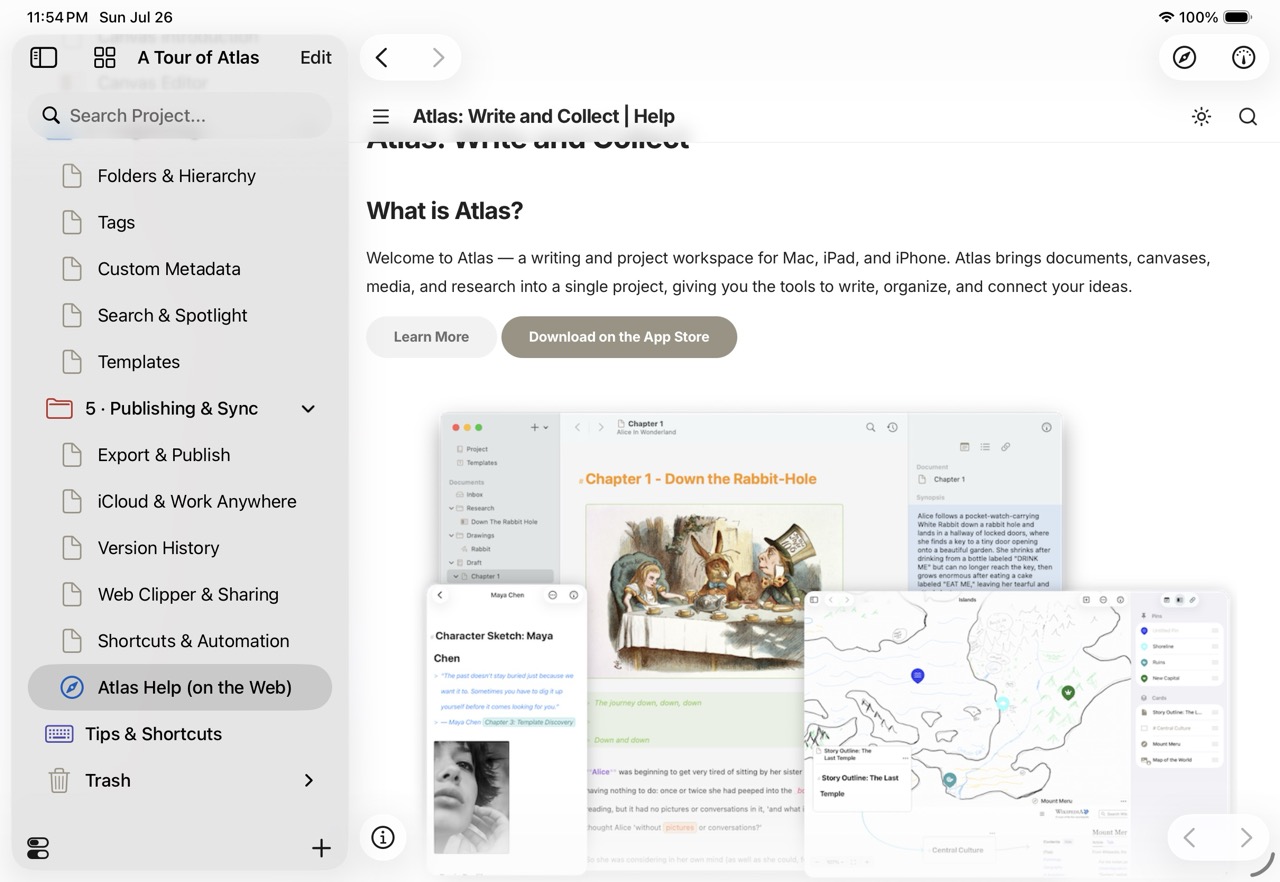
A web page document on iOS
Atlas can hold live web pages alongside your writing, so a source article, a reference doc, or a video sits in your project instead of in a browser tab you'll lose. A web page is a document like any other: it lives in the Organizer, and when you place one on a canvas it appears as a web card — the same document, shown in place. Either way it opens in the same built-in browser.
Creating a Web Page Document
Save a URL as a document in any of these ways:
- Drag a link from your browser into the Organizer.
- Paste a URL, or use the Share Extension from another app.
- Turn on Save original page in the Web Clipper to keep the source URL beside a clipped article.
The page opens in a built-in browser you can scroll and interact with without leaving Atlas.
Browsing and Home Pages
Each web page document has a home, the URL it opens to. As you follow links, Atlas remembers where you were: reopen the document later in the same session and it returns you to the last page you were viewing rather than resetting to the start. This memory lasts for the session so relaunching Atlas returns the document to its home.
On Mac, the browser's controls float over the page in three groups: open in browser, pin, and return home on the left, back and forward on the right, and the current address in the center. Click the address to edit it and press Enter to go there. Once you've navigated away from the home page, two controls become available:
- Pin Webpage Here sets the page you're currently viewing as the document's new home.
- The return-to-home button (a curved back arrow) jumps you back to the saved home.
Changing the URL
You can repoint a web page document at any time:
- Edit URL opens a field to change the address the document points to.
- Copy Webpage URL copies the address of the page you're currently viewing.
- Create New Webpage Document saves the page you're on as its own new document, leaving the original untouched.
On Mac these live in the floating controls at the bottom of the browser, and on iPhone and iPad they're on the bottom toolbar, behind the info and pin buttons. Where there's a menu bar, the Editor menu also has these options. You can also edit a web document's URL from a URL field in the Inspector's Overview tab, without opening the browser at all — committing a new address there reloads an already-open view of the document to match. See The Inspector.
From the Organizer
You don't have to open a web page document to act on its URL. Right-click (Mac) or long-press (iPhone/iPad) its row in the Organizer for:
- Open in Safari — open the page in your default browser
- Copy Webpage URL — copy the address without opening anything
- Open in Modal (iPhone and iPad only) — open the built-in browser over your current view
Web Cards on a Canvas
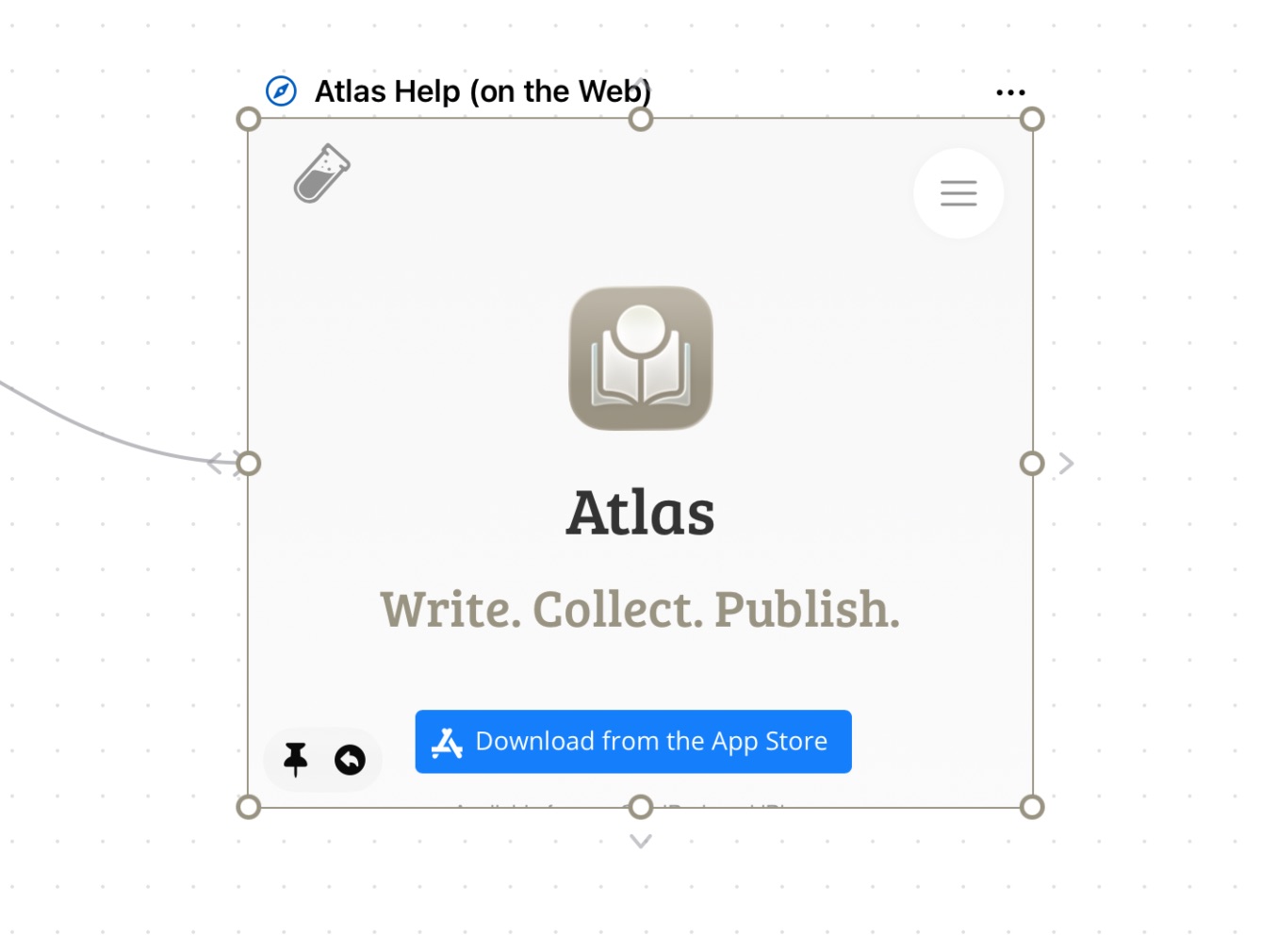
A web page document on the Canvas
Drag a web page onto a canvas and it becomes a live web card that renders the real page, not just a preview. Select the card to scroll and interact with it; when it isn't the only selected item, the page goes inert so your drags pan the canvas instead. The card remembers its browsing location the same way a web page document does, and locking it freezes movement and resizing.
Floating controls over the card handle back and forward navigation. Once you've navigated away from the home page, more controls let you pin the current page as the new home or return to it.
A web card's selection bar has a Web menu, and its full menu offers:
- Open Document — open the web page in the full editor
- Open in Modal — open the full browser in a window over the canvas (iPhone and iPad)
- Open in Safari — open the current page in your browser
- Copy Web Link — copy the URL the card is showing
- Copy Card Link — copy a link back to the card itself
See Also
- Importing Docs, Media, and Web Pages — Other ways to bring content into your project
- Web Clipper — Rich extraction and editing for web pages
- The Canvas — Placing web cards in a spatial workspace
- Documents — The six content types in Atlas