Writing Goals
A writing goal tracks your progress toward a target on a text document or a folder. Use one to draft a chapter at 3,000 words, write 500 words a day on a manuscript folder, or keep a synopsis under a character limit.
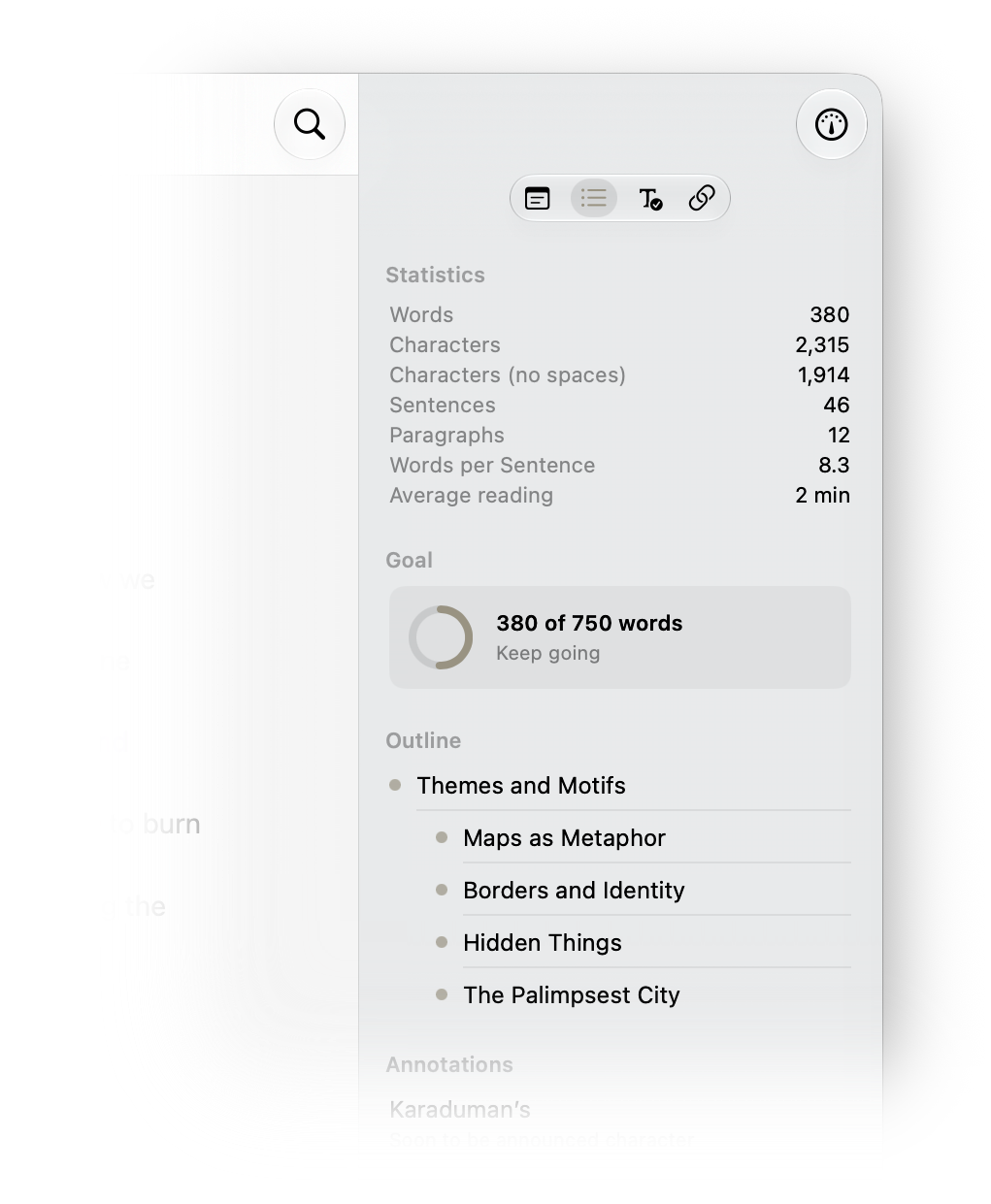
An active writing goal in the Inspector's Outline panel
Create a Goal
- Select a text document or folder and open the Outline tab in the Inspector.
- In the Statistics section, choose Create Goal. On iPhone and iPad it sits in the section footer. On Mac it's the last row.
- Set a comparison, a number, and a unit.
- Turn on Every day or Deadline if you want either, then choose Save.
Each item holds one goal. Canvases, sketches, templates, and items in the Trash can't have goals, and projects don't hold goals directly. Project Home lists the goals in a project instead.
To change a goal, right-click its section in the Inspector (Mac) or swipe it (iPhone and iPad) and choose Edit Goal… or Remove Goal…. Removing a goal never touches your writing. Changes apply from today onward, so past days keep the settings they were measured against.
Choose a Target
The comparison decides what counts as success:
| Comparison | What it means |
|---|---|
| About | Reached when you're near your target. Going further past the target counts as over the limit. |
| At Least | Reached at or above the target. |
| At Most | A cap. You stay under the limit until you pass the target. |
Pick the unit from Characters, Characters (No Spaces), Words, Sentences, Paragraphs, or one of four reading times: Slow Reading Time (150 words per minute), Average Reading Time (238), Fast Reading Time (300), and Reading Aloud Time (183). Each reading-time goal keeps its own speed, whatever reading speed you've chosen in the Inspector. Type a reading-time target as a duration, such as 1h 10m or 45m. A bare number means minutes.
Total and Daily Goals
A total goal compares the current size of an item to the target. On a folder, it adds up every text document inside it, at any depth. Documents can only have total goals.
A daily goal measures what you write today and starts over when the writing day ends. Turn on Every day to make a folder goal daily. It's a good fit for a manuscript folder where the target is a pace, not a final length.
Counting is net. Additions minus deletions, so cutting text from one chapter and pasting it into another chapter in the same folder nets to zero for that folder. A day can also come out negative if significant copy is removed. Don't go negative, under More in the goal editor, is on by default and only affects what's displayed, which stops at 0. Goal History and streaks keep the true value.
Set a Deadline
Turn on Deadline and choose a Due date to add a Today row to the goal. Today shows your share of what's left, which is the remaining amount divided by the writing days left, today included. Atlas sets that number the first time it calculates it each day on a device, so it holds steady while you write instead of shrinking with every word. Editing the goal resets it. After the due date passes, there's no pace to show.
A deadline only applies to total goals. If the item already has content when you save a new goal with a deadline, Atlas asks Count existing content? Choose Include existing content to measure against everything already written, or Start from zero to count only what you write from now on. Without a deadline, existing content always counts.
See Goals Across Your Project
Items with a goal show a small progress indicator in the Organizer, in the Folder Outline View, and on Canvas folder cards:
- A filling pie while you work toward the goal
- A small pink dot once you've reached it
- A pink circled diamond when you're over the limit
Indicators reflect saved writing, so they catch up after your next save instead of changing as you type.
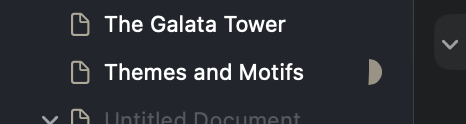
A Document with a writing goal on macOS
The Goals card on Project Home lists every goal in the project with its progress. Tap a row to open that document or folder. To see goals from all your projects in one place, open All Goals from Settings > Goals. On the Mac it's a table with the name, project, and progress for each goal. On iPhone and iPad it's a list grouped by project. Open a goal's item from the sheet, or remove the goal. Editing happens in the Inspector.
Set Your Writing Schedule
The schedule applies to all your goals and syncs across your devices. Find it in the Goals tab of Settings on Mac, or Settings > Goals on iPhone and iPad.
- Writing Days are the weekdays you plan to write. Days you turn off never break a streak, and a deadline's pace skips them. Writing on them still counts.
- New Day Starts At moves the day boundary anywhere from midnight to 6 AM, so writing after midnight counts toward the previous day until then.
- Skip Days are dates you add ahead of time, such as a vacation. They work like days off.
On a writing day, the Goals card on Project Home also offers Skip Today, which makes today a skip day for every goal. The button then reads Don't Skip Today.
Get a Writing Reminder
Turn on Writing Reminder in the Goals settings and choose a time with Remind Me At. The default is 7 PM. Atlas sends a Time to write notification on your writing days. Once today's goals are met, that day's reminder is skipped. The switch applies to one device, so you can turn reminders on for your iPhone and off for your Mac, but the reminder time syncs.
The first time you turn it on, your system asks for notification permission. If you've already denied it, the settings show Notifications are off with an Open Settings link.
The notification names what's left and gives you and option to Skip Today on the notification.
Review Your Goal History
Goal History shows each goal in a project, day by day, from the day you created it. Open it from the History button on Project Home, the Project menu, or Goal History in Project Settings. Each day lists the date, whether it was a skip day or day off, whether you met the goal, the net change, the target, and how many words you added and removed. Adjustments from resolved sync conflicts appear on their own line. Export the history as a CSV file from the same screen.
What Counts as Writing
- Only visible text counts. Markdown syntax, annotations, and footnote text don't.
- Text you insert from a template doesn't count.
- Text that arrives from another device isn't counted again on the device that receives it.
- Duplicating an item, or copying it to another project, leaves the goal on the original. Moving an item to another project takes its goal and history with it.
- A goal on an item in the Trash is suspended until you restore it. Emptying the Trash deletes the item's goal history.
Use Goals in Shortcuts
The Get Goal Progress action returns the progress, target, status, and streaks for a document or folder, so a shortcut can react to where you stand. See Shortcuts & Automation.
See Also
- The Inspector for the Statistics section where goals are created
- Projects for the Goals card on Project Home
- Shortcuts & Automation for the Get Goal Progress action
- iCloud Sync and Conflicts for how goals and your schedule sync