Grammar Checker
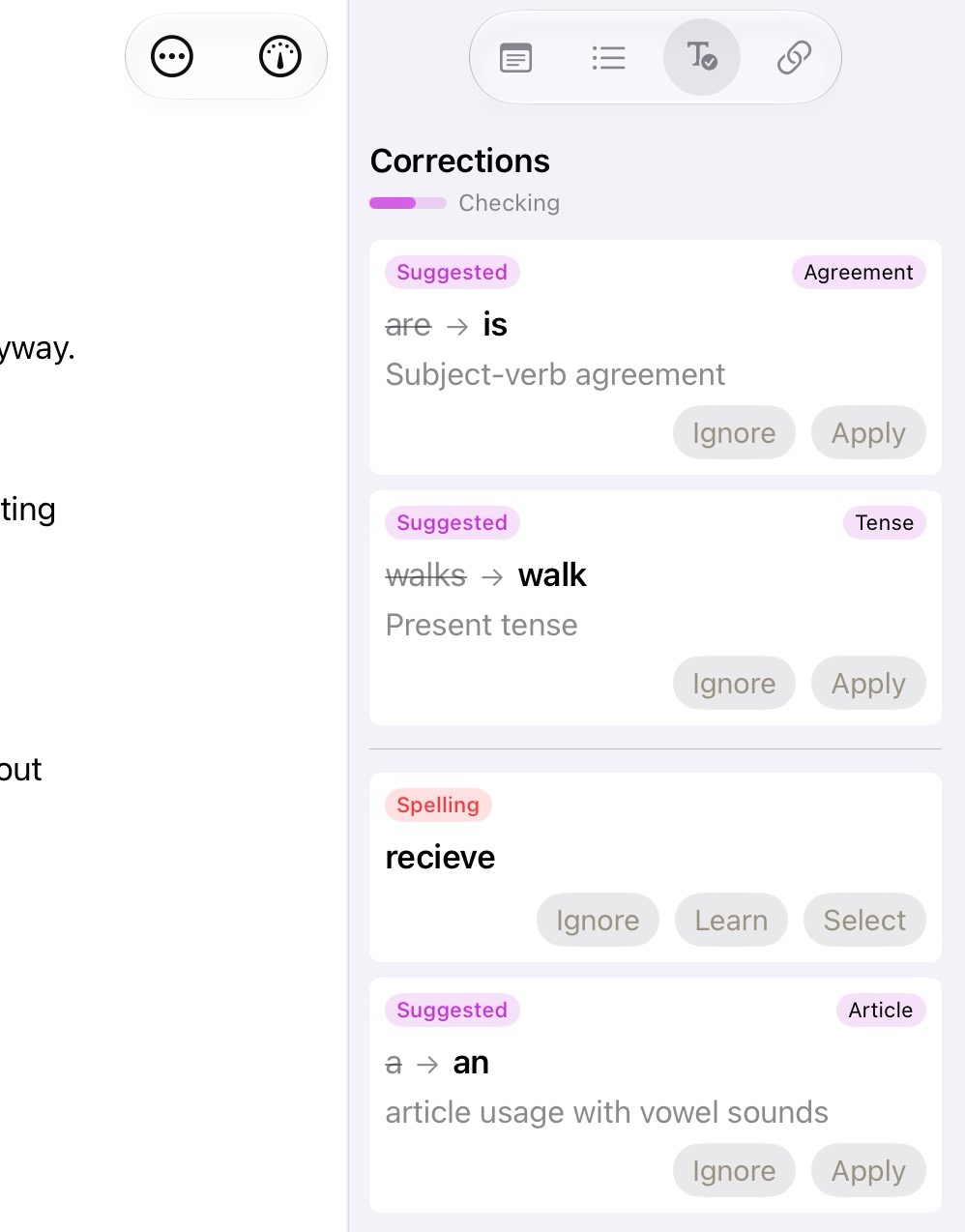
The Grammar Checker on iPadOS in the Inspector
The grammar checker reads your writing as you go and lists suggested fixes in the Inspector. It runs on your device using Apple Intelligence, so your text stays private, and nothing changes in your document until you apply a suggestion.
Note
The grammar checker is in beta. It supports most Latin-script languages that Apple Intelligence supports, though it isn't yet tuned for them the way it is for English, so results in other languages may vary. Support for Chinese and Japanese is coming.
What You Need
- iOS, iPadOS, or macOS 26 or later
- A device that supports Apple Intelligence, with Apple Intelligence turned on in Settings
If Apple Intelligence isn't available, the Inspector tells you why, such as the device not being eligible, Apple Intelligence being off, or the model still downloading. Misspelled words are still listed.
Start Checking
Open the Inspector on a text document and choose the Grammar Correction tab :atlas-grammar.checker:. The first time, tap Get Checking! on the introduction screen. Atlas remembers that choice across your devices through iCloud, so you only see the introduction once.
Atlas checks each paragraph a few seconds after you stop typing. Checking runs while the Grammar Correction tab is open and pauses when you leave it or when Atlas is in the background. The Corrections header shows a progress bar and a status of Waiting, Checking, or Up to date.
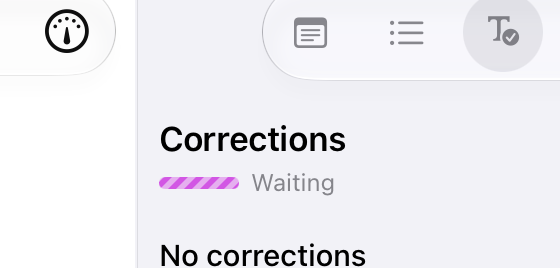
The Grammar Checker loadin'
Tip
On iPhone, the Inspector opens as a short sheet when you choose the Grammar Correction tab, so you can keep writing above it. Drag the sheet up for a larger view.
Reading Corrections
Issues are underlined in purple in the editor, and each one gets a card in the Inspector. Select a card to jump to the issue in your text.
| Underline | Tag | What it means |
|---|---|---|
| Solid | Suggested | The checker is confident about the mistake and its fix. |
| Dashed | Consider | The checker found a likely mistake, or the fix needs a second look before you apply it. |
Each card also shows a category, such as Agreement, Tense, Punctuation, or Word order, followed by the original text, the replacement, and a short explanation.
Applying or Ignoring a Correction
- Apply replaces the text with the suggestion. You can undo it like any other edit.
- Ignore hides the correction until the paragraph changes.
Tip
Review Consider corrections before applying them. The checker flags them because the fix may not match what you meant.
Spelling
Misspelled words appear in the same list, in the order they occur in your text. Spelling uses your system dictionaries and follows your device's languages, so it works even without Apple Intelligence. Spelling cards offer:
- Select to choose from suggested spellings
- Learn to add the word to your dictionary
- Ignore to stop marking the word in this document
Misspellings appear when Check Spelling While Typing is on.
Other Languages
If a paragraph is in a language the checker can't handle yet, a note under the list tells you how many paragraphs weren't checked and which language they were in.
See Also
- The Inspector — Where the Grammar Correction tab lives
- The Markdown Editor — Writing in Atlas
- Write with Focus — A quieter writing environment