iCloud Sync and Conflicts
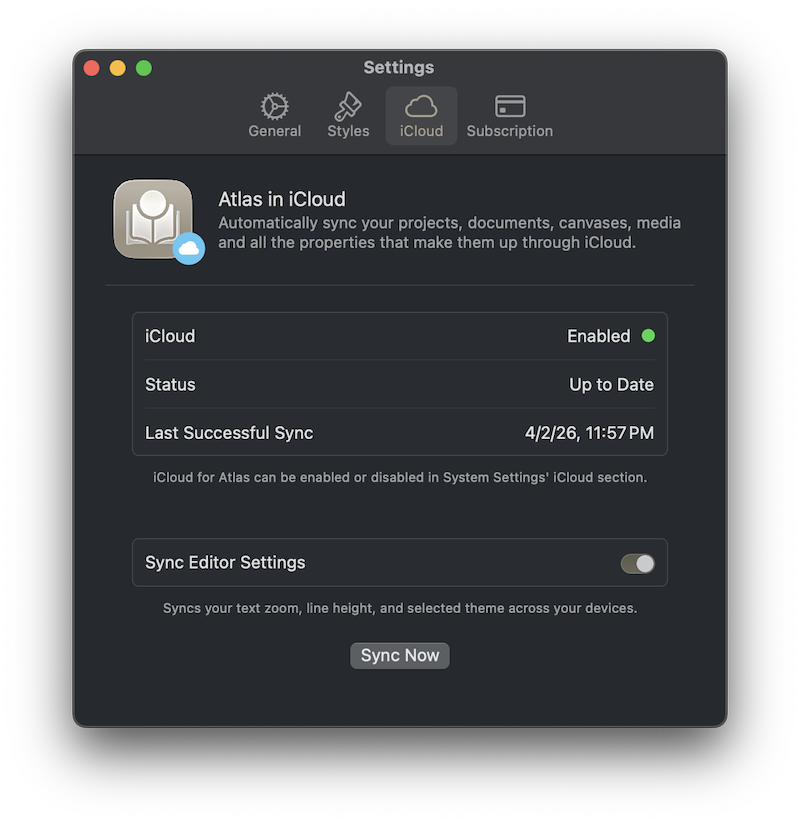
The Atlas iCloud Settings on macOS
Atlas uses iCloud to synchronize your projects, documents, tags, templates, canvases, version history, themes, and settings across Mac, iPad, and iPhone.
Setting Up Sync
iCloud sync requires an active iCloud account on your device. Once signed in, Atlas syncs automatically — no additional setup is needed.
Sync has three states, visible in Settings > iCloud:
- Enabled — Sync is active and running in the background
- Paused — Sync is temporarily stopped, likely due to an account issue, but can be resumed
- Disabled — Sync is turned off entirely
To manage whether iCloud sync is enabled, open the Settings app and follow the instructs provided by Apple. You can safely disable or enable iCloud access for Atlas at any time and it will ask you how you want to manage any data that has changed.
Atlas also checks for updates each time it becomes active, so switching back to it — from another app, or after dismissing a system sheet — is enough to pick up changes made elsewhere without waiting for a background sync cycle.
Sync Status
The Status row in Settings > iCloud stays live while the panel is open: it reads Syncing 1 item (or however many are in flight) while a sync is running, and once caught up, a relative readout like Just Now or 5 min. ago that keeps ticking forward. Below it, Last Successful Sync shows the absolute time of the most recent completed sync, or Never if one hasn't happened yet.
What Syncs
Everything in your project synchronizes across devices:
- Projects, documents, and folder structure
- Imported media and attachments — images, PDFs, audio, and video
- Tags (including hierarchical relationships)
- Templates
- Canvas items, groups, and connections
- Sketches
- Version history
- Conflict records
- Custom themes
- Custom Export Styles (HTML, ePub, and PDF)
- Editor settings — active theme, line height, and text size multiplier (toggleable in Settings > iCloud)
Large Asset Limits
Media files are limited to 250mb which is a limit set by iCloud, so it won't sync to your other devices. The status will say "Asset too Large" and show a sync error in this case.
Document Sync Status
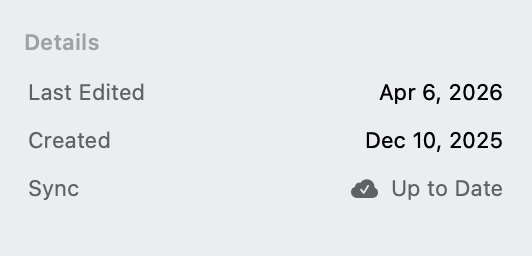
The Sync State
When iCloud is enabled, the Inspector shows the sync state of the document you're viewing, in its Overview tab:
- Syncing — Changes are uploading or downloading right now
- Pending — Local changes are waiting to sync
- Up to date — Fully synced; tap or click it to reveal when the document last synced
Theme Sync
Custom themes sync automatically via CloudKit. Themes upload when created or edited and download from other devices. Deleting a theme propagates the deletion across all devices. If the same theme is edited on two devices before syncing, the most recent edit takes precedence.
If you sign out of iCloud, your themes remain on the device as local copies. Signing back in uploads them again.
Document Syncing
Your documents are the heart of your project, so Atlas treats their content more conservatively than anything else it syncs. Edits are never silently overwritten: each document syncs independently, and if the same one changes on two devices before those changes can reconcile, Atlas pauses and asks you how to proceed rather than picking a winner on its own. The result is that even a tangled set of simultaneous edits resolves into exactly the document you intend — with a safety net at every step.
Resolving Sync Conflicts
When the same document is edited on multiple devices before changes sync, Atlas checks how the edits relate before doing anything. If they touch different parts of the document — different paragraphs, or non-overlapping strokes in a sketch — Atlas merges them automatically in the background. You won't see a prompt; the next time you open the document, your edits and the incoming changes are already combined, and the resulting version carries an Auto Merged badge in the Version Browser. If you're actively editing when a merge like this lands, your cursor and selection stay right where they are.
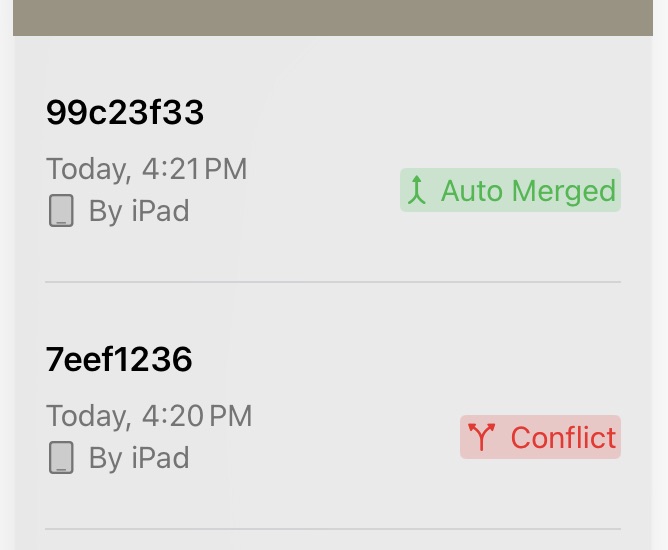
Auto-merged noted in the Version interface. Text that wasn't overlapping cleanly came together.
Atlas only presents the resolution interface below when edits genuinely conflict — the same part of the document changed differently on two devices — or for cases it can't resolve safely on its own. Metadata-only changes, like editing a synopsis on one device alongside another, never trigger a prompt and will select the newest copy if they can't be merged.
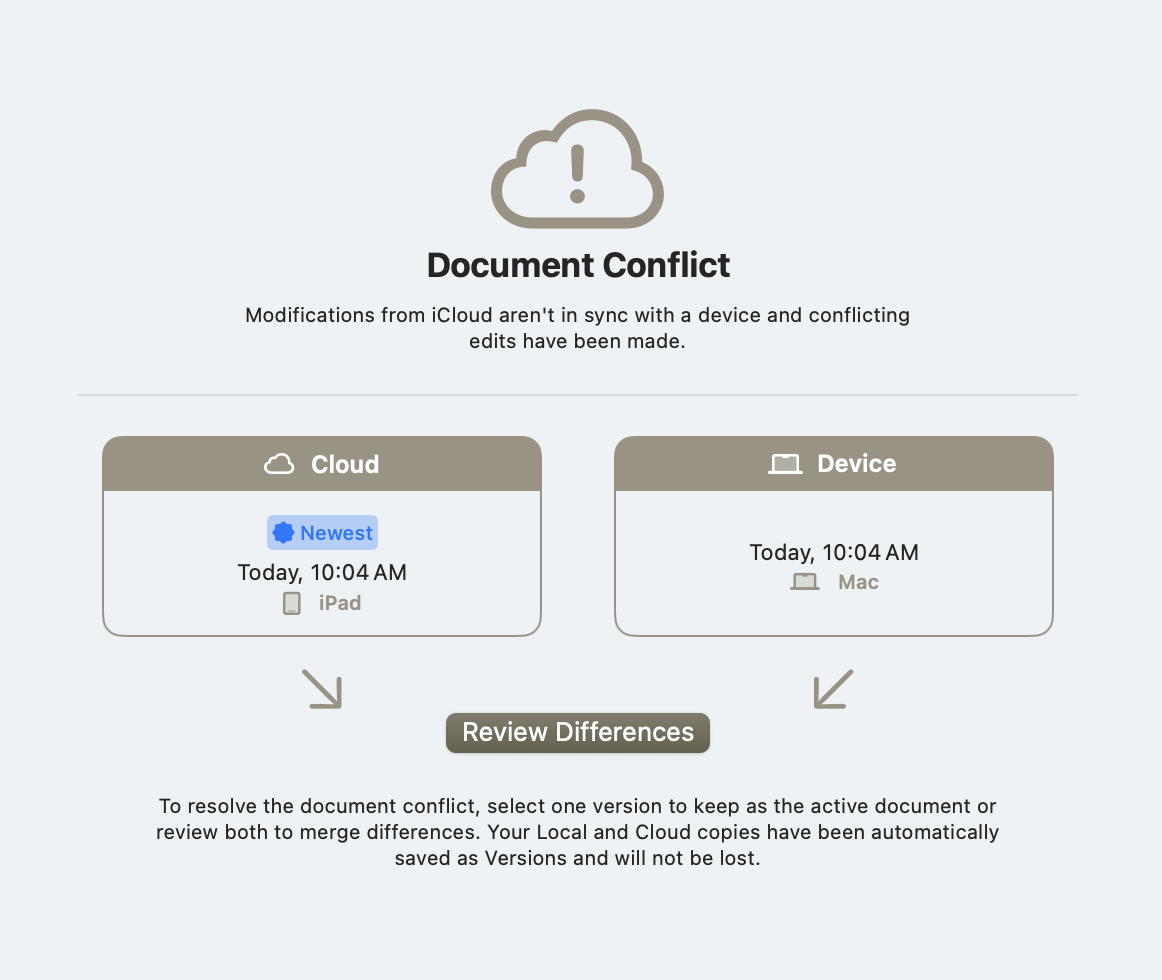
The Conflict Resolution Notice.
Each conflict version displays the device name and type where the edit originated, helping you identify which changes came from where. You have three options:
- Keep cloud version — Use the version from iCloud, discarding local changes
- Use local version — Keep your local changes, discarding the cloud version
- Custom merge — Provide your own merged content when you want to combine changes from both versions
If multiple documents have conflicts at the same time, Atlas merges them into a single conflict resolution session so you can work through them together.
Info
A safety snapshot is automatically created before any conflict resolution, protecting your local content regardless of which option you choose. You can always find it in the Version Browser.
The Merging Interface
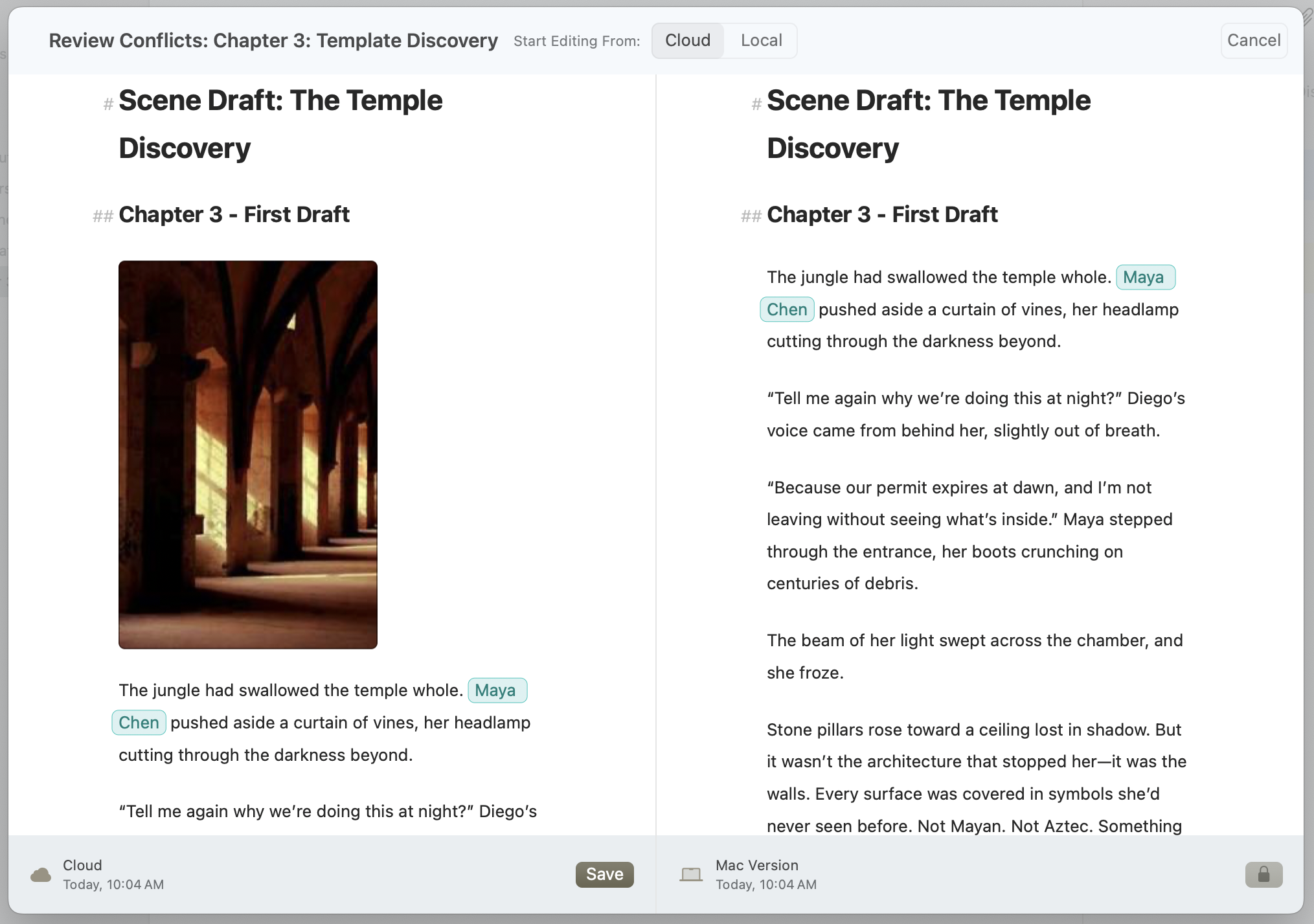
The Markdown Document Conflict Resolution Screen
When you open a conflict, Atlas presents a side-by-side split view: the cloud version on the left and your local version on the right. Each side shows the device name and icon where that version originated, so you can tell at a glance which edits came from where.
At the top of the screen, a "Start editing from" picker lets you choose which version to use as your base — Cloud or Local. The selected side becomes editable, and you can copy or rework content from the other side into it. This means you're never locked into an all-or-nothing choice; you can start from the cloud version but pull in a paragraph you wrote locally, or vice versa.
If there are multiple local conflict versions (for example, edits from both your iPad and iPhone arrived before the cloud version synced), a version picker on the local side lets you switch between them.
Tip
If you're unsure which version to keep, read through both sides first before selecting one. The base you choose becomes your working document — the other side stays visible for reference until you finish.
Highlighting Changes
For text documents, a Show Changes toggle highlights exactly where the two versions differ:
- Green — changed on only one side
- Blue — the same edit made on both sides
- Red — a genuine conflict, where both sides changed the same text differently
Tap the ? button next to the toggle for a quick reminder of what each color means. On Mac, the toggle sits in a bar just under the window title; on iPad and iPhone, it's in the toolbar next to the version picker.
For sketch documents, the merging interface shows image previews on both sides instead of text, so you can visually compare the two drawings before choosing which to keep. Sketch conflicts don't use highlighting.
Troubleshooting
Documents Not Appearing on Another Device
- Verify both devices are signed into the same iCloud account
- Check that sync is enabled in Settings > iCloud on both devices
- Confirm you have an active internet connection
- Try a manual sync by tapping the sync button
- Check iCloud storage in your device's system settings — a full account can block sync
Conflict Warnings
Conflicts occur when the same document is edited on multiple devices before changes sync. See Resolving Sync Conflicts above for how to handle them.
Custom Export Style Missing on Another Device
Custom HTML, ePub, and PDF Export Styles sync via iCloud alongside your other project data. If a style you imported or created on one device isn't appearing on another:
- Verify iCloud sync is enabled for Atlas on both devices
- Give sync a moment — styles propagate shortly after import
- Re-open the Export Styles screen to refresh the grid
See Custom Export Styles for more on how styles are managed.
iCloud Account Issues
Verify iCloud is signed in and has available storage in your device's Settings > Apple Account > iCloud. Signing out and back into iCloud may resolve persistent sync issues.
Reading Sync Errors
When Atlas hits a problem talking to iCloud, it records a plain-language message rather than failing silently. These collect in a Sync Problems section in Settings > iCloud, each with a short explanation and a diagnostic code like (iCloud error 15) you can share with support. The section appears only when there's something to report and clears itself after the next successful sync.
The messages name what went wrong — for example iCloud Restricted (a managed account blocks iCloud), iCloud Storage Full, iCloud Sign-In Required, iCloud Temporarily Unavailable, Server Rejected Request, or a Sync Conflict — so you know whether to check your account, free up space, or simply wait and retry.
App Update Required
If you see an App Update Required alert, the installed version of Atlas is no longer compatible with the current iCloud sync format. Update to the latest version from the App Store to resume syncing.
See Also
- Working Offline — How Atlas handles offline work, caching, and reconnecting
- Document History — Version snapshots and restoring previous content
- Customizing the Editor — Editor settings that sync across devices
- Projects — Project-level data that syncs