The Inspector
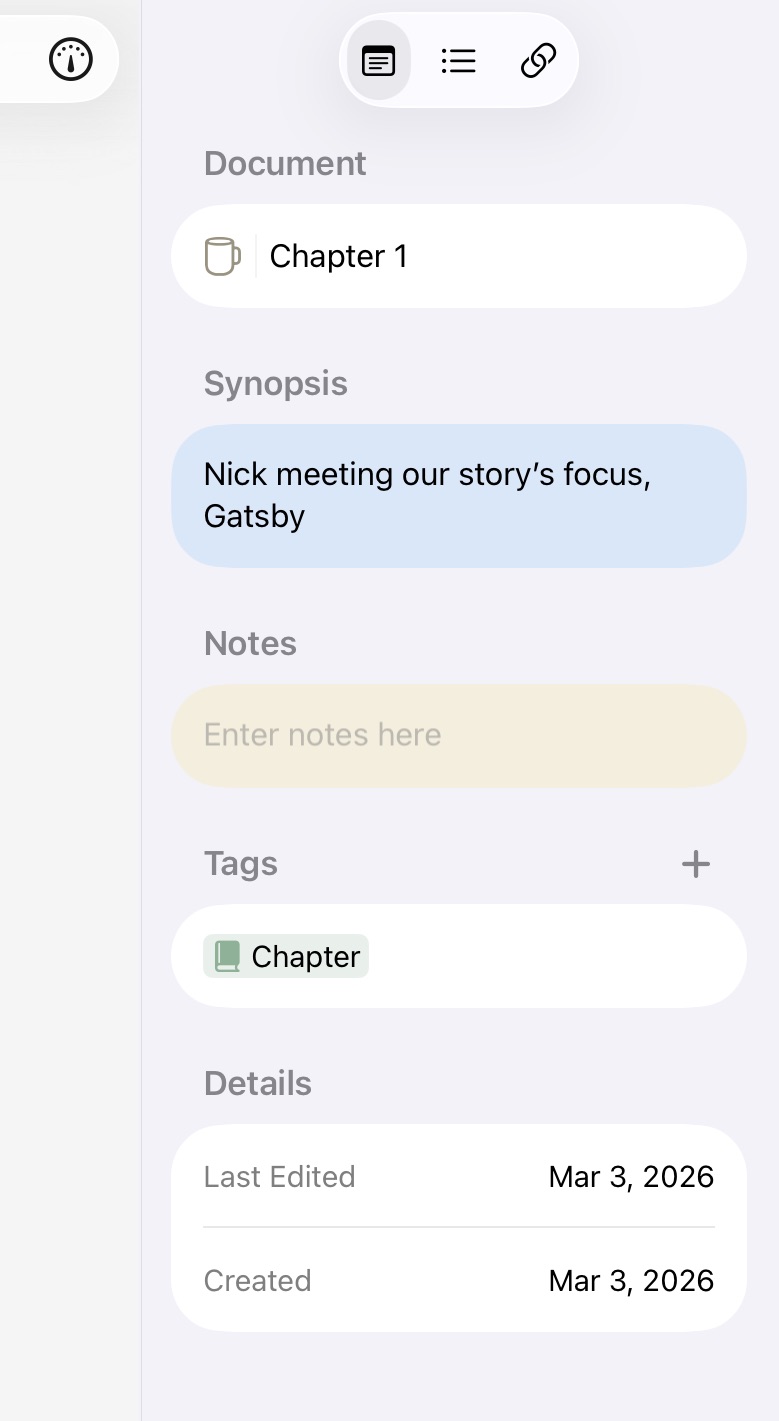
The Inspector on iPadOS
The Inspector is a panel alongside the editor that reveals document metadata, writing statistics, and connections. Its contents adapt based on the type of document you're viewing. It is represented by a guage icon .
Tip
You can show or hide the Inspector at any time from View > Show/Hide Inspector (Cmd+Option+I) on macOS and on iPad/iPhone running iOS 26 or later.
Folders and Multiple Documents
Opening a folder, or selecting more than one document — in the Folder Outline View or while reading continuously — switches the Inspector to a combined view. For a multi-document selection, it's titled with the count (such as 3 Documents) and lists the set under a collapsible Selected Documents header — tap it to expand or collapse the list — showing the tags and metadata shared across the group. A folder gets the same combined Overview and Outline tabs without the document list, since there's no explicit selection to show.
The Outline tab works the same way it does for a single document (see below), but combines every document it applies to: Statistics are summed and averaged across the whole set, and the heading outline is one flat, merged list in reading order rather than grouped per document. Tap any heading to open its document and jump straight to it. A folder's Inspector offers only Overview and Outline — the Attachments tab isn't shown, since links and media are tracked per document rather than per folder.
Overview
The Overview tab is available for all document types and contains:
Synopsis
A brief summary of your document. The synopsis is visible in the Folder Outline View (when the synopsis toggle is on) and on Canvas cards set to synopsis display mode, making it useful for chapter summaries and at-a-glance project overviews.
Tip
Use the synopsis as your "elevator pitch" for each document — a sentence or two that captures its purpose.
Notes
A longer-form metadata field for tracking context, revision reminders, research notes, or anything that shouldn't appear in the main text. Notes are separate from the document body — they don't appear in the editor or in exported output.
Tags
Assign and manage tags for the current document. Tags are displayed in a flowing layout with their custom colors. See Metadata and Tags for more on creating and using tags.
Metadata
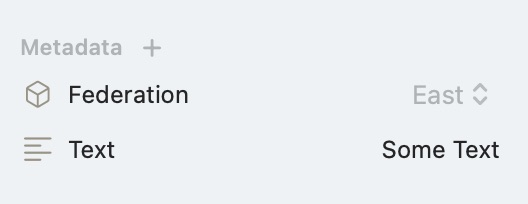
Metadata set in the Inspector on macOS
Typed fields defined in Project Settings. The Metadata section sits directly below Tags and shows any fields that have been attached to this document. Use the + button to add a field from the project's definitions — the picker lists only fields not already present. Each field type has its own editor: text, number, and selection use inline controls; date and date & time use a date picker; list fields use a chip editor; and boolean fields use a toggle. Hover over a field on macOS (or swipe on iOS) to reveal the remove button.
See Metadata and Tags for details on defining fields in Project Settings.
URL
For a web page document, an editable URL field lets you repoint it without opening the browser — commit a new address and an already-open view of the document reloads to match.
Details
Shows the Last Edited and Created dates for the document. Both dates are tappable — tap to open a date picker and adjust them.
Outline
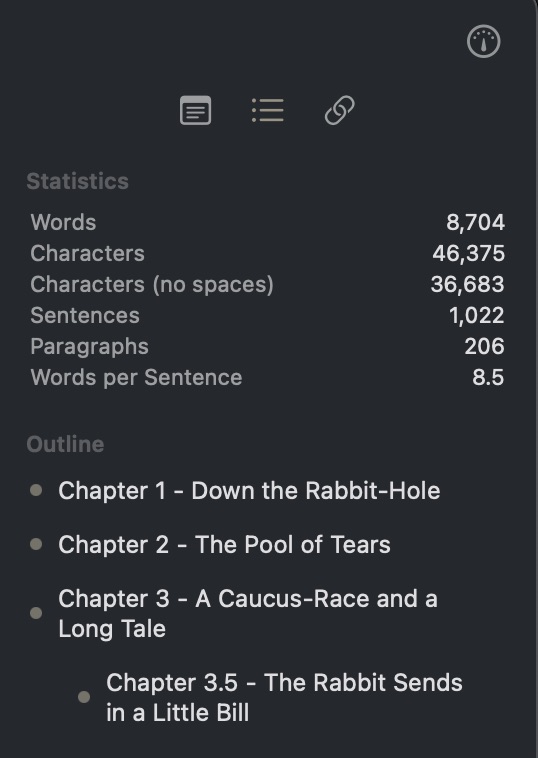
The Inspector Outline on macOS
The Outline tab is available for text documents and contains four sections.
Statistics
Live-updating writing metrics that refresh as you type:
| Metric | Description |
|---|---|
| Words | Total word count |
| Characters | Total character count including spaces |
| Characters (no spaces) | Character count excluding spaces |
| Sentences | Total sentence count |
| Paragraphs | Total paragraph count |
| Words per Sentence | Average words per sentence (one decimal place) |
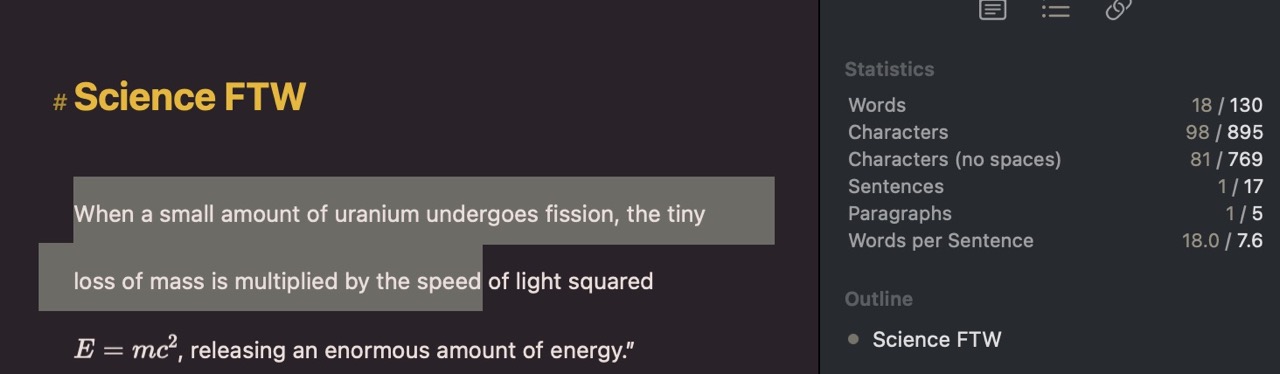
The Inspector with a selection word count on macOS
When text is selected in the editor, the statistics update to reflect only the selected range — useful for checking the word count of a specific section or passage.
Tip
Words per sentence is a quick readability indicator — lower averages generally mean more accessible prose.
Outline
A hierarchical view of all headings in your document (H1 through H6), indented by level. Tap any heading to jump directly to that section in the editor.
Consistent heading structure makes the outline more useful for navigation — treat it like a living table of contents.
Annotations
All annotations in the document, showing the annotated text and a preview of the comment. Tap any entry to navigate to the annotation in the editor. See Annotations and Footnotes for details on creating them.
Footnotes
All footnotes in the document with numbered entries and a content preview. Tap any entry to navigate to the footnote in the editor.
Grammar Correction
The Grammar Correction tab :atlas-grammar.checker: is available for text documents. It checks your writing on your device with Apple Intelligence and lists grammar and spelling suggestions you can apply or ignore. Tap a suggestion to jump to it in the editor. On iPhone, the Inspector opens as a short sheet on this tab so you can keep writing above it.
See Grammar Checker for requirements, supported languages, and how to read corrections.
Attachments
The Attachments tab shows the connections between your document and other content:
Links
All outgoing links in the document — both internal document links and external URLs. Selecting a link scrolls to its location in the editor. Right-click (Mac) or long-press (iPad/iPhone) on a link entry to open a context menu where you can open the link's source directly from the Inspector.
Media
All embedded media in the document, with thumbnail previews. Tap an entry to scroll to its location in the editor.
Incoming Links
Documents that link to the current one, forming a bidirectional knowledge graph. Tap any entry to open the referring document.
Info
Incoming links update automatically as you add and remove links throughout your project.
Referenced By
Canvases and documents that include the current document as an embedded item or canvas card. Tap to open the referring document.
Canvas Items
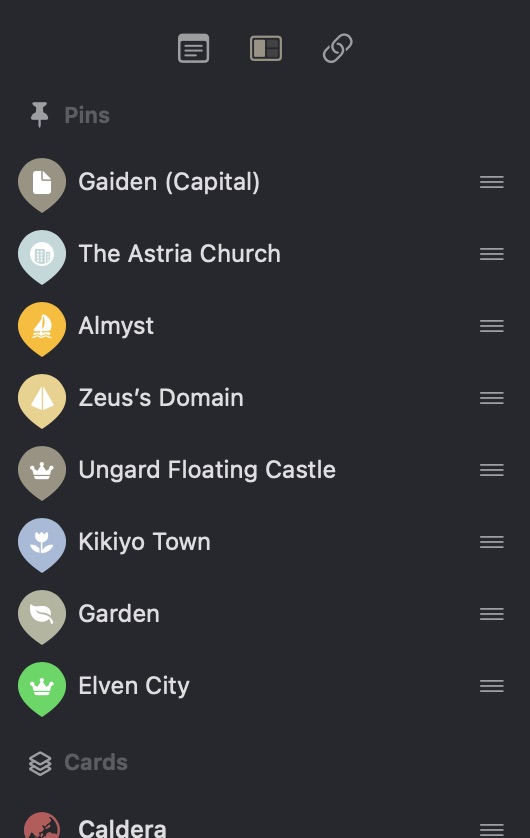
A Inspector showing the Canvas Section on macOS
When viewing a canvas document, the Inspector includes an Items tab showing all items grouped into three sections:
- Pins — All pin markers on the canvas, with their shape, icon, and title
- Cards — All document reference cards, folders, and text blocks
- Groups — All groups on the canvas
Pins and cards that sit inside a group show a small dot in the group's color, so you can see at a glance where each item belongs. Select any item to navigate to it on the canvas. Items can be reordered via drag-and-drop and show a lock badge when locked.
Media Details
When viewing a media document, the Inspector includes a Media Details tab showing file metadata: file type, dimensions, aspect ratio, file size, and date added.
See Also
- Writing with Markdown — Headings create the document outline
- Annotations and Footnotes — Creating annotations and footnotes
- Linking — How links and incoming links work
- Grammar Checker — Private, on-device grammar and spelling suggestions