Create a Custom ePub Style
An ePub Export Style controls how your writing looks as an eBook. Like an HTML style, an ePub style is a plain CSS stylesheet — but eBooks bring their own rules: content is paginated by the reader, book metadata lives outside your markup, and readers can override your fonts. This guide covers the workflow, the selectors Atlas emits, the pagination properties eReaders honor, and the shape of the package Atlas produces.
Info
ePub and HTML styles are both plain CSS. PDF styles use a JSON configuration instead — see PDF Style Reference. Because eBook readers let people change fonts and sizes on their end, treat your style as the default experience rather than the final word. If you're formatting a web page, see the sibling guide, Create a Custom HTML Style.
Customize a Style
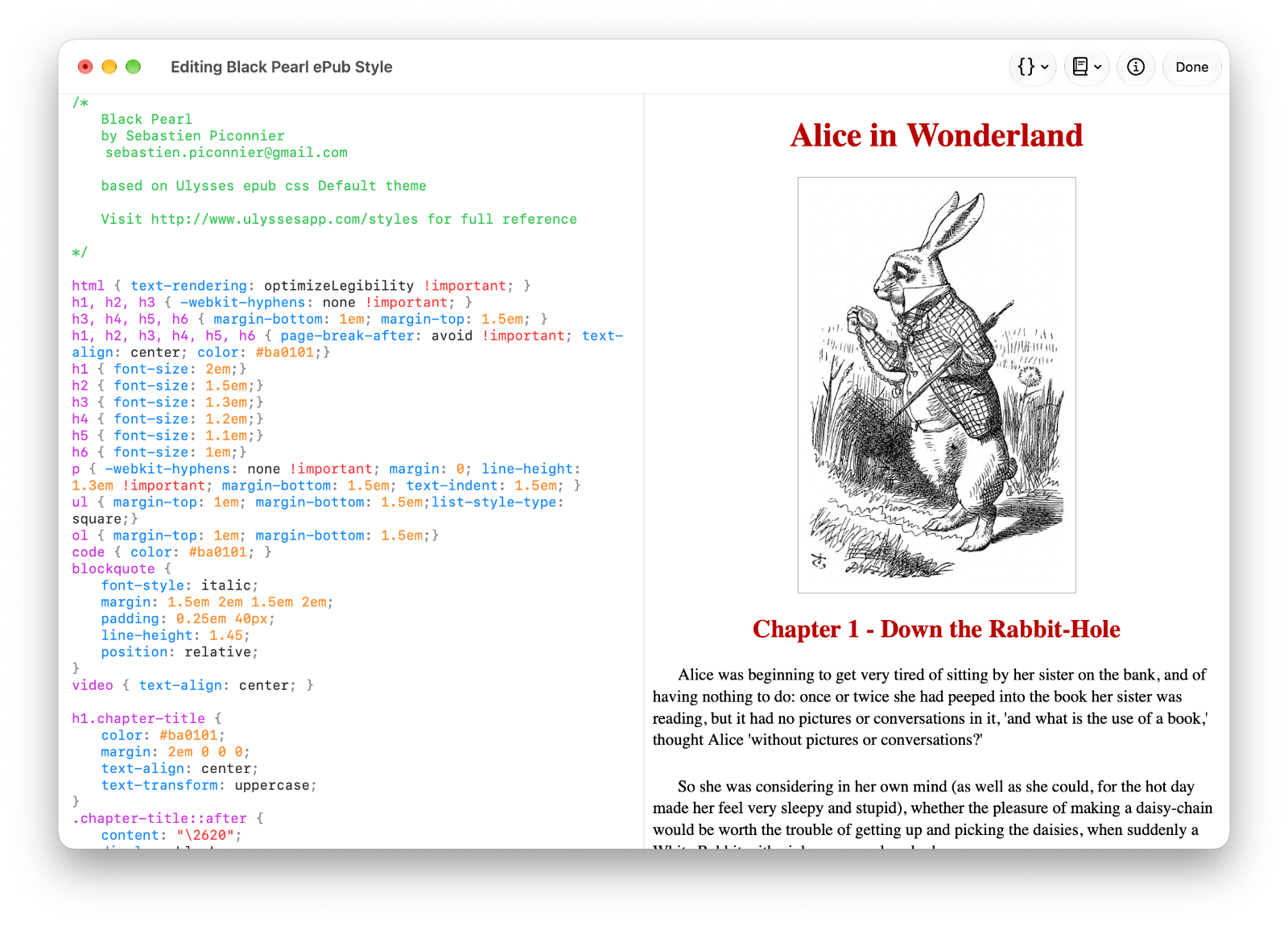
ePub Export Style Editor editing a Ulysses imported theme by Sebastien Piconnier
Atlas has a built-in style editor, and it works the same for ePub as for HTML. You start from an existing style, since each built-in is a complete, tested stylesheet.
Open the editor. Go to the Export Styles screen — Settings > Export Styles on iPhone and iPad, Settings > Export on Mac — and select the ePub tab. Open a style's menu (long-press the card on iPhone or iPad, right-click it on Mac) and choose:
- Duplicate and Customize… on a built-in style (Standard, Serif, Sans, or Black Pearl). Built-ins are locked, so Atlas makes an editable copy named
<name> Copyand opens it. - Customize on a style you already own, to edit it in place.
Edit the CSS with a live preview. The editor has two panes: your stylesheet with live syntax highlighting on one side, a live preview on the other. The Insert tool drops an empty rule for any selector Atlas emits — including the ePub-only nav[epub|type="toc"] — and Example (Mac toolbar) or Replace Example (iOS overflow menu) swaps the preview between Elements Showcase, Technical Document, and Alice in Wonderland so you can test against real long-form prose. Style Info sets the Name and Author.
Save. Choose Done to update the style. Closing with unsaved changes prompts you first.
Edit in Your Own Text Editor
Prefer to work in your own editor? An ePub style exports and re-imports as a file:
- Open the style's menu and choose Export. Atlas writes a
.cssfile named after the style. On Mac, Export saves it to a location you pick; hold Option and the item becomes Share to use the share sheet instead. On iPhone and iPad, Export opens the share sheet. -
Open the
.cssin your editor. Leave the header comment in place — itsformat: epubline is what routes the file back to the ePub tab on import:/* @atlas-style name: Serif Copy author: description: format: epub */ -
Edit the CSS below the header, then choose Import in Atlas and pick your file. It returns to the ePub tab, and the screen switches to that tab automatically.
Tip
Importing a file creates a new style rather than overwriting the original, so after a round-trip you'll usually want to delete the earlier copy.
Selectors Atlas Emits
Atlas emits clean, semantic XHTML for each chapter and links it to your stylesheet. You style standard tags, plus a few hooks for eBook-specific structure.
| Selector | What it targets |
|---|---|
h1–h6 |
Headings. Atlas treats the first h1 in a document as that chapter's title. |
p |
Body paragraphs. |
blockquote, blockquote p |
Blockquotes and their inner paragraphs. |
ul, ol, li, li > p |
Lists. |
code, pre, pre code |
Inline and fenced code. |
a |
Links. |
img |
Block-level images. |
img.inline |
Small images that flow inline with text, tagged automatically by size. |
img.small, img.medium, img.large |
Block images sized Small, Medium, or Large in the editor's image Resize menu. |
hr |
Horizontal rules in your markdown. |
table, thead, tbody, th, td |
Tables. |
.chapter-break |
Wrapper on the second and later chapters. Use it to force a page break or a special opening on every chapter after the first. |
hr.atlas-doc-separator |
The rule between documents when several flow into one chapter. Carries data-doc-index="N". |
nav[epub\|type="toc"] |
The ePub table-of-contents navigation document. |
Pagination Properties
eReaders paginate for you, but they honor a handful of CSS properties that let you control where breaks fall. These are the defaults the built-in ePub styles use — override or extend them freely:
.chapter-break         { page-break-before: always; }
h1, h2, h3, h4, h5, h6 { page-break-after: avoid; }
p                      { orphans: 2; widows: 2; }
pre, table, img        { page-break-inside: avoid; }
What You Can't Style
A few things sit outside your stylesheet:
- Book title and author — written to the ePub's
content.opfmetadata (from the title and author fields in the export sheet), not into chapter markup. Readers show them through their own library UI, so selectors like.titlewon't reach them. For a visible title page inside the book, put a document at the top of your folder whose firsth1is the title, and style that opening. - The cover page — Atlas generates a fixed, minimal cover page around your cover image. The artwork is the cover; the surrounding page is intentionally unstyled.
- Reader font preferences — most eReaders let people override your fonts and sizes. Design for a good default, not a guarantee.
How Do I…
Force a new page between chapters
Every chapter after the first is wrapped in .chapter-break, so:
.chapter-break { page-break-before: always; }
.chapter-break h1 {
    margin-top: 4em;
    text-align: center;
    font-weight: bold;
}
Indent paragraphs like a printed book
p {
    text-indent: 1.25em;
    margin: 0;
}
p:first-of-type,
h1 + p, h2 + p, h3 + p {
    text-indent: 0;
}
Removing the indent from the first paragraph of each chapter or section is the small detail that separates a stylesheet from real book design.
Keep widows and orphans in check
p { orphans: 2; widows: 2; }
No single line of a paragraph stranded alone at the top or bottom of a page.
Keep figures and code blocks intact
pre, table, img, blockquote { page-break-inside: avoid; }
Add a drop cap to the first paragraph
p:first-of-type::first-letter {
    font-size: 3em;
    line-height: 0.8;
    float: left;
    margin: 0.1em 0.1em 0 0;
    font-weight: bold;
}
Treat inline and block images differently
img          { display: block; margin: 1em auto; max-width: 100%; }
img.inline   { display: inline; vertical-align: middle; max-width: 2em; }
The ePub Package
When Atlas exports an ePub, it produces a standard ePub 3 package. Knowing the layout helps if you want to inspect or debug a file — an .epub is a ZIP archive you can unzip.
mimetype                        (stored, uncompressed: "application/epub+zip")
META-INF/
  container.xml                 (points at OEBPS/content.opf)
OEBPS/
  content.opf                   (package manifest, spine, metadata)
  toc.xhtml                     (navigation document, <nav epub:type="toc">)
  styles/
    style.css                   (your Export Style)
  content/
    chapter-1.xhtml
    chapter-2.xhtml
    ...
    cover.xhtml                 (only if a cover image was selected)
  images/
    cover.[ext]                 (only if a cover image was selected)
    image-1.jpg
    ...
Every chapter file follows this shape:
<?xml version="1.0" encoding="UTF-8"?>
<!DOCTYPE html>
<html xmlns="http://www.w3.org/1999/xhtml"
      xmlns:epub="http://www.idpf.org/2007/ops"
      lang="en" xml:lang="en">
<head>
    <meta charset="UTF-8"/>
    <title>Chapter Title</title>
    <link rel="stylesheet" type="text/css" href="../styles/style.css"/>
</head>
<body>
    <div class="chapter-break">   <!-- only on chapters 2+ -->
        <!-- rendered markdown content -->
    </div>
</body>
</html>
The first chapter omits the .chapter-break wrapper so it opens cleanly; every later chapter is wrapped, which is what makes .chapter-break { page-break-before: always; } behave as a chapter boundary. Atlas builds the table of contents automatically from the documents in your folder when you export with a chapter per document. See Exporting an ePub for the chapter mode setting.
Import a Ulysses ePub Style
Have an ePub style in Ulysses? Atlas reads Ulysses .ulstyle files directly — an ePub CSS theme imports faithfully into the ePub tab, ready to duplicate and edit. See Importing a Ulysses Export Style for the full walkthrough.
Tip
ePub rendering varies between readers. Before you rely on a custom style, spot-check your export in Apple Books and a second reader like Calibre or Thorium. Custom fonts, drop caps, and decorative flourishes are the most likely things to differ.
See Also
- Custom Export Styles — Import, duplicate, export, and sync styles
- Create a Custom HTML Style — The web-page equivalent, sharing most of the same CSS
- Exporting an ePub — Metadata, chapter modes, footnote placement, and annotations
- PDF Style Reference — JSON configuration for PDF Export Styles
- Exporting Your Work — The export sheet and all available formats