Create a Custom HTML Style
An HTML Export Style controls how your writing looks when you export it as a web page. Under the hood, an HTML style is a plain CSS stylesheet, so if you can edit CSS, you can shape every part of the output: fonts, colors, spacing, tables, images, and more.
This guide walks you from a built-in style to a finished custom one, then collects the selectors Atlas gives you and a set of recipes for common changes.
Info
HTML and ePub styles are plain CSS. PDF styles are different — they use a structured JSON configuration instead of a stylesheet. If you're formatting a PDF, see PDF Style Reference. For eBooks, see the sibling guide, Create a Custom ePub Style.
Customize a Style
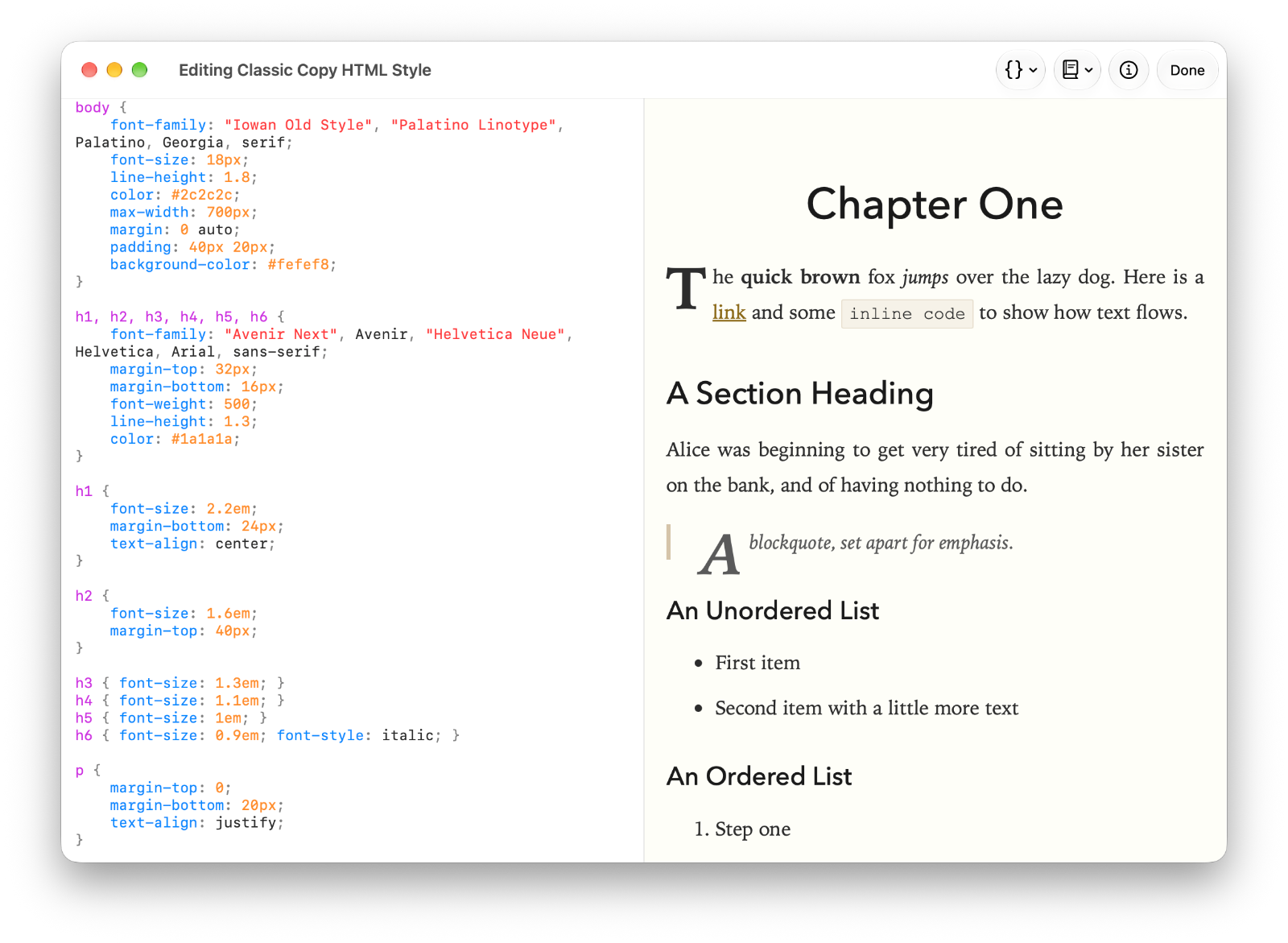
The HTML HTML Export Style Editor.
Atlas has a built-in style editor, so you can shape a style without leaving the app. You start from an existing style, because every built-in is a complete, tested stylesheet worth learning from.
Open the editor. Go to the Export Styles screen — Settings > Export Styles on iPhone and iPad, Settings > Export on Mac — and select the HTML tab. Open a style's menu (tap the card on iPhone or iPad, right-click it on Mac) and choose:
- Duplicate and Customize… on a built-in style. Built-ins are locked, so Atlas makes an editable copy named
<name> Copyand opens it. - Customize on a style you already own, to edit it in place.
Edit the CSS with a live preview. The editor has two panes: your stylesheet on one side with live syntax highlighting, and a live preview of the rendered result on the other. As you type, the preview reruns so you watch each change land.
A few tools speed things up:
- Insert (the toolbar on Mac, the overflow menu on iPhone and iPad) drops an empty rule for any selector Atlas emits, grouped by Text, Lists, Code, Media, Tables, and Structure — a quick way to target the right tag without memorizing it.
- Example (Mac toolbar) or Replace Example (iOS overflow menu) swaps the preview's sample content between Elements Showcase, Technical Document, and Alice in Wonderland, so you can test your style against short, code-heavy, and long-form writing.
- Style Info sets the style's Name and Author.
Save. Choose Done to update the style. Closing with unsaved changes prompts you first.
Edit in Your Own Text Editor
Prefer VS Code, BBEdit, or another editor? You can work on a style as a file instead:
- Open the style's menu and choose Export. Atlas writes a
.cssfile named after the style. On Mac, Export saves it to a location you pick; hold Option and the item becomes Share, sending it through the share sheet instead. On iPhone and iPad, Export opens the share sheet. -
Open the
.cssin your editor. At the top is a header comment Atlas uses to remember the style's identity — leave it in place:/* @atlas-style name: Classic Copy author: description: format: html */ -
Edit the CSS below the header, then return to Atlas, choose Import, and pick your file. It lands in the HTML tab.
Tip
Importing a file creates a new style rather than overwriting the one you exported, so after a round-trip you'll usually want to delete the older copy. Built-in styles can't be deleted; any custom style can, from its menu — Atlas asks you to confirm first.
What Atlas Gives Your CSS
Atlas emits clean, semantic HTML from your markdown and links each page to your stylesheet. There are almost no bespoke wrappers — you style standard tags, and a small set of hooks covers the layout-sensitive cases.
| Selector | What it targets |
|---|---|
h1–h6 |
Headings. h1 is typically the document or chapter title. |
p |
Body paragraphs. |
blockquote, blockquote p |
Blockquotes and their inner paragraphs. |
ul, ol, li, li > p |
Unordered and ordered lists. |
code |
Inline code. |
pre, pre code |
Fenced code blocks. |
a |
Links. |
img |
Block-level images (figures). |
img.inline |
Small images that flow inline with text. Atlas tags these automatically based on size. |
img.small, img.medium, img.large |
Block images sized Small, Medium, or Large in the editor's image Resize menu. |
hr |
Horizontal rules you write in your markdown. |
table, thead, tbody, th, td |
Tables. Column alignment is written as an inline text-align on each cell. |
hr.atlas-doc-separator |
The rule Atlas inserts between documents in a continuous folder export. Carries a data-doc-index="N" attribute so you can target a specific separator. |
.chapter-break |
A wrapper on the second and later documents in a continuous export. Use it to force page breaks or special openings. |
For the full table structure Atlas emits, see Tables.
How Do I…
These recipes assume you started from a built-in style. Drop them into your .css and adjust the numbers.
Indent every paragraph except the first
The traditional book look — no space between paragraphs, each one indented but the first after a heading:
p {
    text-indent: 1.25em;
    margin-bottom: 0;
}
p:first-of-type,
h1 + p, h2 + p, h3 + p {
    text-indent: 0;
}
Change the body font and page width
The built-in styles center the text in a readable column. Widen or narrow it, and swap the family, on the body:
body {
    font-family: Georgia, "Times New Roman", serif;
    font-size: 18px;
    line-height: 1.7;
    max-width: 700px;
    margin: 0 auto;
    padding: 40px 20px;
}
Size and space your headings
Headings share one rule; give each level its own size:
h1 { font-size: 2.2em; margin-bottom: 24px; }
h2 { font-size: 1.6em; margin-top: 40px; }
h3 { font-size: 1.3em; }
Justify body text
p { text-align: justify; }
Justification reads well in a narrow, serif column and poorly in a wide sans-serif one — pair it with a max-width on the body.
Style tables with zebra rows
Atlas emits thead, tbody, th, and td, so you can tint the header and stripe the data rows:
table {
    border-collapse: collapse;
    margin-bottom: 16px;
}
table th,
table td {
    padding: 6px 13px;
    border: 1px solid #dfe2e5;
}
table thead th {
    background-color: #f6f8fa;
    text-align: left;
}
table tbody tr:nth-child(2n) {
    background-color: #f6f8fa;
}
Treat inline and block images differently
Atlas tags small images with img.inline so they flow with the text; larger ones stay as blocks. Style the two apart:
img {
    display: block;
    margin: 1em auto;
    max-width: 100%;
}
img.inline {
    display: inline;
    vertical-align: middle;
    max-width: 2em;
    margin: 0 4px;
}
Style the separator between documents
When you export a folder as one continuous page, Atlas drops an hr.atlas-doc-separator between documents. Style it, or hide it for a seamless flow:
hr.atlas-doc-separator {
    border: 0;
    border-top: 1px dashed #bbb;
    margin: 4em 0;
}
Import a Ulysses HTML Style
Already have an HTML style in Ulysses? Atlas reads Ulysses .ulstyle files directly — an HTML CSS theme imports faithfully into the HTML tab, where you can duplicate and edit it just like any other. See Importing a Ulysses Export Style for the full cross-app walkthrough.
Tip
Because HTML output is just a web page, the fastest way to check your work is a browser. Export a representative document, open the file, and resize the window to see how your column, tables, and images hold up.
See Also
- Custom Export Styles — Import, duplicate, export, and sync styles
- Create a Custom ePub Style — The eBook equivalent, with pagination and package details
- PDF Style Reference — JSON configuration for PDF Export Styles
- Tables — The HTML structure Atlas emits for tables
- Exporting Your Work — The export sheet and all available formats